

Hunter X Reports
We have 2 Report types within the Hunter X platform: Risk Reports and Comprehensive Reports.
- Risk Reports: The Risk Report evaluates an organization's external security posture across domains, email security, and public-facing infrastructure. It highlights potential exposures, misconfigurations, and attack surface risks using publicly available data—without requiring agents or internal access.
- Comprehensive Reports: The Comprehensive Report provides a high-level view of an organization's external security posture and cyber risk exposure. It analyzes internet-facing assets, identifies potential vulnerabilities, and highlights corporate identities exposed in data breaches and dark web sources. The report also includes risk insights and actionable recommendations to help reduce overall security risk.
This section outlines what each report includes and when to use them.
After completing a scan of your choosing. The associated report will be available for you to review on the Prospect Management page. The Risk report can be viewed by clicking "View Dynamic Report" under the Risk Report column, and the Comprehensive report can be viewed by clicking "View Report" under the Dark Web Report column.
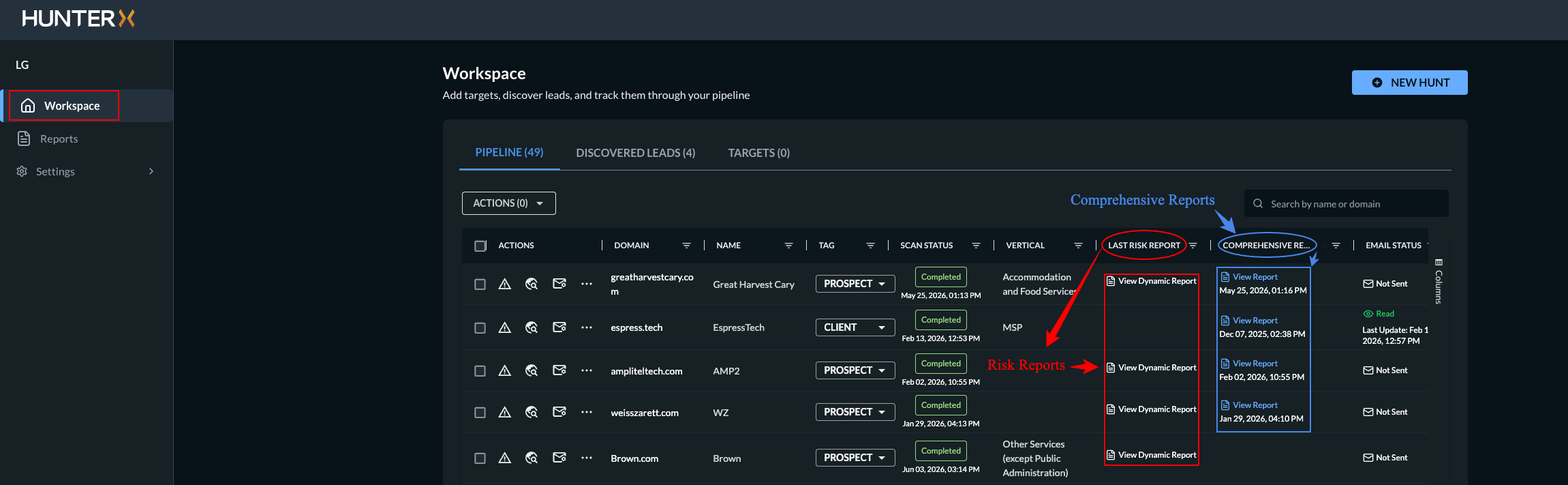
Risk Reports
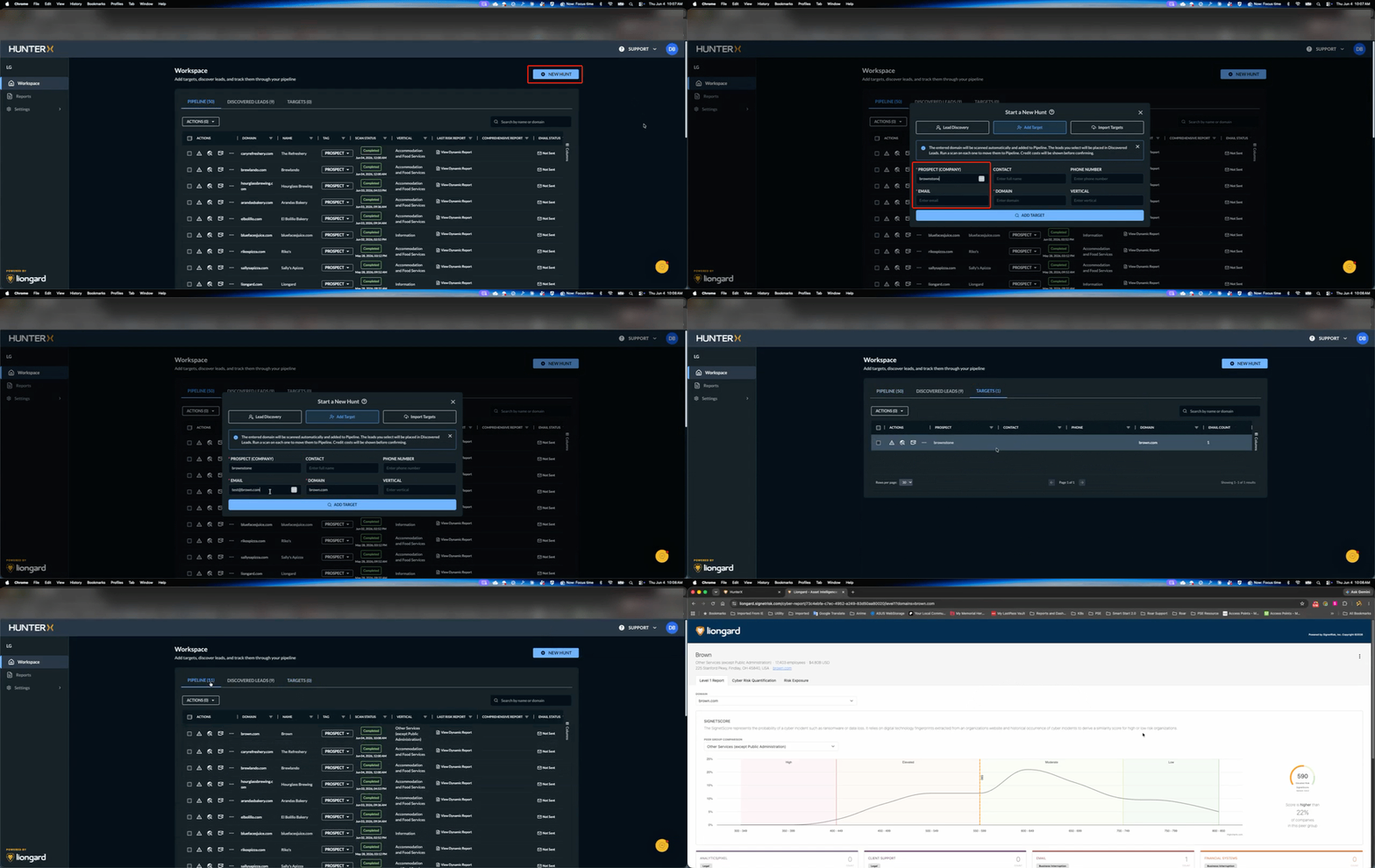
For a detailed dive into the Risk Report, click this link
Click this link for a high-level overview tour of the report.
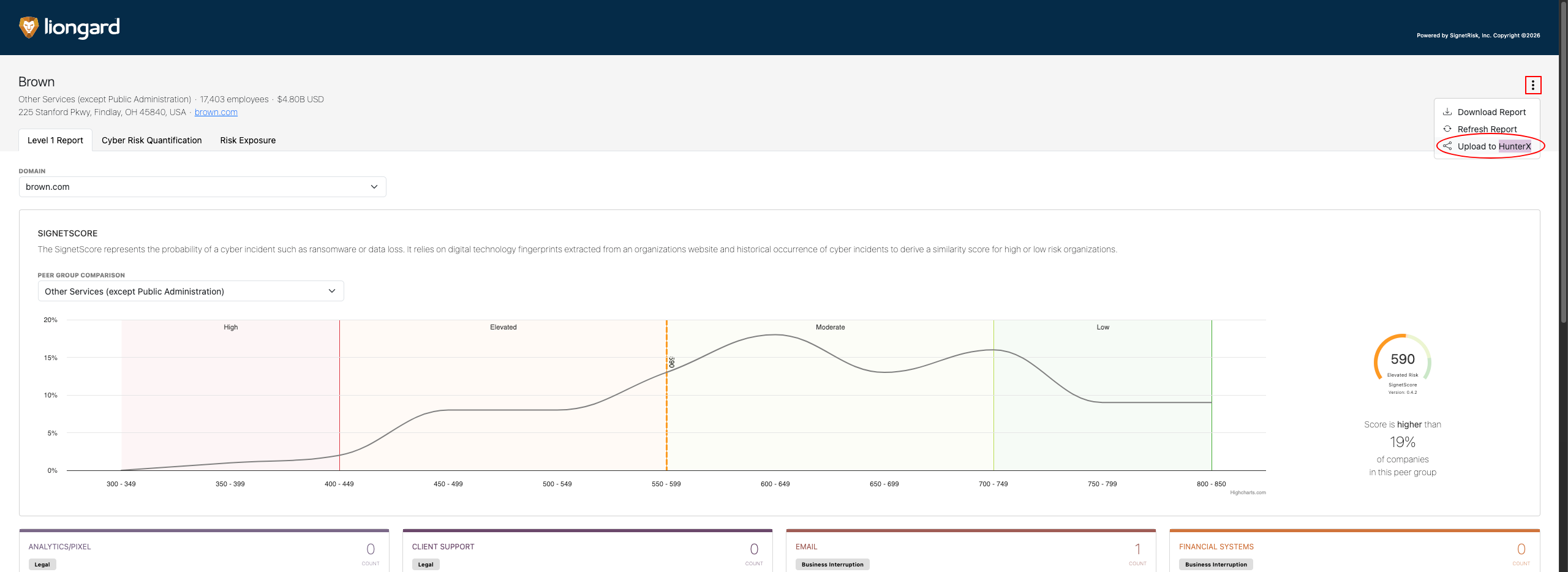
Upload to HunterX
You can upload your Risk report to HunterX
-
Click the menu icon located at the upper right side of the report.
-
Click Upload to HunterX.
Comprehensive Report
A Comprehensive Scan gives you the most complete security assessment, including technical and dark web analysis.
To access a comprehensive report:
-
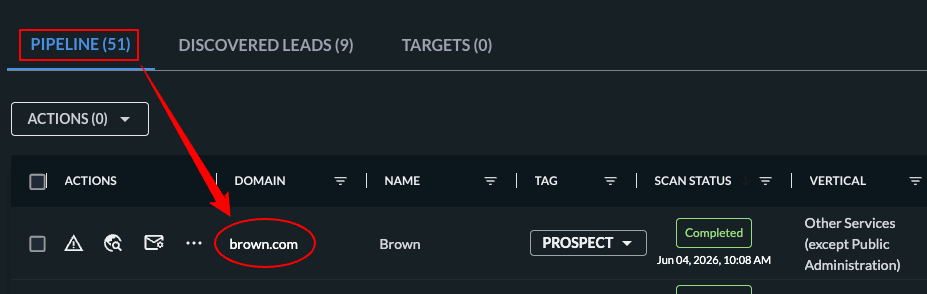
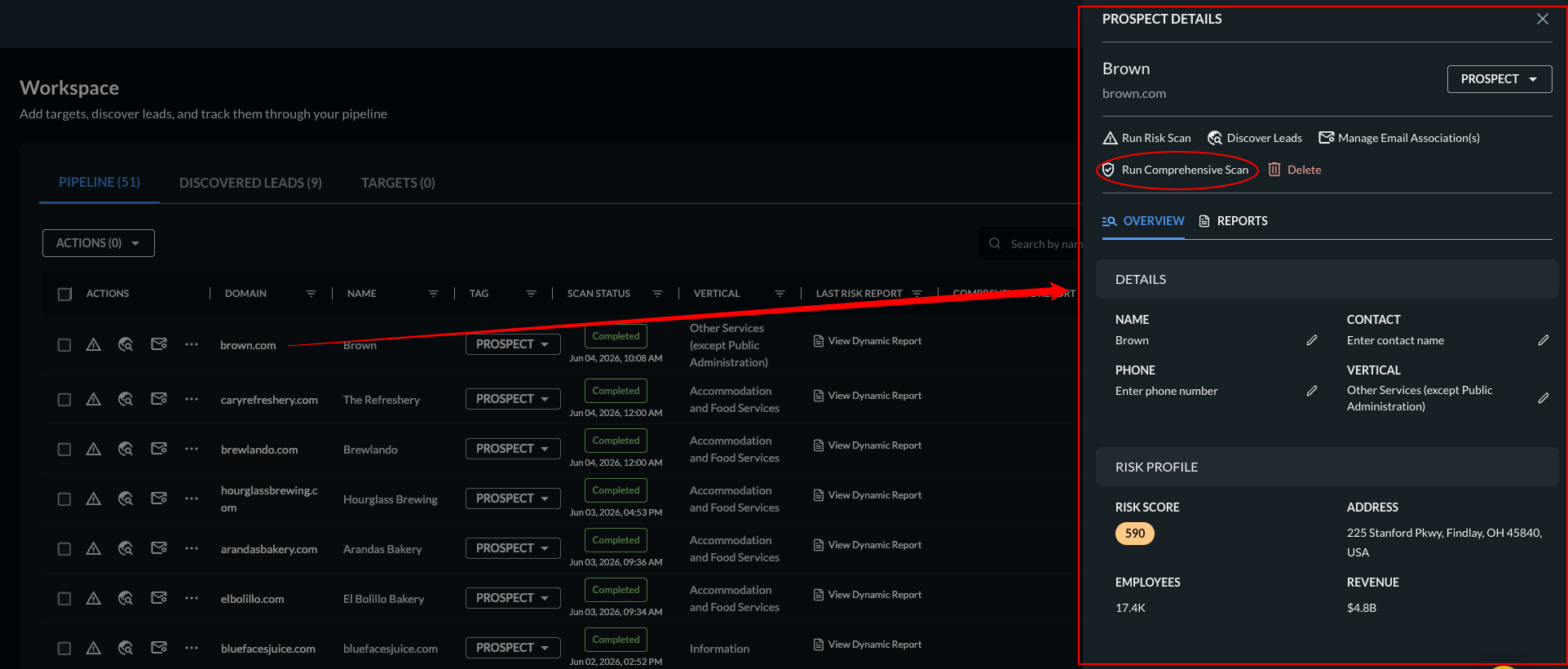
Click a domain name under the Pipeline tab.
-
Click "Run Comprehensive Scan" located in the side pop-out window.
-
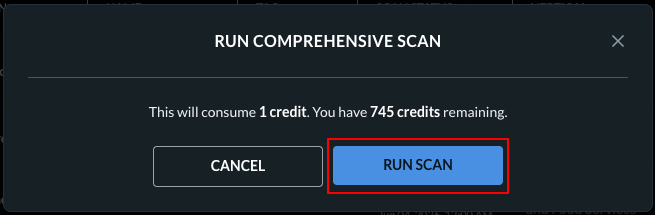
Confirm the scan. This will inform you of the credit cost and how many credits you have remaining.
-
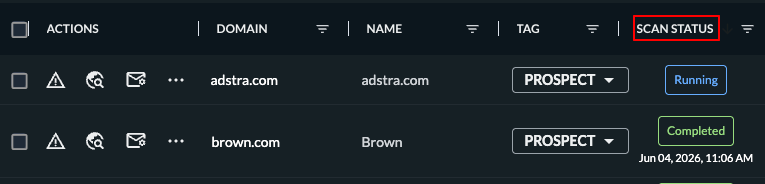
Once the Scan Status shows Completed ,your report will be ready to viewed.
-
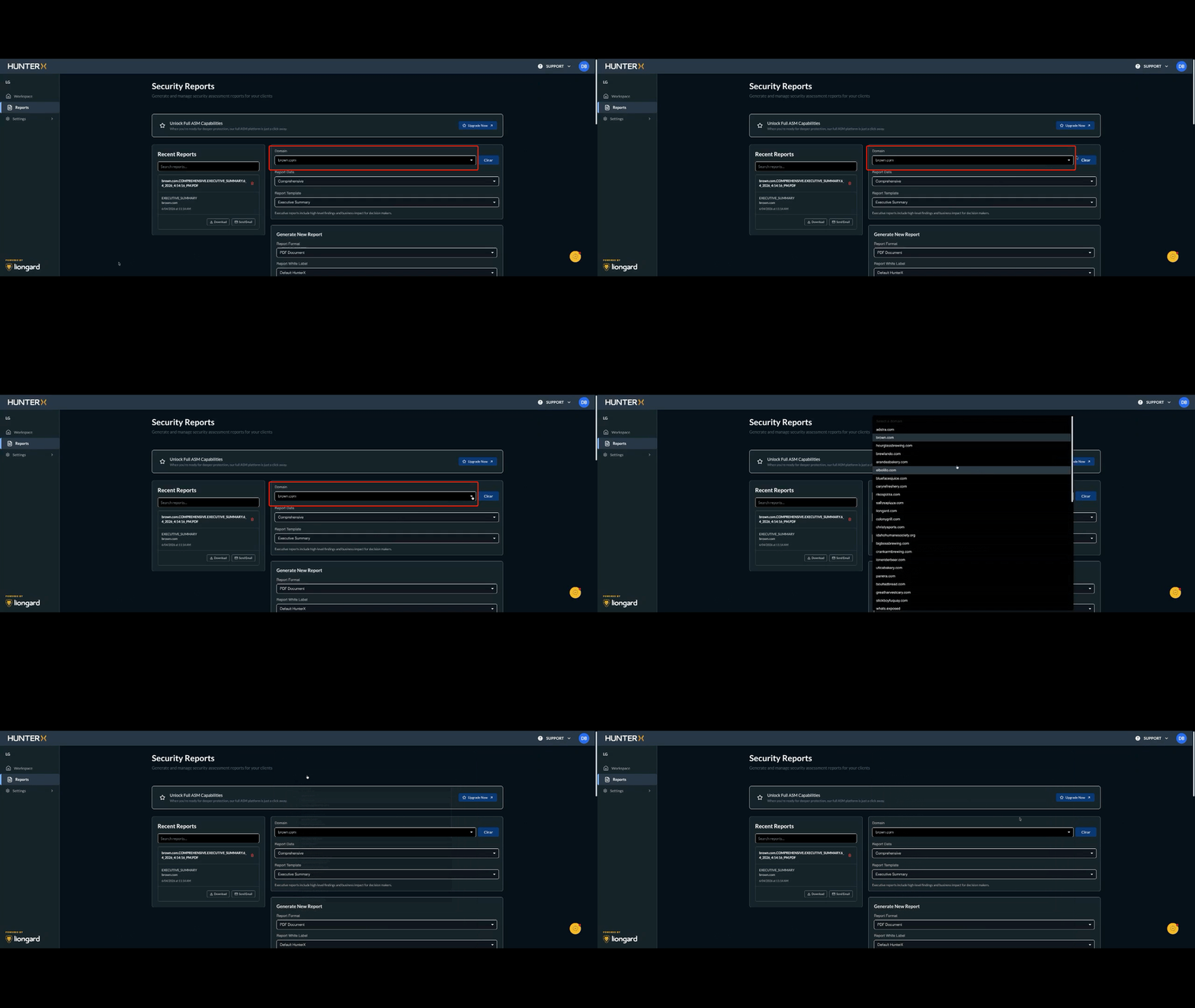
Click Reports on the left shoulder.
-
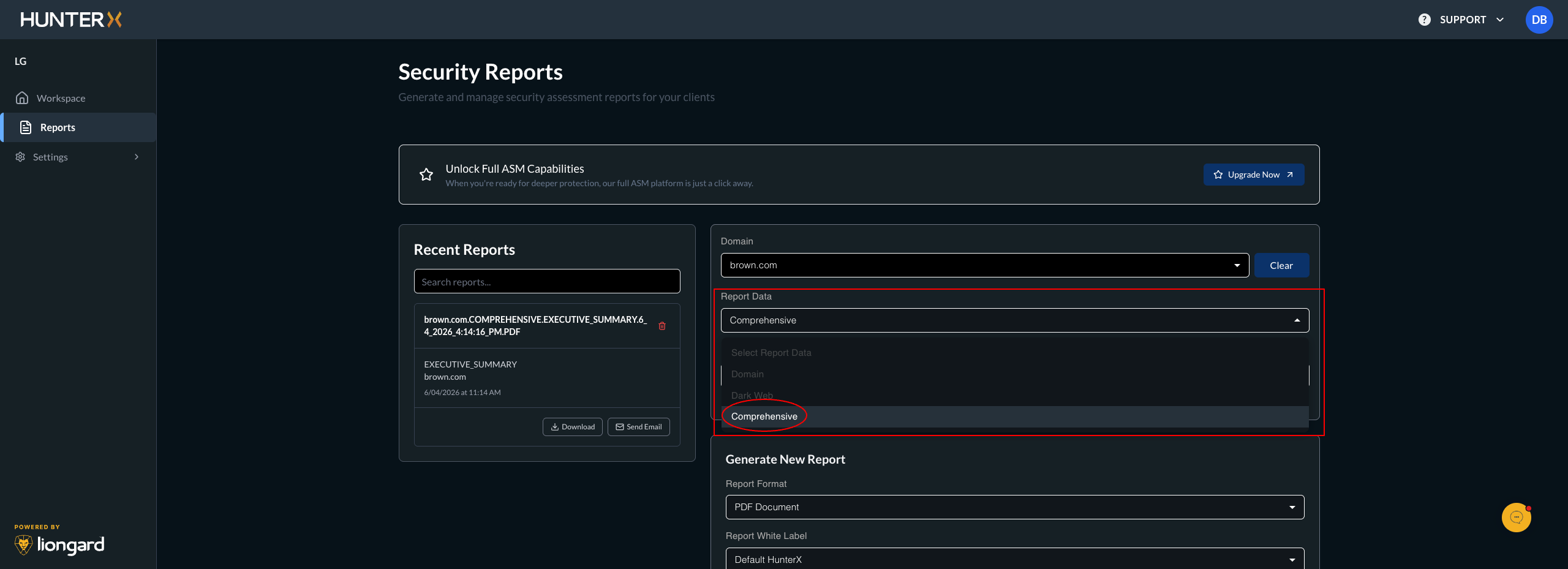
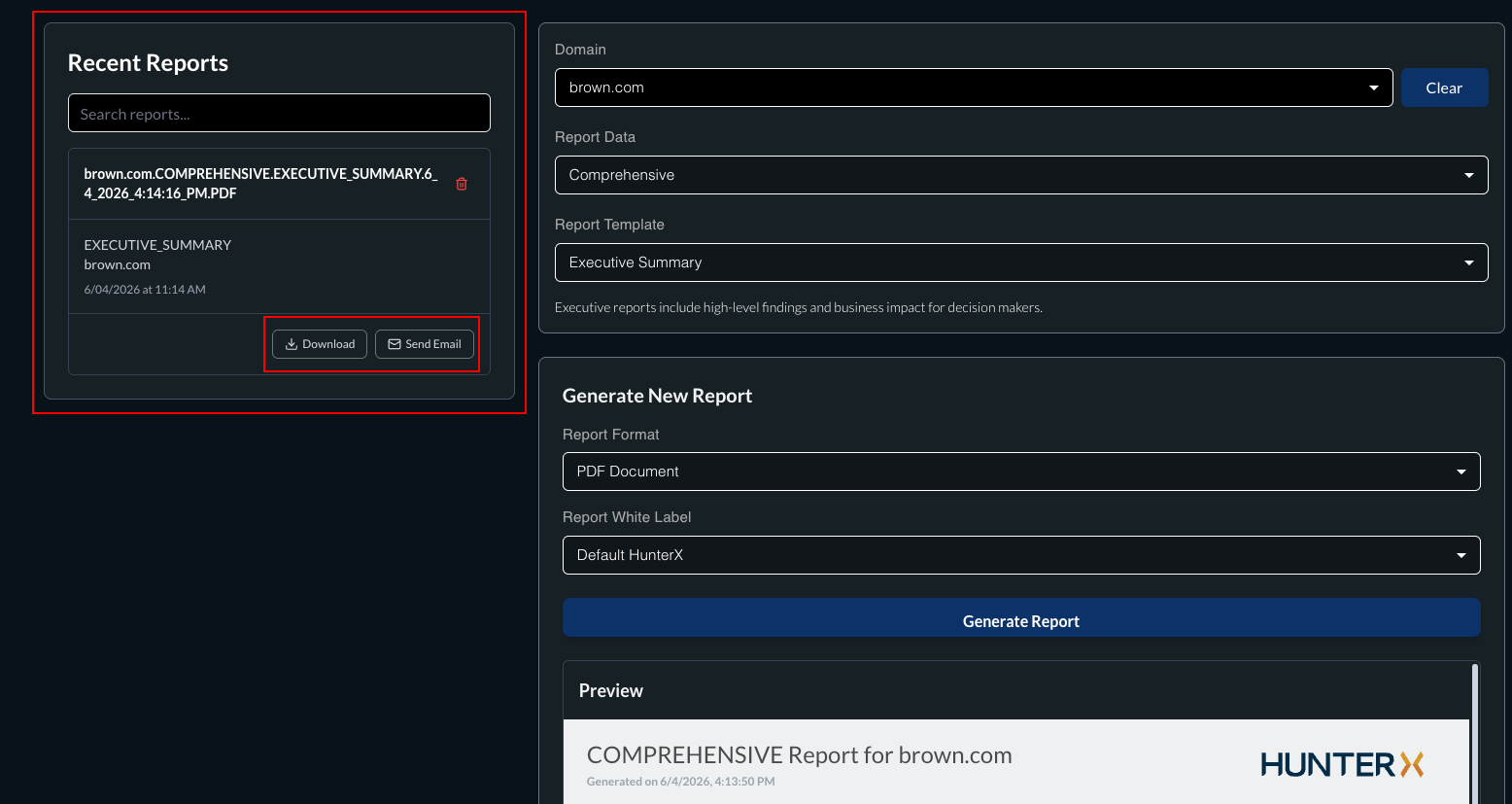
Click the Domain dropdown and select your targeted domain.
-
Choose the report type.
-
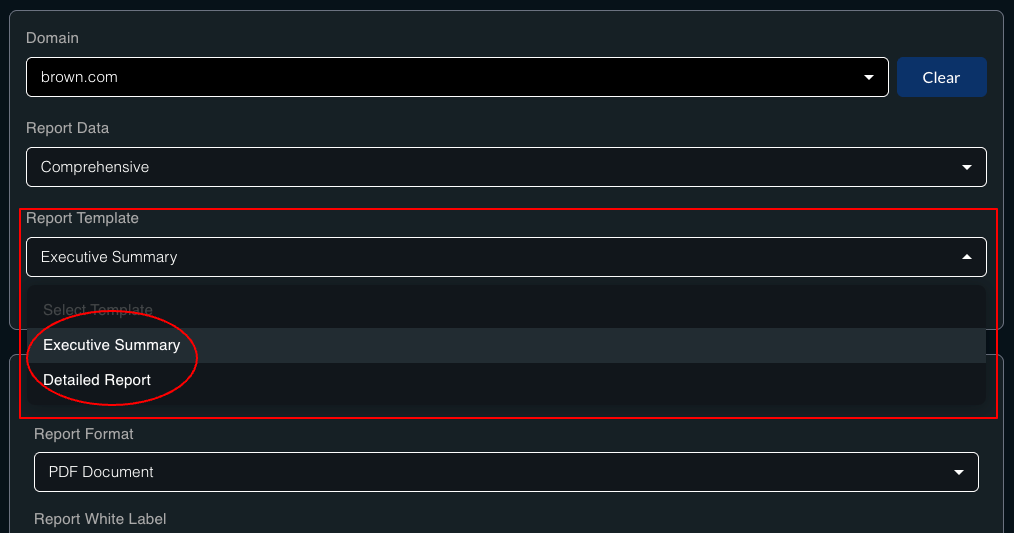
Choose the Report Template.
-
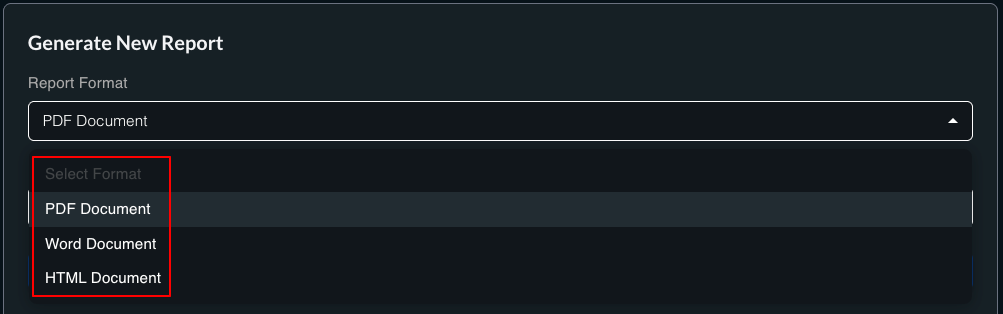
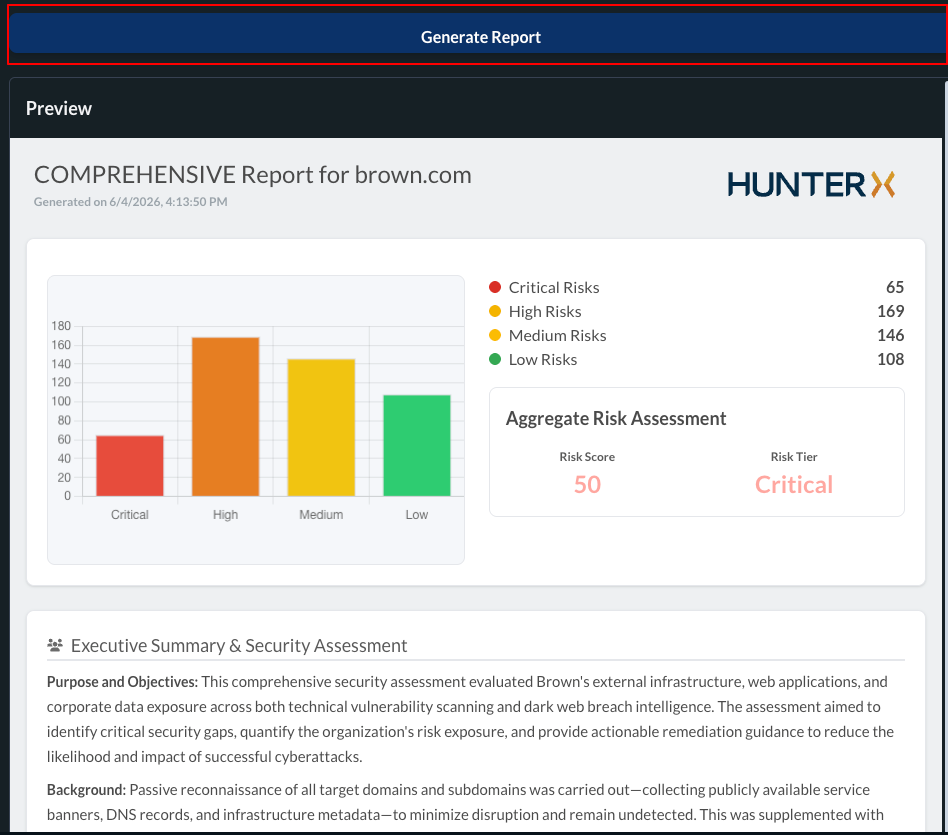
Choose the Report format that you want and click Generate Report.
-
You will see a preview of the report below.
-
You can download or email the report from the Recent Reports section.
Updated 5 months ago