

Visual Insights Pro's Halo Integration
The HaloPSA integration allows you to sync service desk data (tickets, notes, teams, and SLA targets), CRM data (clients, sites, and contact history), asset data (configuration items and asset fields), project data (status, milestones, and task completion), and financial data (invoices and charge rates).
You benefit from real-time, unified datasets and incremental synchronization, which helps maintain data integrity and removes the complexity of manual reporting. This enables your operational, financial, and executive teams to access accurate information and make informed decisions faster.
HaloPSA Connector
This is a data source connector designed to expand the content available within Visual Insights Pro. It does not replace the existing Liongard HaloPSA integration and is entirely separate from it in both setup and functionality. These are two standalone connections.
How to Connect HaloPSA to Liongard
This guide explains how to connect your HaloPSA instance to Liongard so you can sync service desk, CRM, asset, project, and financial data.
Prerequisites
Before starting the integration, make sure you have the following:
- HaloPSA Administrator Access to create an API Application
- Instance URL – Your HaloPSA URL (for example:
https://yourcompany.halopsa.com) - API Credentials – A Client ID and Client Secret generated from HaloPSA
Setup Instructions
Follow the steps below to create the API application in HaloPSA and connect it to Liongard.
Step 1: Create an API Application in HaloPSA
- Log in to HaloPSA.
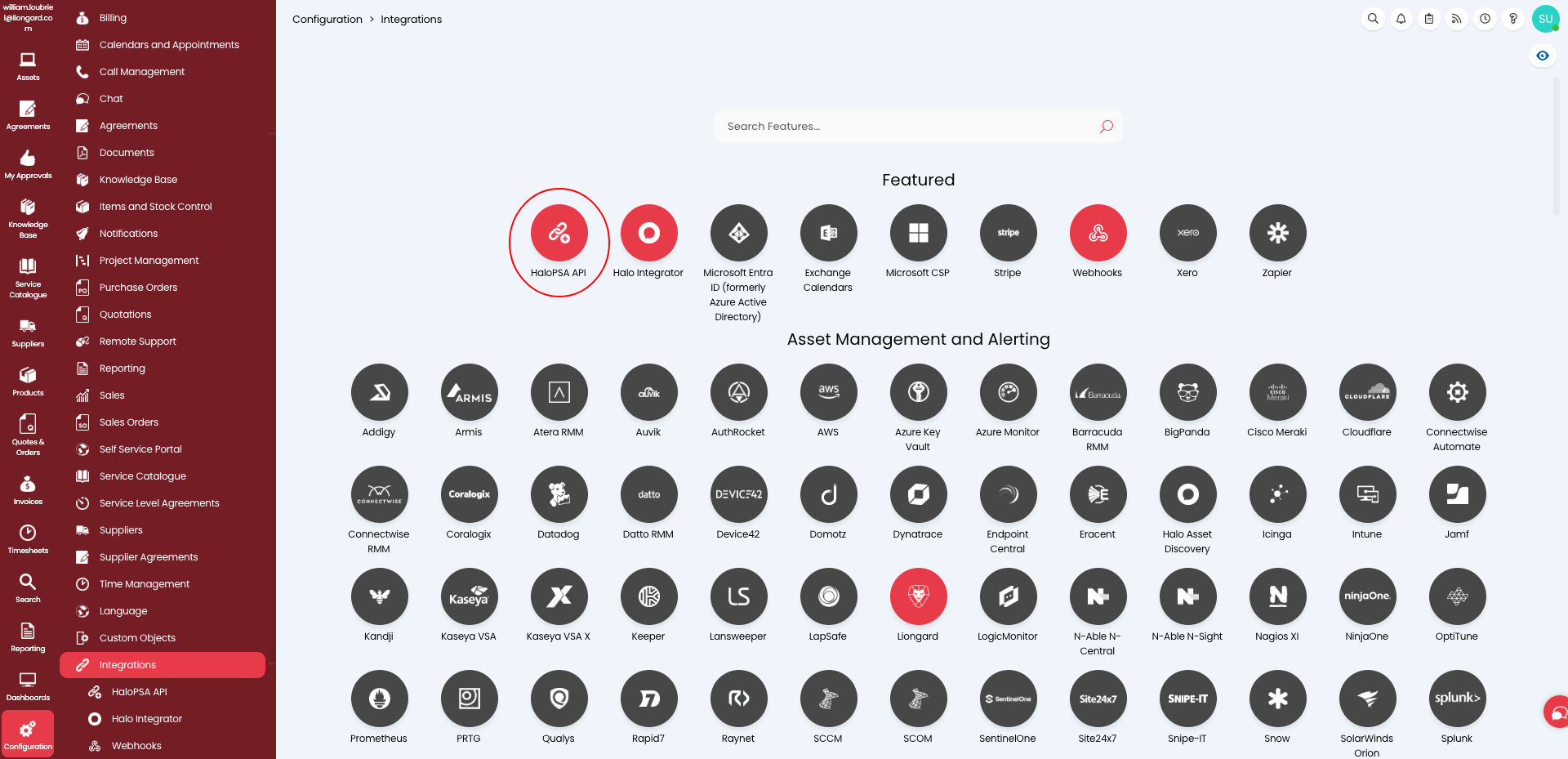
- Navigate to Configuration → Integrations → HaloPSA API.
-
- Click View Applications.
- Click New to create a new API application.
-
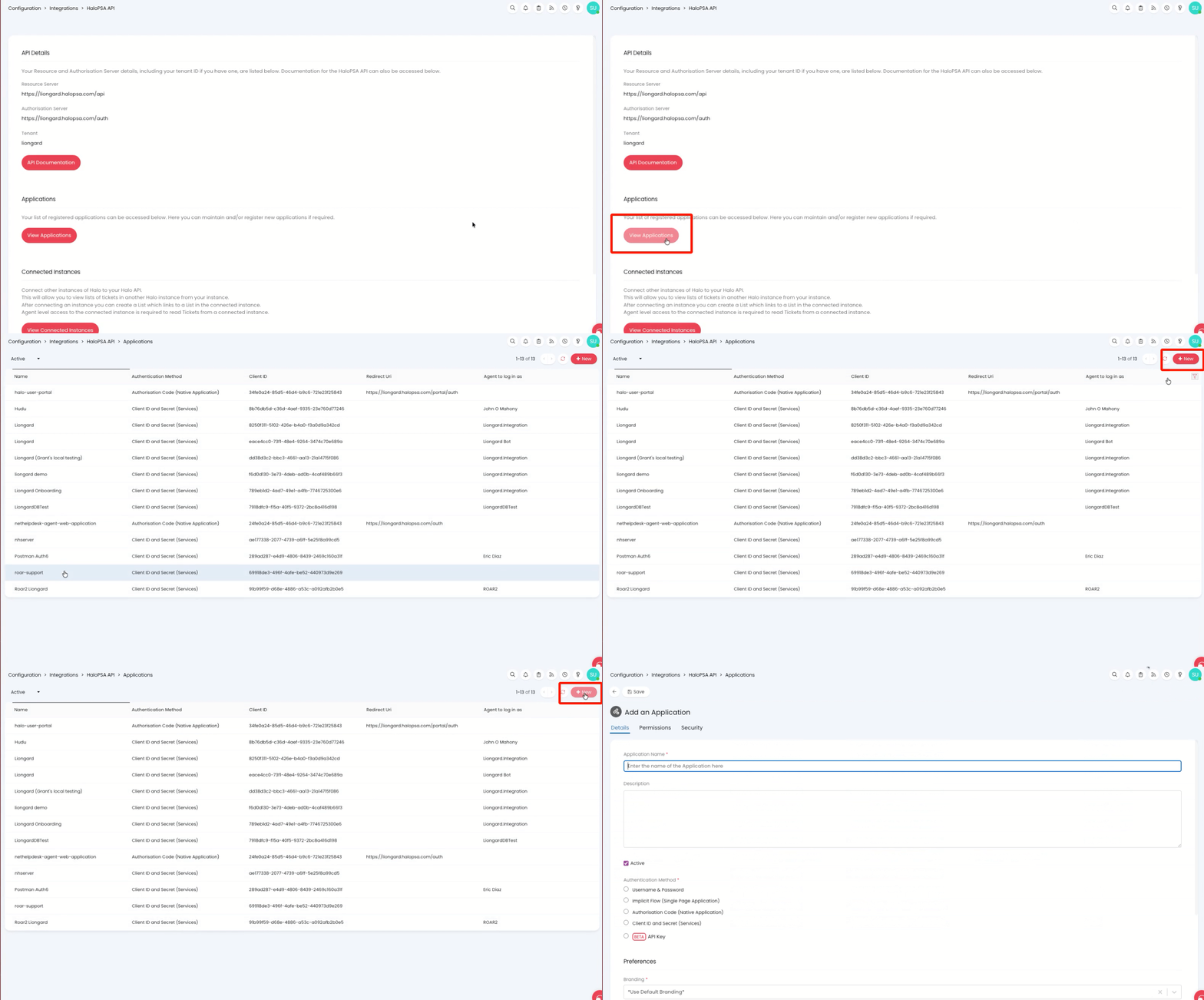
Fill in the following details:
- Application Name: Liongard
- Authentication Method: Client ID and Secret
- Copy and document your Client ID and Secret. ⚠️ Important:
Your Client Secret is sensitive information. Store it securely and avoid sharing it publicly. - Login Type: Agent (If you already have an integration with Liongard, you can use your existing agent)
- To create an agent, follow these steps: Create a Liongard Agent
- Open the Permissions tab.
- Click the Read: checkbox for access to the following areas:
- Tickets
- Customers
- Assets
- Projects
- Invoices
- Click Save.
Step 2: Connect HaloPSA in Liongard
- Log in to Liongard.
- Navigate to Data Settings → Integrations.
- Locate the HaloPSA integration card.
- Click Connect.
- Enter the following information:
- Instance URL
- Client ID
- Client Secret
- Click Test Connection to verify the integration.
If the test is successful, HaloPSA will be connected and ready to sync data with Liongard.
Sync behavior and refresh rates
HaloPSA supports incremental sync, so only records that changed since the last refresh are pulled.
Updated 8 months ago