

Unifi Cloud (Beta)
Quick DetailsRecommended Agent: On-Demand
Supported Agents: On-Demand and Self-Managed
Is Auto-Discovered By: N/A
Can Auto-Discover: Unifi Cloud Child Inspectors (one per Organization)
Parent/Child Type Inspector: Yes
Inspected via: API
Default Frequency: Every 6 hours. (max every 1 hour)
Data Summary: Unifi Cloud Inspector Summary
Overview
The UniFi Cloud Inspector gives you a centralized view of your entire Ubiquiti UniFi environment from within Liongard. With a single connection to the UniFi Site Manager cloud API, Liongard automatically discovers every managed UniFi site and collects data from both UniFi Network and UniFi Protect—no per-site credentials or manual setup required.
The inspector continuously inventories and monitors your UniFi infrastructure, including:
- Network devices (gateways, switches, access points, and more)
- Connected clients and wireless networks
- VLANs, firewall policies, ACLs, and DNS configuration
- VPNs, WAN interfaces, and RADIUS profiles
- UniFi Protect devices, including NVRs, cameras, sensors, lights, viewers, and chimes
- Device health, firmware versions, and performance telemetry
In addition to inventory data, the inspector helps you quickly identify operational and security issues by monitoring:
- Offline or unhealthy devices
- Outdated firmware
- Pending device adoption
- Configuration changes across sites
- Camera and video stream health
- Sensor battery levels and environmental status
By consolidating your UniFi networking and physical security infrastructure into a single, continuously updated inventory, the UniFi Cloud Inspector helps you maintain visibility, simplify audits, detect configuration drift, and proactively manage every UniFi deployment from a single place.
Inspector Setup Preparation
Prerequisites:Before configuring the UniFi Cloud Inspector, ensure you have the following:
Access to the Liongard platform.
A Liongard Agent installed on a Windows or Linux machine with network access to:
https://api.ui.com(required for the parent launchpoint)- Your local UniFi controller (required for manual/local child launchpoints)
A UniFi (ui.com) account with API access.
The appropriate API keys:
- Site Manager API Key (required for the parent launchpoint). Generate this from UniFi Site Manager > Account Menu > API Keys. Auto-discovered child launchpoints inherit this key automatically.
- Network API Key (required only for manual/local UniFi Network child launchpoints). Generate this in the UniFi Network application under Settings > Control Plane > Integrations > API Keys.
- Protect API Key (required only for manual/local UniFi Protect child launchpoints). Generate this in the UniFi Protect application under Settings > Control Plane > Integrations > API Keys.
Network connectivity from the Liongard Agent to:
- Parent launchpoint:
https://api.ui.com- Manual/local child launchpoints: Your UniFi controller's HTTPS endpoint.
Note: If your on-premises UniFi controller uses a self-signed SSL certificate, enable
IGNORE_TLS=trueon the affected child launchpoint.
Inspector Setup Instructions
Generate a Site Manager API Key
The Site Manager API Key is required to authenticate the UniFi Cloud Inspector parent launchpoint. Generate the key in UniFi Site Manager, then copy it into the Site Manager API Key field when configuring the launchpoint.
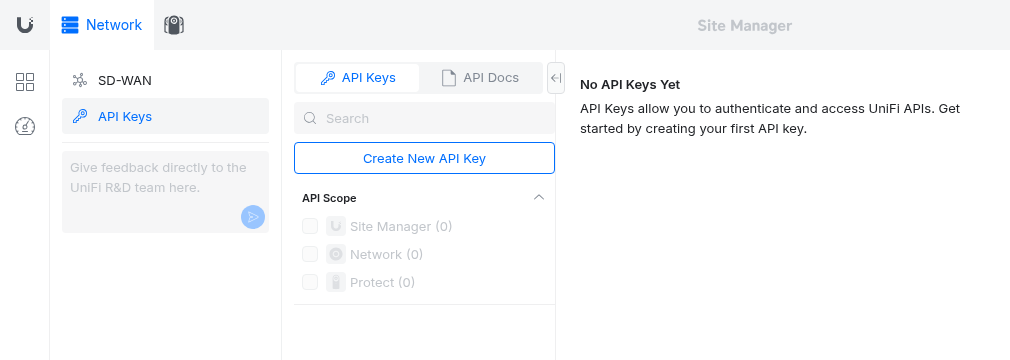
Step 1: Open the API Keys Page
-
Sign in to UniFi Site Manager at https://unifi.ui.com.
-
Open your Settings.
-
Select API Keys.
-
Click Create New API Key.
Step 2: Create the API Key
-
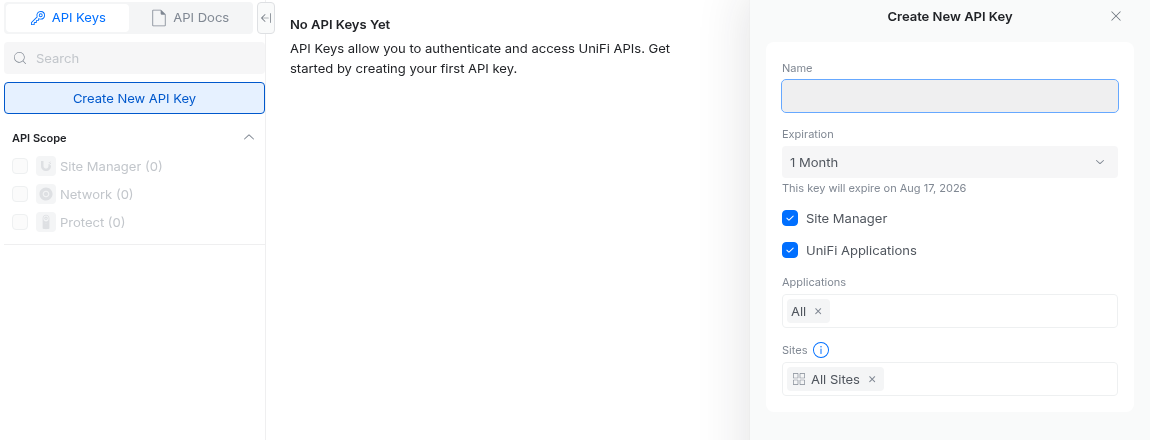
Enter a descriptive name for the API key.
-
Select an expiration date based on your organization's security policy.
-
Ensure the Site Manager scope is enabled.
-
Click Create.
Step 3: Copy the API Key
After the key is created:
- Copy the Site Manager API Key.
- Paste it into the Site Manager API Key field when configuring the UniFi Cloud Inspector parent launchpoint.
Important: The API key is displayed only once. Store it securely before closing the dialog. If you lose the key, you'll need to generate a new one.
Configure the Unifi Cloud Inspector in Liongard
- Log in to the Liongard platform.
- In Liongard, navigate to Admin > Inspectors > Inspector Types > Navigate to the Unifi Cloud Inspector > Select Add System.
Since the Unifi Cloud Inspectors are multi-tenant systems where a single portal can be used to manage many Environments, you will set up a single "Parent" Inspector that will then auto-discover "Child" Inspectors for each Environment.
Fill in the following information:
- Type of Inspector: Parent
- Environment: Select your MSP's Environment
- Friendly Name: Suggested Naming: [Customer Name] Unifi Cloud Parent
- Agent: Select On-Demand Agent
- Inspector Version: Latest
- Mode: Internal 'parent' for the Site Manager launchpoint, 'child' for an auto-discovered Network or Protect launchpoint. Set automatically by discovery — do not edit.
- Site Manager API Key: API key generated at https://unifi.ui.com → Settings → API. Used by the parent inspection to enumerate hosts, sites, and devices, and to emit Network/Protect child launchpoints.
- Site Manager Base URL (advanced): Site Manager API base URL. Only https://api.ui.com is supported in production — leave it at the default unless Liongard support has directed you otherwise. The runtime guard rejects any other host (an UNIFI_ALLOW_INSECURE_SM_HOST=1 env override exists for local tests only and is not honored in production).
- Site Include Filter (advanced): Optional comma-separated allow-list of site IDs or names. When set, only matching sites emit Network/Protect child discoveries. Leave blank to discover every site the API key can see.
- Site Exclude Filter (advanced): Optional comma-separated deny-list of site IDs or names. Excludes win over includes when both match the same site.
- Enable ISP Metrics: Toggle on to pull per-site ISP health metrics from the Site Manager GA endpoint (/v1/isp-metrics/{type}). Safe to leave off for accounts without ISP entitlement — 403/404 responses are tolerated and flip Statuses.Features.ISPMetrics to false without failing the inspection.
- ISP Metrics Aggregation Window: Aggregation window for the ISP metrics endpoint. Only used when ISP Metrics are enabled. '5m' matches the prior Early Access endpoint's 5-minute buckets (default, near-real-time). '1h' returns hourly rollups — use for long-window dashboards where the 5-minute resolution isn't needed.
- Enable SD-WAN Config Inventory: Toggle on to pull SD-WAN configs from the Site Manager API (/v1/sd-wan-configs). SD-WAN is account-tier-gated (Network Premium / Business / Enterprise); enable this only for accounts entitled to SD-WAN — accounts without the entitlement will answer 403 on every SD-WAN URL. 403/404 responses are tolerated when enabled and flip Statuses.Features.SDWAN to false without failing the inspection.
- Scheduling: The Inspector will default to run once a day at the time the Inspector is set up. Here you can adjust the schedule
- Select Save. The Inspector will now be triggered to run within the minute.
Child Inspector Setup
After the first run of the Parent Inspector, your client Unifi organizations will be auto-discovered in the Discovered Systems tab on the Inspectors > Appropriate Unifi Cloud Inspector page.
- Activate or Archive your Discovered Systems by ensuring that they're mapped to the correct Environment > Check the checkbox to the left of Inspector(s) > Select the Actions drop-down menu > Activate Launchpoints
- Click Save.
Updated 3 months ago