

Asset Inventory Relating: Devices & Identities
Asset Inventory: User & Device Relationships
Overview
The Asset Inventory feature allows you to relate users and devices, giving you a clear and comprehensive view of how assets are connected across your organization.
With this feature, you can assign, manage, and review device ownership and usage more efficiently. While this version does not include automated actions, it establishes the foundation for future automation and advanced asset management capabilities.
Feature Highlights
-
User-Device Relationship Mapping
You can create clear relationships between users and their assigned devices. -
Streamlined Asset Management
You can simplify inventory tracking by leveraging relational insights. -
Improved Visibility
You can easily view and understand how users and devices are connected. -
Efficient Management
You can reduce administrative overhead by managing asset relationships in one place. -
Scalable Foundation
You benefit from a framework designed to support future automation and advanced features.
How to Use
Currently, you can manually define relationships only between Identities and Devices through an intuitive interface.
-
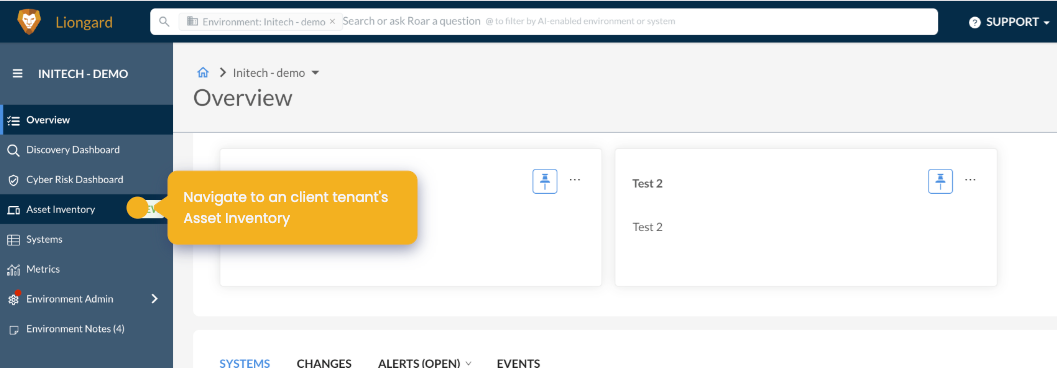
Click on an environment's name from anywhere within the platform.
-
Open the Asset Inventory feature.
-
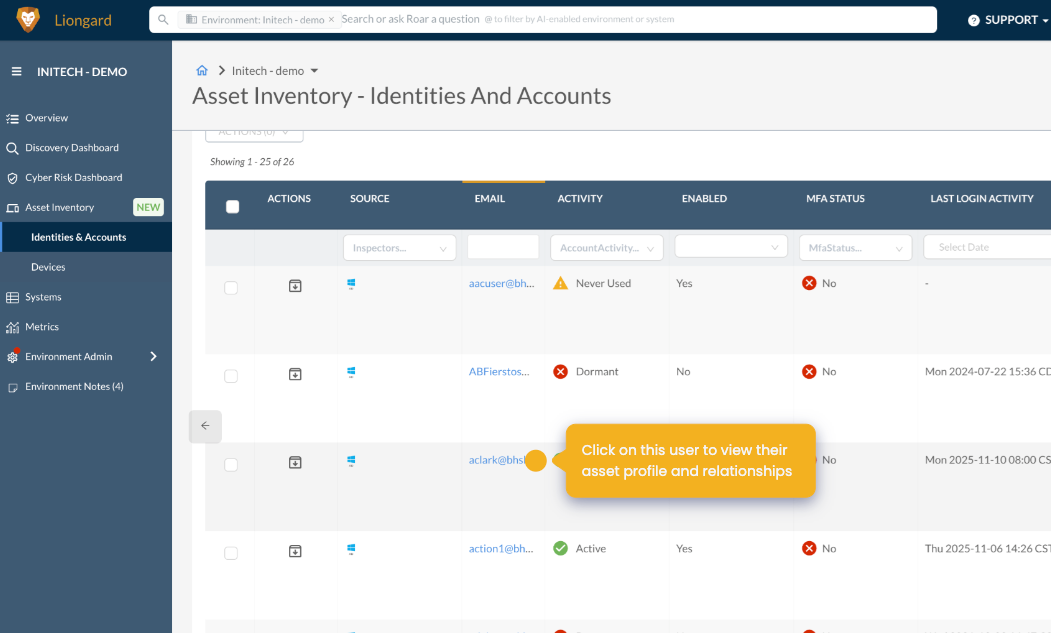
Select a user or device.
-
Use the available modal to set, modify, or remove relationships
-
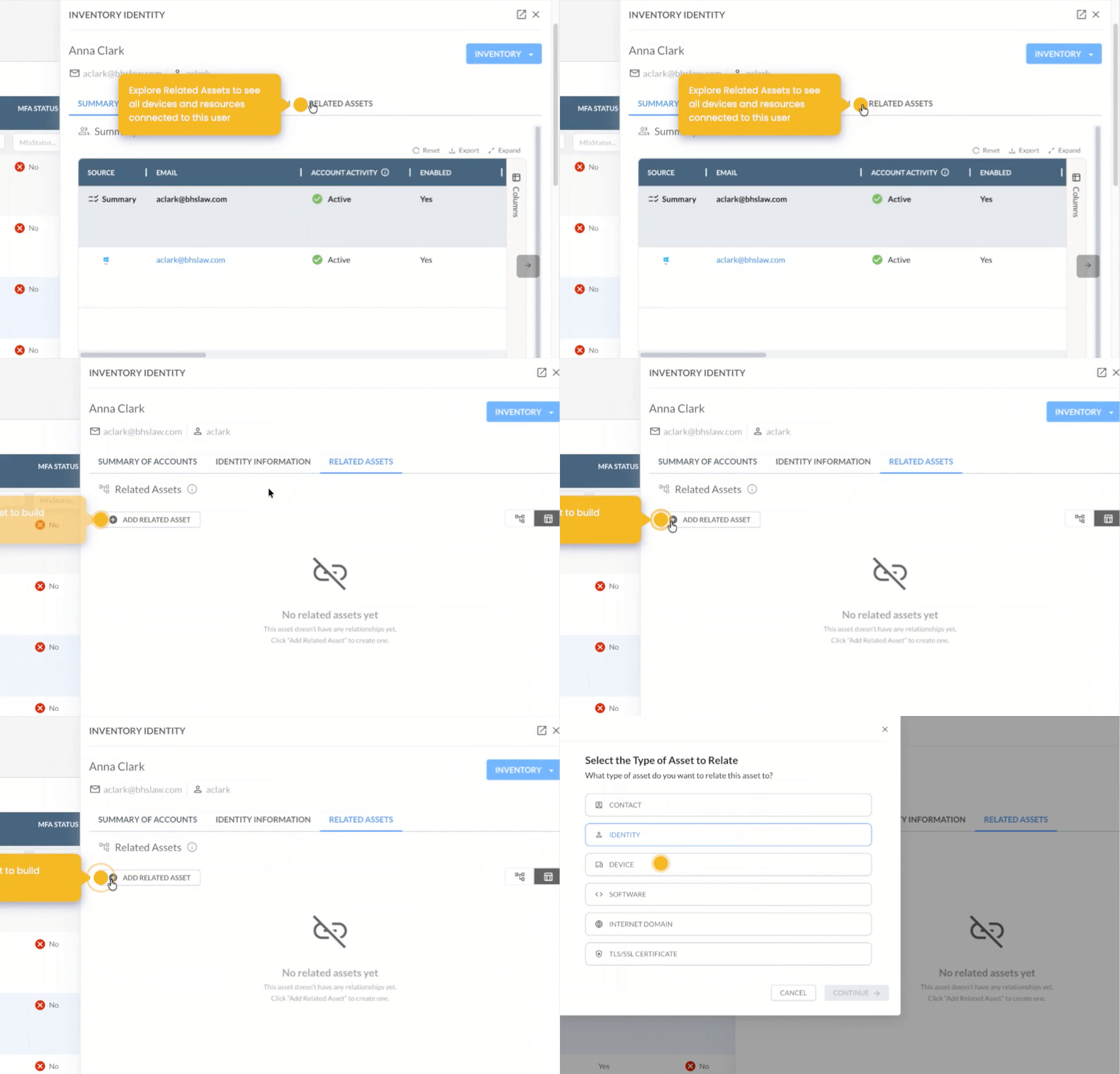
Click the Related Assets tab and click Add Related Asset.
-
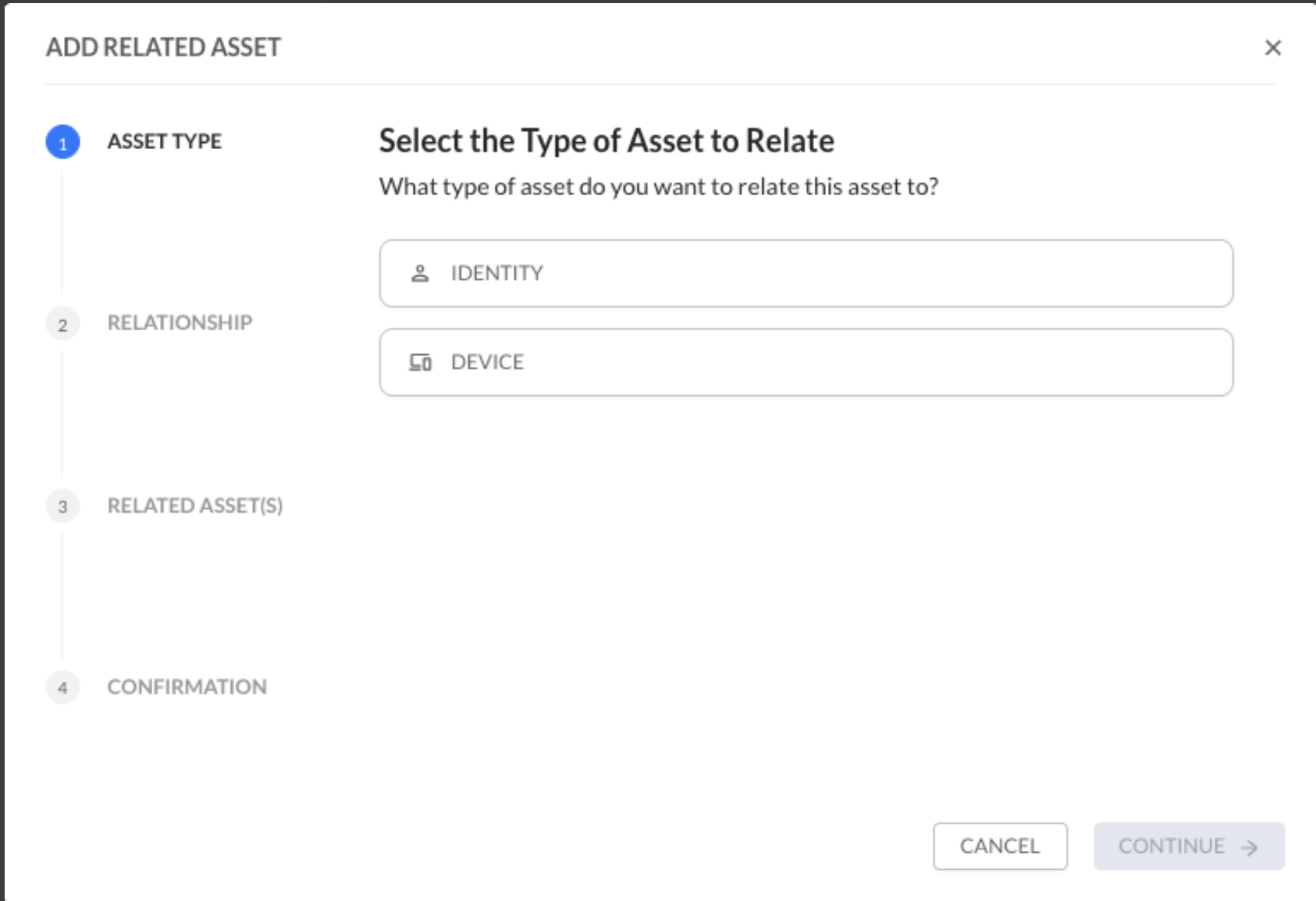
Choose your Asset type and click continue.
-
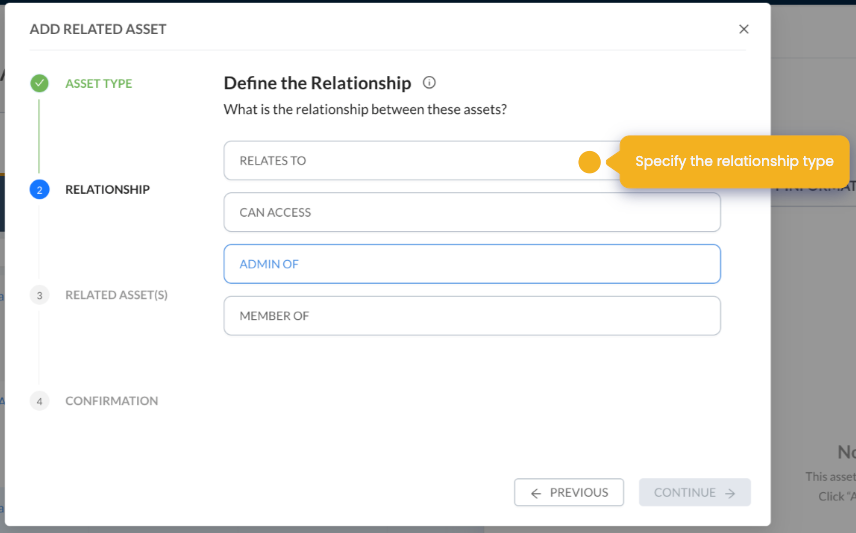
Click the option that best defines the relationship and click continue.
-
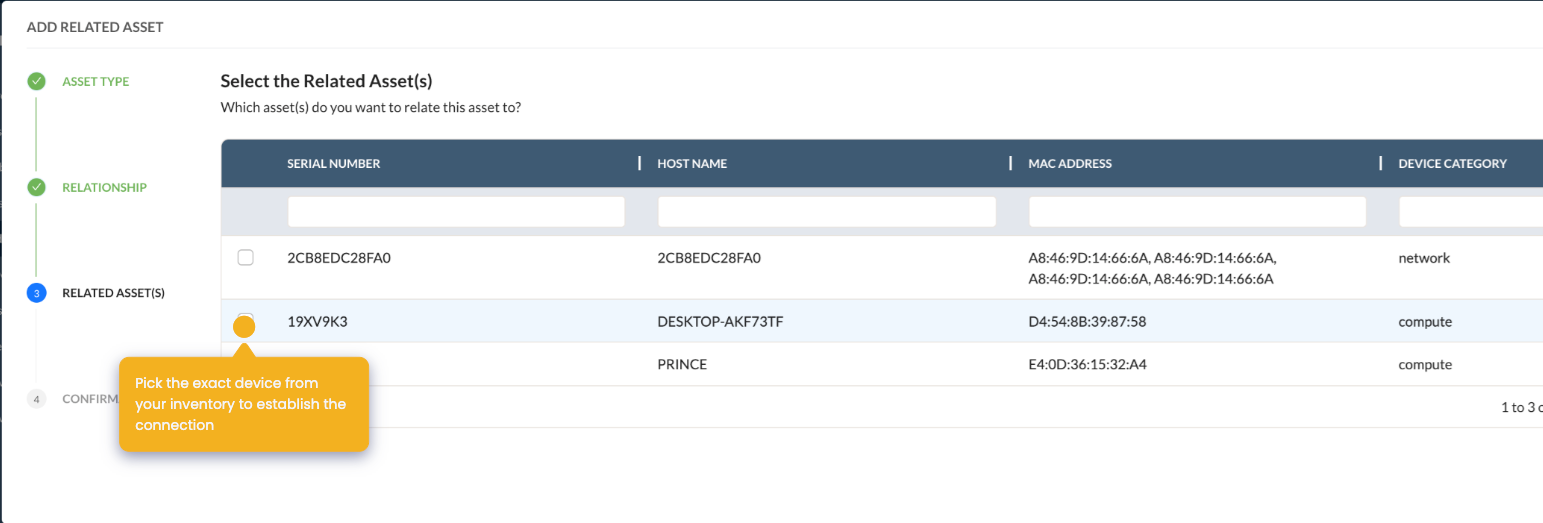
Select the asset that you want to relate and click continue.
-
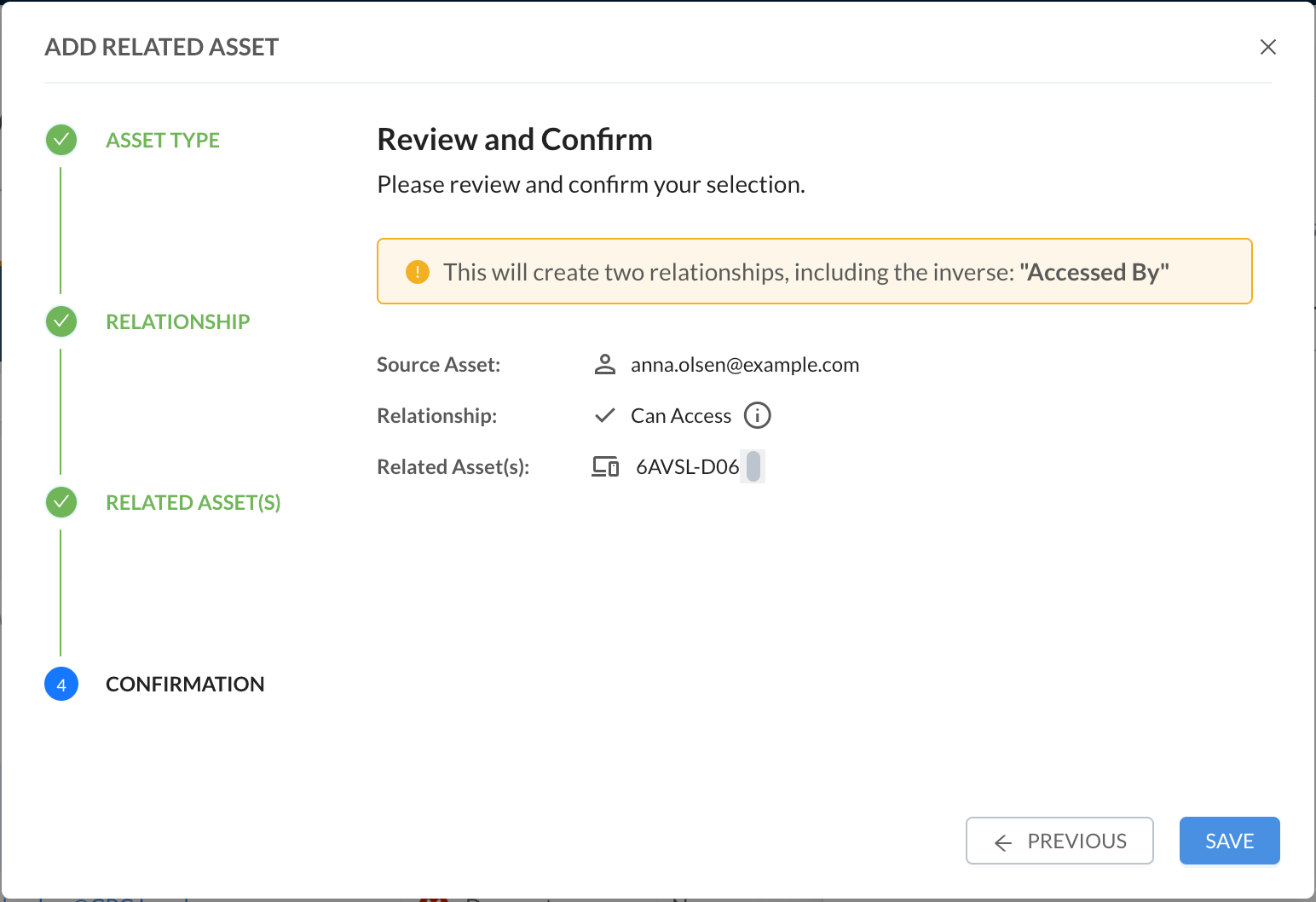
Review your relationship and click Save.
-
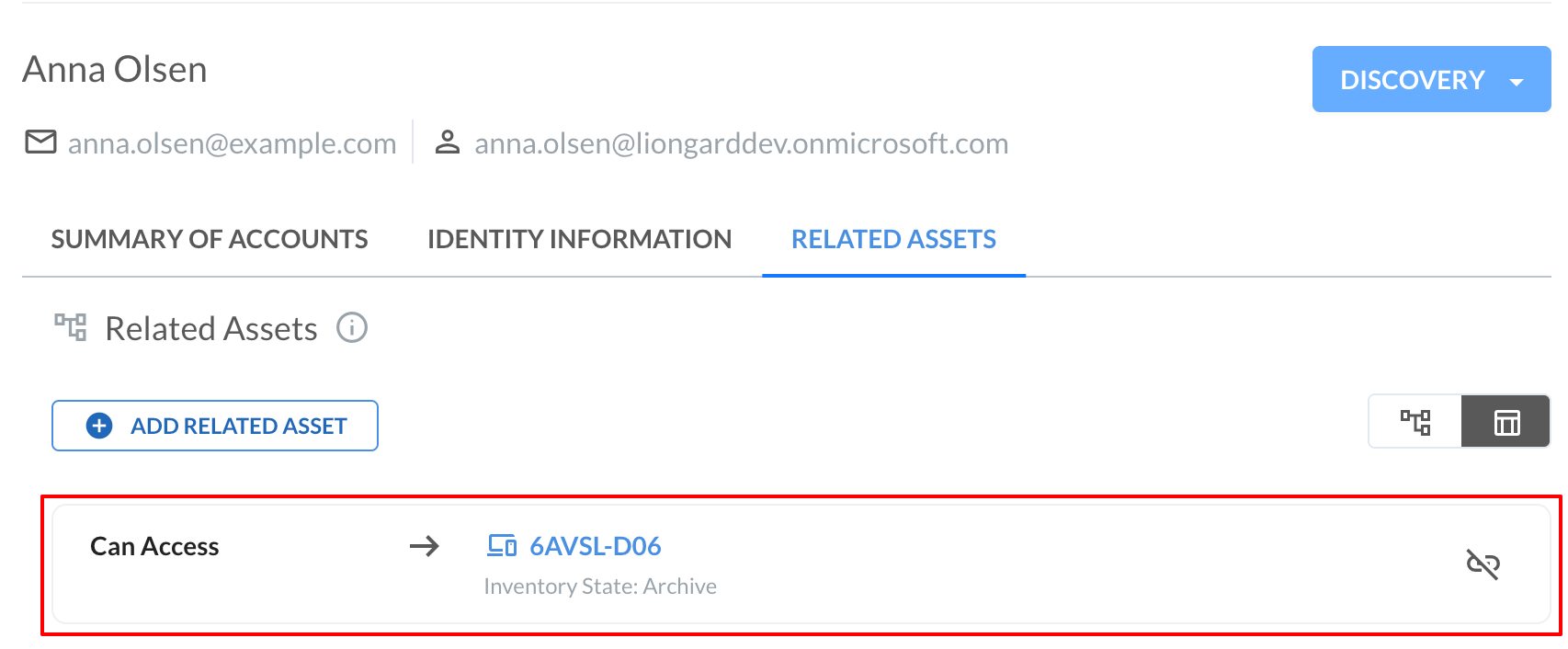
Your asset relationship is now visible within your Asset Identity window.
-
Asset Relationships in Liongard
Mapping relationships between identities and devices gives you a living diagram of who accesses what and how your infrastructure connects. Instead of relying on spreadsheets or tribal knowledge, you make dependencies visible—so when a device is decommissioned, or a user offboards, you can instantly see what’s impacted.
Why this matters for MSPs
During incident response, onboarding, or audits, you shouldn’t have to guess which accounts touch which systems. Defined relationships turn that guesswork into a clear, clickable map.
Relationship Labels
Identity to Identity
- Relates to
Use this when two identities represent the same person across different systems.
Example:[email protected]in M365 is the same person asjohn.smithin ConnectWise Manage.
Identity to Device
-
Relates to
Use this for a general association with no access implied.
Example: A department head owns a server but never logs into it. -
Can Access
Use this when the identity authenticates to or actively uses the device.
Example: A technician’s AD account logs into a domain controller. -
Admin of
Use this when the identity has elevated or administrative privileges.
Example: A sysadmin account is a local admin on a Windows Server. -
Member of
Use this when the identity belongs to a group or tenant represented by the device.
Example: A user account is a member of an M365 tenant.
Device to Identity (Reverse Perspective)
- Relates to / Accessed by / Administered by / Has member
These are the same relationships viewed from the device side. You can navigate relationships in either direction depending on your workflow.
Device to Device
-
Relates to
Use this for a general association between two devices.
Example: A firewall sits in front of a switch in the same rack. -
Member of
Use this when one device is hosted by or belongs to another.
Example: A virtual machine is a member of an ESXi host.
Best Practices
Start with high-impact relationships first
Focus on admin access to critical infrastructure (firewalls, hypervisors, domain controllers), then expand to standard user access.Keep labels precise
Use “Admin of” only for true administrative privileges—not routine access.Review relationships regularly
Revisit relationships quarterly or during onboarding and offboarding to avoid stale or misleading data.
By defining and maintaining these relationships, you create a reliable, visual source of truth for your environment—making troubleshooting, audits, and security response faster and more accurate.
Updated 6 months ago