

LogicMonitor (Beta)
This document provides the steps required to configure the LogicMonitor Inspector.
Quick DetailsRecommended Agent: On-Demand
Supported Agents: On-Demand and Self-Managed (Linux/Windows, not Mac)
Is Auto-Discovered By: N/A
Can Auto-Discover: N/A
Parent/Child Type Inspector: No
Inspection via: API
Default Run Frequency: Once a day
Max Run Frequency: Every 8 hours
Data Summary: [Here]
Overview
The LogicMonitor Inspector brings LogicMonitor portal data into Liongard for unified visibility across the infrastructure-monitoring stack. This inspector ingests portal-level account information, users and roles, API tokens, collectors and collector groups, monitored devices and device-group hierarchy, active alerts, alert routing rules, escalation chains, dashboards, websites, and DataSource (LogicModule) inventory — providing MSPs with a centralized, auditable view of their clients' LogicMonitor environments without needing to log into the LogicMonitor portal.
Feature Highlights
-
Collector Health Visibility We surface all collectors with status (Up/Down), platform, version, and group assignment. A derived CollectorsDownOrError array powers a built-in Collector Down Detected rule, helping you identify monitoring gaps before they impact visibility.
-
Active Alert Triage We capture all uncleared alerts with severity, monitored object, DataSource, instance, start time, and acknowledgment details. A dedicated Active Critical Alerts view and pre-configured rule make it easy to prioritize high-impact issues.
-
2FA & Privileged Access Auditing We ingest user roles and two-factor authentication status, highlighting AdminUsersWithoutTwoFactor through derived datasets and alerting—so you can quickly identify high-risk access gaps.
-
Device Inventory & Error State Tracking We pull monitored device data at scale and surface DevicesInErrorState and DevicesWithDeadAlerts, giving you fast insight into monitoring health across large environments.
-
API Token Security Audit We track all LMv1 API tokens, including owner, status, creation date, and last-used activity—supporting credential audits and cleanup of stale tokens.
-
Alert Rule & Escalation Chain Documentation We capture alert routing rules and escalation chains in priority order, providing a clear, exportable view of how incidents are managed across your environment.
PrerequisitesBefore you begin setting up the LogicMonitor Inspector, ensure that you have the following:
- Access to the Liongard platform.
- A LogicMonitor account with API access.
- A LogicMonitor user who will own the API token. This user must:
- Not be assigned the out-of-the-box Administrator role. LogicMonitor blocks REST API requests from tokens owned by lm_support and OOTB Administrator users, so a cloned read-heavy role (for example, a copy of the read-only administrator role) is recommended.
- Have Allow Creation of API Token checked under Settings > User Profile.
- Network connectivity from the Liongard agent to the LogicMonitor REST API:
- https://
ACCOUNT_NAME.logicmonitor.com/santaba/rest
Required LogicMonitor Permissions
The LMv1 API token inherits the permissions of the user it’s created under. This means the token can only access what that user can access.
The simplest setup is to clone the Read-Only Administrator role in LogicMonitor and assign it to your dedicated Liongard user. This role already includes all required and recommended permissions listed below.
If you prefer to create a more restrictive custom role, use the tables below to configure the exact permissions needed.
All permission paths reference the Add Role wizard: Settings → User Access → Users and Roles → Roles
Required Permissions
If any of the following permissions are missing, the inspector will fail and return a setup error.
| LogicMonitor Privilege | Why It’s Required |
|---|---|
| Resources → View (at least one resource group) | Pulls monitored device inventory and validates credentials on every run |
| Resources → View on Device Groups | Pulls the device group hierarchy |
| Alerts → View | Pulls active (uncleared) alerts |
Recommended Permissions
These permissions are optional but unlock additional data and views within Liongard.
If a permission is not granted, the inspector will still run successfully, but the corresponding data will not appear.
| Inspector Data / View | LogicMonitor Privilege |
|---|---|
| Collectors, Collector Groups | Settings → Collectors → View |
| Users (including 2FA and Admin insights) | Settings → User Access → View |
| Roles | Settings → Role Access → View |
| Alert Rules | Settings → Alert Settings → Alert Rules → View |
| Escalation Chains | Settings → Alert Settings → Escalation Chains → View |
| API Tokens (Audit View) | Settings → User Access → View |
| DataSources | Modules → My Module Toolbox → View (or Settings → LogicModules → View for older portals) |
| Dashboards | Dashboards → View (at least one dashboard group) |
| Websites | Websites → View (at least one website group) |
Quick PathClone the Read-Only Administrator role and assign it to your Liongard user to enable full functionality.
Only use a custom role if your security policy requires more restrictive access.
Setup Instructions
Create an API Token
IMPORTANT:
- Any user except an out-of-the-box administrator user role can create API tokens. Ensure to check the Allow Creation of API Token checkbox under Settings > User Profile.
- LogicMonitor does not allow REST API requests made using API tokens created by lm_support users and users with an out-of-the-box Administrator role.
- In LogicMonitor, decide which user will own the API token. If you don't already have a dedicated user with the right role, create one and assign a cloned read-heavy role per the Required LogicMonitor Permissions section above. Do not use an out-of-the-box Administrator user; LogicMonitor will not authenticate REST requests from tokens those users create.
- As that user (or as an admin acting on their behalf), open Settings > User Profile and check Allow Creation of API Token.
- In LogicMonitor, navigate to Settings > User Access > Users and Roles > LMv1 API Token tab.
- Select the Add API Token + icon. The Add LMv1 API Token page displays.
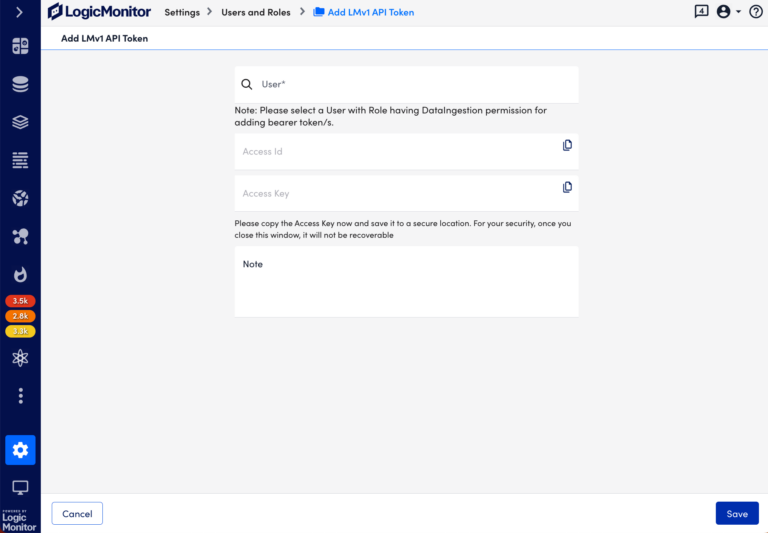
- In the User field, select the user who will own the token. The Access ID and Access Key populate automatically.
- Click the Copy button next to the Access Key and save it to a secure location. LogicMonitor recommends saving the Access Key at creation time.
- (Optional) Add a note such as "Liongard LogicMonitor Inspector" so the token is easy to identify later in the LMv1 API Tokens table.
- Click Save. The token now appears in the LMv1 API Tokens table and an email notification is sent to the user.
Liongard Inspector Setup
Step 1: Parent Inspector Setup
Since the LogicMonitor Inspectors are multi-tenant systems where a single portal can be used to manage many Environments, you will set up a single "Parent" Inspector that will then auto-discover "Child" Inspectors for each Environment.
In Liongard, navigate to Admin > Inspectors > Inspector Types > Navigate to the LogicMonitor Inspector > Select Add System.
Fill in the following information:
- Type of Inspector: Parent
- Environment: Select your MSP Environment.
- Friendly Name: Suggested "Liongard Environment Name"
- Agent: Select the On-Demand agent.
- Inspector Version: Latest.
- Account Name: LogicMonitor portal subdomain (no .logicmonitor.com, no spaces)
- Access ID: Access ID half of the LMv1 token
- Access Key: Access Key half of the LMv1 token
- Scheduling: The Inspector will default to run once a day at the time the Inspector is set up. Here you can adjust the schedule
Select Save. The Inspector will now be triggered to run within a minute.
Step 2: Child Inspector Setup
After the first run of the Parent Inspector, your client LogicMonitor organizations will be Auto-Discovered in the Discovered Systems tab on the Inspectors > LogicMonitor page.
- Activate or Archive your Discovered Systems by ensuring that they're mapped to the correct Environment > Check the checkbox to the left of Inspector(s) > Select the Actions drop-down menu > Activate Launchpoints
Updated 5 months ago