

Senteon (Beta)
This document provides the steps required to configure the Senteon Inspector.
Quick DetailsRecommended Agent: On-Demand
Supported Agents: On-Demand or Self-Managed
Is Auto-Discovered By: N/A
Can Auto-Discover: Senteon Child Inspectors
Parent/Child Type Inspector: Yes
Inspection via: API
Default Run Frequency: Daily (maximum cadence every 8 hours) Data Summary: Here
Overview
The Senteon Inspector connects to Senteon's Public Stats API to provide visibility into endpoint hardening and compliance posture across the customers you manage.
Senteon is an endpoint hardening and compliance automation platform built around CIS Benchmarks. By deploying agents to Windows workstations, servers, and supported browser environments, Senteon continuously enforces, monitors, and reports on security configuration compliance across your managed environments.
The platform evaluates more than 1,500 security configuration settings across 31 hardening categories and aligns endpoint configurations with industry-recognized security frameworks, including:
- CIS Benchmarks v8.1
- CMMC v2
- HIPAA
- PCI DSS v4
- SOC 2
- ISO 27001
- NIST Cybersecurity Framework (CSF)
In addition to enforcing security configurations, Senteon continuously monitors for configuration drift and provides audit-ready compliance reporting.
What the Inspector Collects
For each Senteon tenant, the Inspector gathers information related to endpoint security posture, compliance status, and tenant configuration.
Collected data includes:
- Endpoint compliance scores
- Configuration drift alerts and alarms
- Endpoint baseline information
- Tenant configuration details
- Hardening and remediation status
This information provides a centralized view of security hardening across managed customer environments.
Key Benefits
- Assess Endpoint Hardening: Monitor endpoint security posture using CIS Benchmark-aligned compliance scoring and configuration assessments.
- Identify Configuration Drift: Quickly identify endpoints that have deviated from approved security baselines and require remediation.
- Track Remediation Progress: Review hardening status and remediation efforts across endpoints to ensure compliance objectives are maintained.
- Simplify Compliance Reporting: Generate audit-ready insights without manually reviewing individual systems or logging into each customer tenant.
- Roll Up Compliance Across Customers: View compliance posture across your entire customer base, allowing you to identify trends and prioritize security initiatives at scale.
Supported Compliance Frameworks
The Senteon Inspector helps you assess and monitor alignment with the following frameworks:
| Framework | Description |
|---|---|
| CIS Benchmarks v8.1 | Security configuration best practices for systems and applications |
| CMMC v2 | Cybersecurity Maturity Model Certification |
| HIPAA | Health Insurance Portability and Accountability Act |
| PCI DSS v4 | Payment Card Industry Data Security Standard |
| SOC 2 | Service Organization Control 2 |
| ISO 27001 | Information Security Management System (ISMS) standard |
| NIST CSF | NIST Cybersecurity Framework |
Use Cases
The Senteon Inspector can help you:
- Conduct customer compliance reviews
- Validate endpoint hardening initiatives
- Monitor configuration drift
- Support audit preparation and evidence collection
- Identify remediation opportunities
- Track security posture trends across multiple customers
- Report on CIS, CMMC, HIPAA, PCI DSS, SOC 2, ISO 27001, and NIST CSF alignment
By centralizing Senteon compliance and hardening data within Liongard, you can evaluate security posture across your entire book of business from a single platform.
Inspector Setup Preparation
The Senteon Inspector authenticates with a Senteon Public API Key, which has two parts: a Key ID (public identifier) and a Key Secret (shown once at creation). You will create this key in the Senteon Command Center.
Prerequisites
- The Senteon organization must be on an **active, non-trial subscription **— the Public API is not available on trial plans.
- The API key must have the "Allow All Tenants To Be Read" switch enabled (required for the parent Inspector to enumerate Tenants).
- The key must have per-tenant permission on every Customer you want surfaced in Liongard. Customers added after key creation are picked up retroactively when the cross-tenant switch is enabled.
Create a Senteon API Key
- Verify the subscription. Confirm the Senteon organization is on an active, or non-trial subscription.
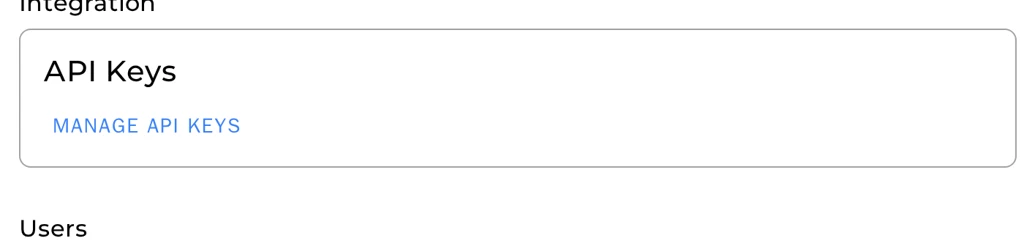
- Log in to the Senteon Command Center (app.senteon.co) and navigate to Settings (Global Settings) → Integration → API Keys → Manage API Keys → Add New API Key.
- Enable cross-tenant access. Toggle the "Allow All Tenants To Be Read" switch on the key. This is mandatory for auto-discovery.
- Set per-tenant permissions. In the Permissions Scope by Tenant grid on the same form, toggle each Customer you want surfaced to Read (or click Set All to Read). With Allow All Tenants To Be Read enabled, Customers added later are picked up automatically.
- Copy the Key ID and Key Secret. Senteon displays the Key Secret only once — record it before leaving the page.
Settings (Global Settings) → Integration → API Keys → Manage API Keys — the entry point:
Add New API Key
- Name your Key
- Enable Allow All Tenants To Be Read, set per-tenant permissions
- Permissions Scope by Tenant section, Set All to Read
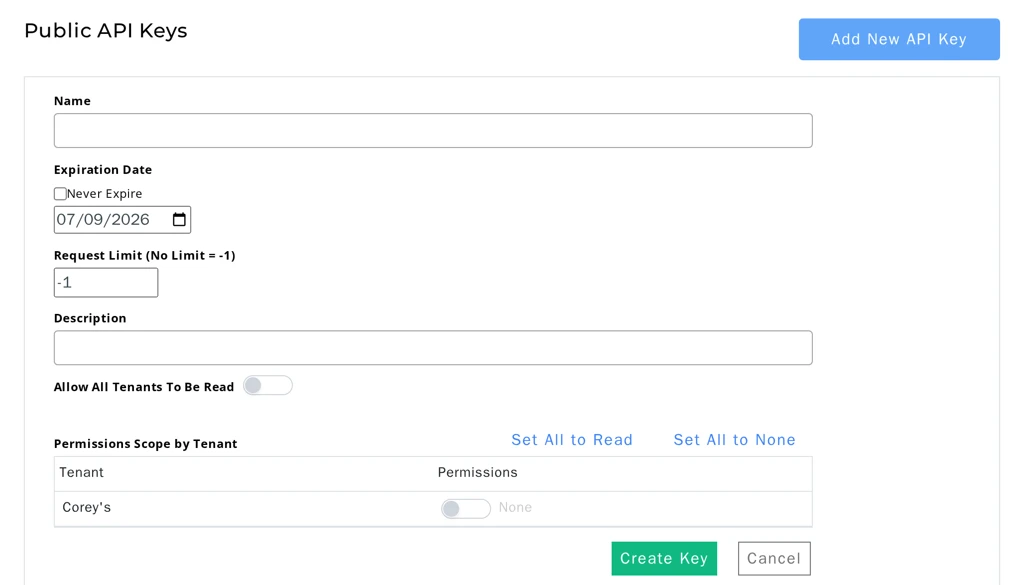
- Click Create Key
Liongard Inspector Setup
Step 1: Parent Inspector Setup
Since Senteon is a multi-tenant system where a single portal manages many Customers, you set up a single "Parent" Inspector with the API key credentials. The Parent will then auto-discover a "Child" Inspector for each Senteon Tenant.
In Liongard, navigate to Admin > Inspectors > Inspector Types > Navigate to the Senteon Inspector > Add System.
Fill in the following information:
- Type of Inspector: Parent
- Environment: Select your MSP's Environment
- Friendly Name: Suggested Naming: [MSP Name] Senteon Parent
- Agent: Select On-Demand Agent
- Inspector Version: Latest
- Senteon API Key ID: The Key ID (public identifier) from the Senteon Command Center.
- Senteon API Key Secret: The Key Secret recorded when the key was created.
- Scheduling: The Inspector will default to run once a day at the time the Inspector is set up. Here you can adjust the schedule.
Select Save. The Inspector will now be triggered to run within a minute
Step 2: Child Inspector Setup
After the first run of the Parent Inspector, your SentinelOne client sites will be Auto-Discovered in the Discovered Systems tab on the Inspectors > Senteon page.
Activate or Archive your Discovered Systems by ensuring that they're mapped to the correct Environment > Check the checkbox to the left of Inspector(s) > Select the Actions drop-down menu > Activate Launchpoints
Troubleshooting
- Parent returns zero Tenants. The API key's "Allow All Tenants To Be Read" switch is disabled, or all Customers are individually un-toggled on the key. Recreate the key with the switch enabled, or toggle the missing Customers on the key.
- 401 / 403 on the Parent run. Credentials are incorrect, the subscription is on a trial plan, or the cross-tenant switch is off.
- Baseline Groups are empty, but Baseline Templates are present. Expected when the Customer has created template definitions in Senteon but has not yet assigned a template to a set of endpoints. Create groups in the Senteon Command Center.
- 429 throttling. The Inspector's default request budget is 60 requests/minute. A Customer with N endpoints generates roughly 2 + 2N calls per child run (per-endpoint Compliance + Evaluation). If you scale to many endpoints, raise the key's request limit in Senteon.
- Per-endpoint Compliance values look low. Endpoints with operational status "Ready for Initialization" are installed but not yet actively managed — managed-settings counts will be 0 until Senteon's onboarding workflow promotes the endpoint to Active.
Updated 4 months ago