

Activities
The Activities section in the navigation menu provides access to the tasks and actions performed during the process of defending an organization’s environment and investigating potential weaknesses. This area helps you review, track, and manage the security activities that support ongoing threat detection and response.
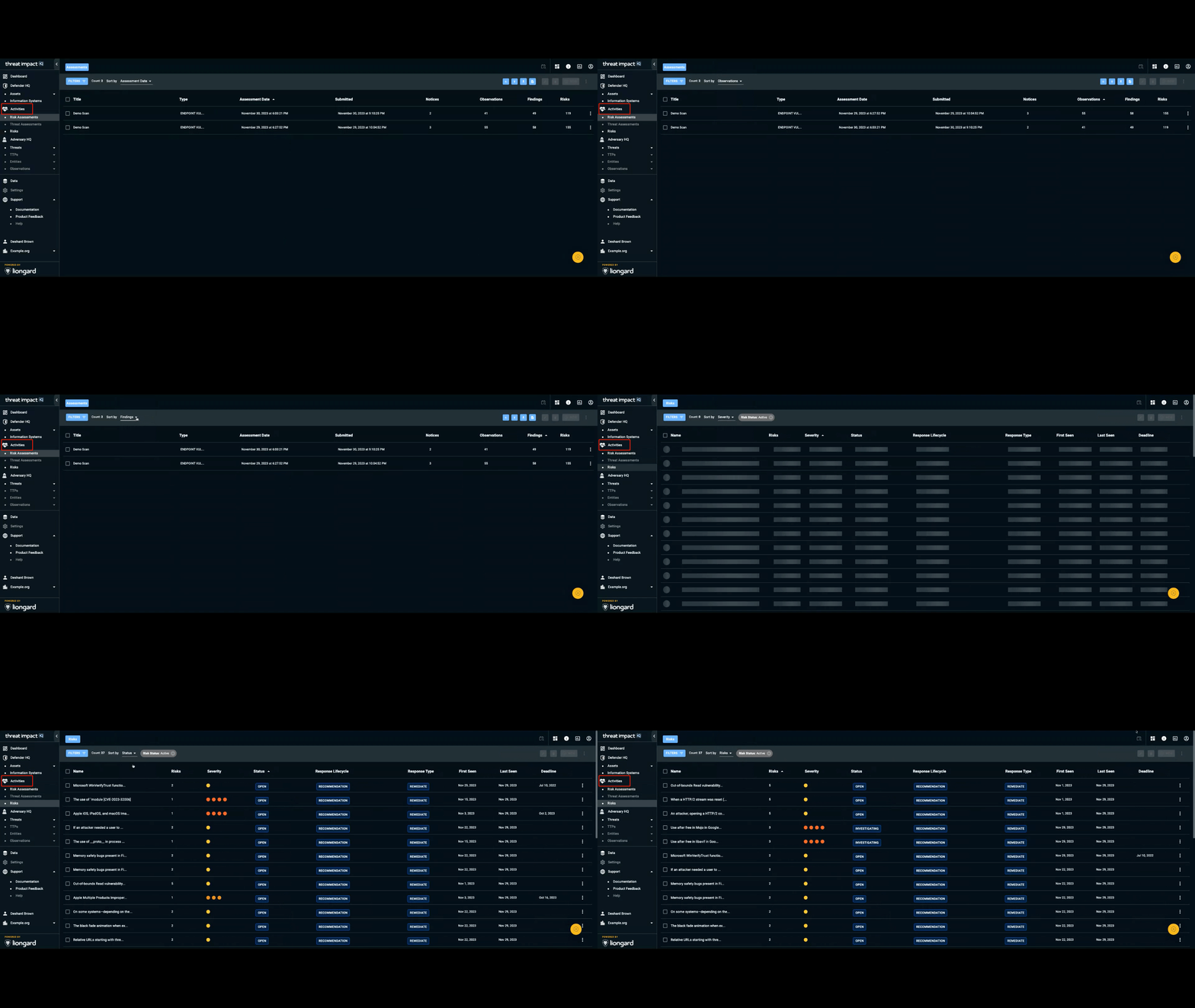
Risk Assessment
The Risk Assessment Results section allows you to view, sort, and manage assessment information without navigating raw scan output. This area provides streamlined visibility into assessment data, associated observations, findings, and risk details.
Sorting Assessment Results
You can sort assessment entries by the following fields:
- Name
- Type
- Assessment Date
- Submitted (the date the assessment was submitted to ThreatImpact IQ)
- Authenticated (indicates whether an agent is present on the host)
- Observations
- Findings (items requiring attention)
- Risks
Sorting helps you quickly prioritize assessments and focus on areas needing review.
Filtering Assessment Results
Use the Filters button above the list to refine your assessment results. Available filter options include:
- Name
- Assessment Dates
- Labels (user-defined and fully customizable)
You may combine multiple filter criteria as needed. To remove any filter, select the X icon next to the filter label.
Note: The Count displayed to the right of the Filter button does not reflect applied filters.
Uploading Assessment Results
To upload new assessments:
- Select the Import icon in the global navigation, or
- Navigate to Vulnerability Assessment in the left navigation and choose Upload a Vulnerability Scan.
ThreatImpact IQ requests confirmation before upload to ensure the assessment is associated with the correct organization.
Important: Assessment analysis cannot be removed once it is processed.
Appending Assessments
Select an assessment from the list to update or enrich its information. You can:
- Edit assessment details
- Add or modify labels
- Add external references
- Record notes
- Append additional context as needed
This allows you to maintain comprehensive, up-to-date assessment documentation.
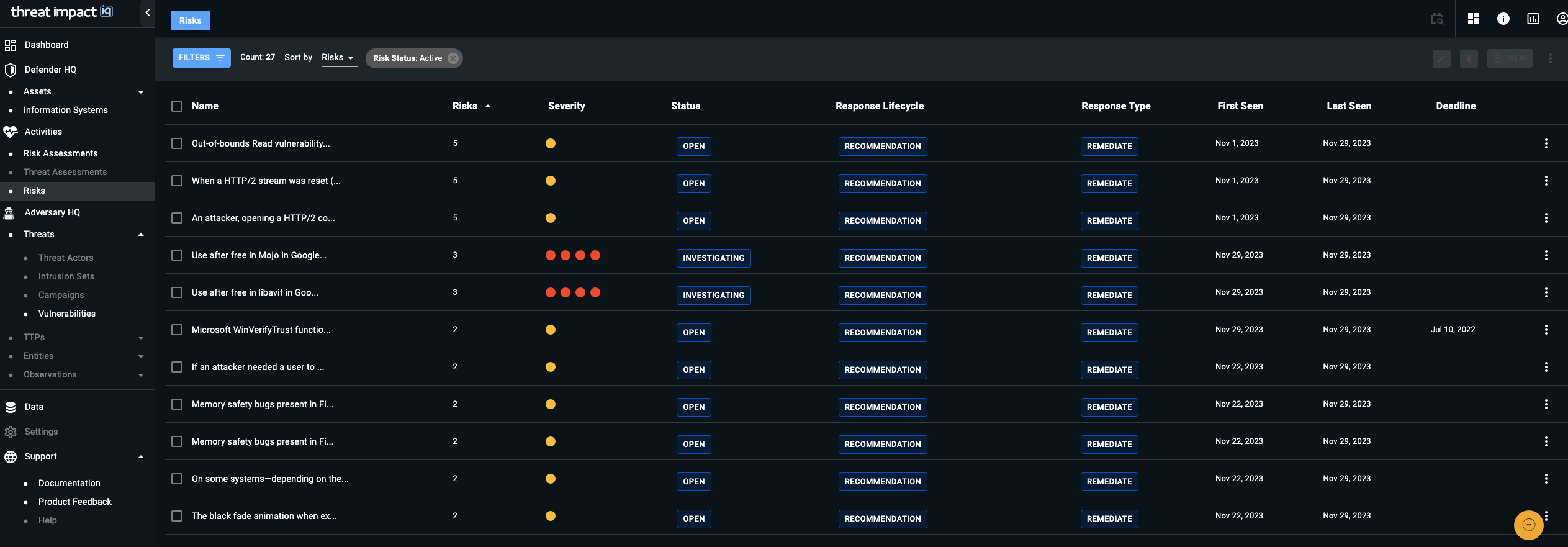
Risk
The Risk section enables you to identify, quantify, and prioritize risks—beyond basic vulnerabilities—by considering relevant threats, likelihood of exploitation, and the potential impact on your business. This capability provides the insights you need to effectively manage and reduce risk across your environment. This page displays a prioritized list of risks by name, along with the number of occurrences, severity level, and other identifying details for each risk.
Sorting Your Risks
You can sort risks using the column headers in the Risk Assessment table. Sorting options include:
- Name – The name of the risk.
- Risks – The number of targets where the risk is observed.
- Severity – Levels range from Very Low to Very High.
- Status – The current state of the risk, including:
Open, Investigating, Remediating, Deviation Requested, Deviation Approved, Closed. - Remediation – The remediation lifecycle stage:
Recommendation, Planned, Completed. - Action – The response strategy taken against the risk:
Avoid, Mitigate, Transfer, Accept, Share, Contingency, None. - First Seen – The date the risk was first observed.
- Deadline – A due date you can assign using the More Options (three dots) menu.
Filtering Your Risks
Use the Filters button above the list to refine the risk view. Available filter criteria include:
- Name
- Risk Level
- Risk Status
- Response
- Deadline
- Creation Date Range
(Creation date refers to when an asset was discovered during assessment.) - Labels (custom labels you create and manage)
You can apply multiple filters simultaneously. Remove any applied filter by selecting the X icon beside it.
Note: The Count value next to the Filters button reflects the full number of risks and does not adjust when filters are applied.
Updating Status and Exploring Risk Details
Select a risk to open its detailed view. From here, you can:
- Update status information
- Review system analysis
- Define or modify risk tracking details
- Manage remediation plans, milestones, and associated tasks
This view provides a comprehensive workspace for managing each risk throughout its lifecycle.
Generating Reports
You can export risk information in both human-readable and machine-readable formats:
- Generate Security Assessment Report – Access this option from the + menu in the top-right corner. This report compiles risks and remediation plans into a readable Markdown document designed for customization.
- Download Machine-Readable Data – Use the Download icon in the top-right corner to export structured data suitable for systems integration.
All human-readable reports are generated in Markdown to maximize flexibility.
For more on Markdown, see:
Markdown Guide: Getting Started — https://www.markdownguide.org/getting-started
Risk Overviews
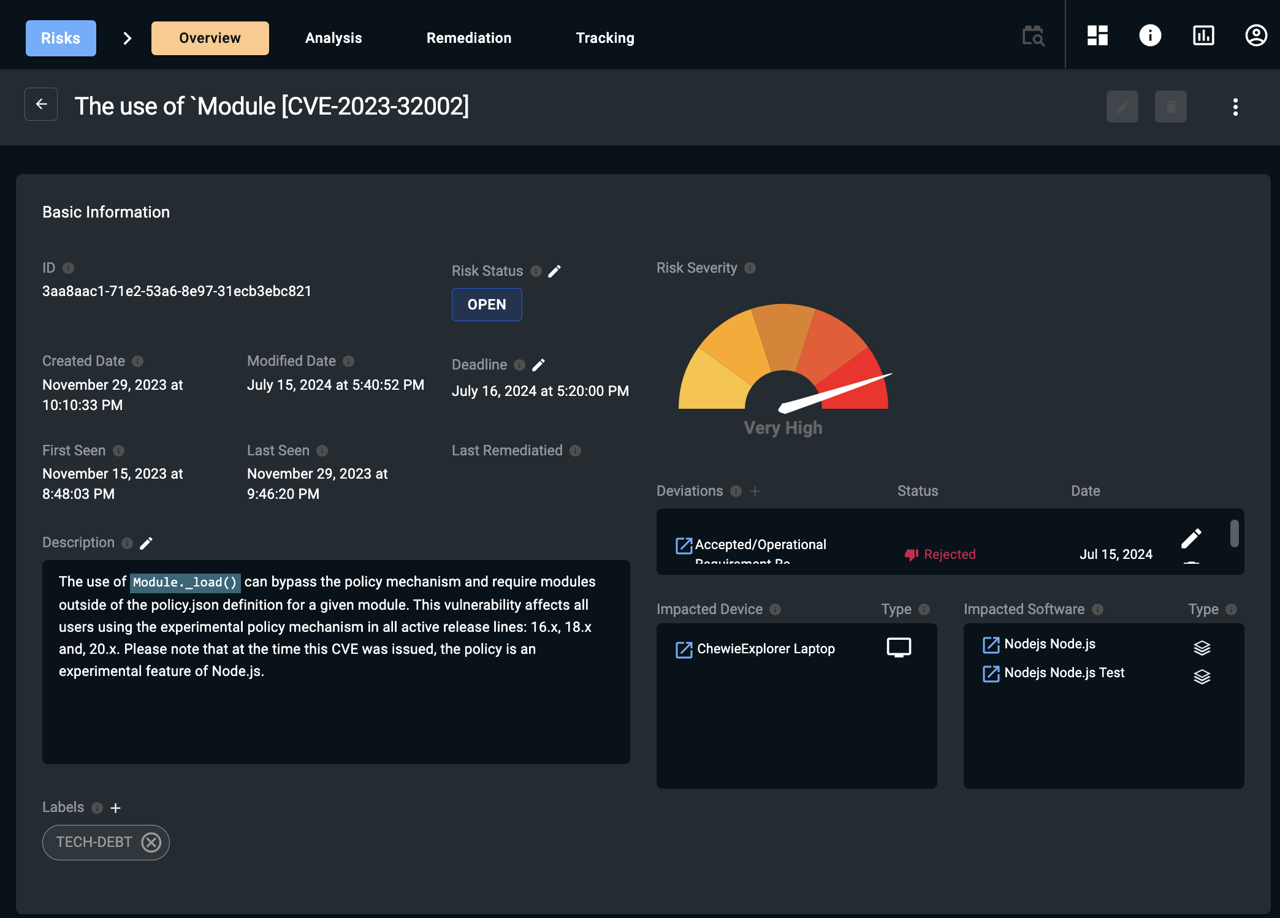
Viewing Detailed Risk Information
You can select any risk to open its detailed view. The Overview page displays key information about the risk, including:
- Basic Information
- Impacted Devices
- Impacted Software
Each item in the impacted devices and impacted software lists is hyperlinked. Selecting a linked asset navigates you directly to that asset’s Overview page for further inspection and analysis.
Risk Deviations
ThreatImpactIQ’s risk management framework includes the concept of risk deviations to address scenarios where an identified risk requires clarification or exception handling. Deviations are used when:
- The risk is determined to be incorrect or not applicable (false positive).
- The risk cannot be remediated or mitigated and must be accepted.
- The risk’s severity is misaligned and needs adjustment (either overstated or understated).
Capturing and tracking these deviations is an essential component of a mature risk management program and is often required for organizations operating under regulatory or compliance standards.
Updated 9 months ago