

Applying a Dashboard / Template in Visual Insights
Visual Insights makes it easy to get started with dashboards by using prebuilt templates. Templates provide ready-made layouts, metrics, and visualizations that can be quickly added.
This guide walks through how to apply a pre-built dashboard.
Applying a pre-built dashboard in Visual Insights
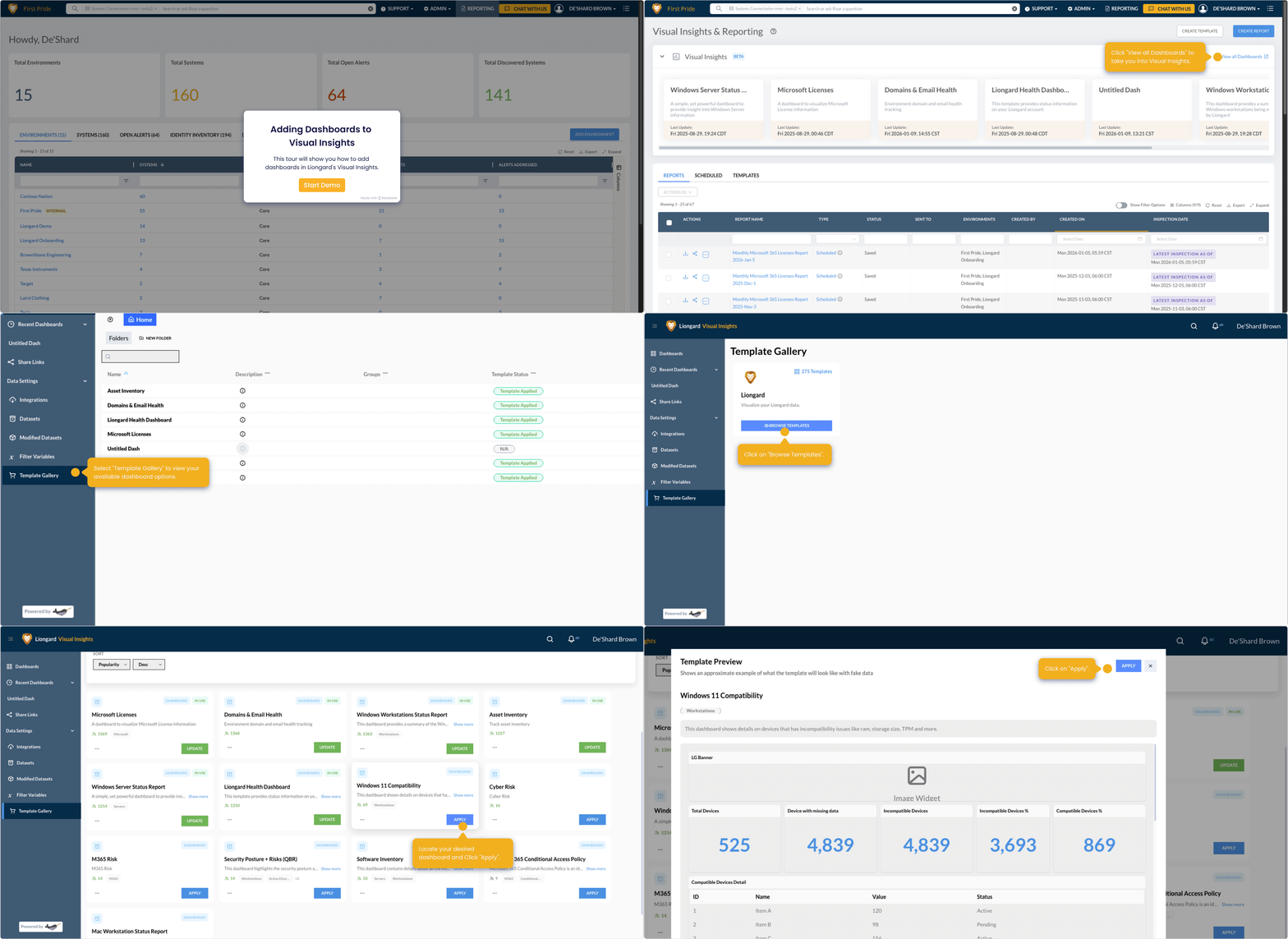
How to Add a Dashboard Template
-
Navigate to Visual Insights
Click Reporting on the menu bar, click "View all Dashboards" within the Visual Insights banner.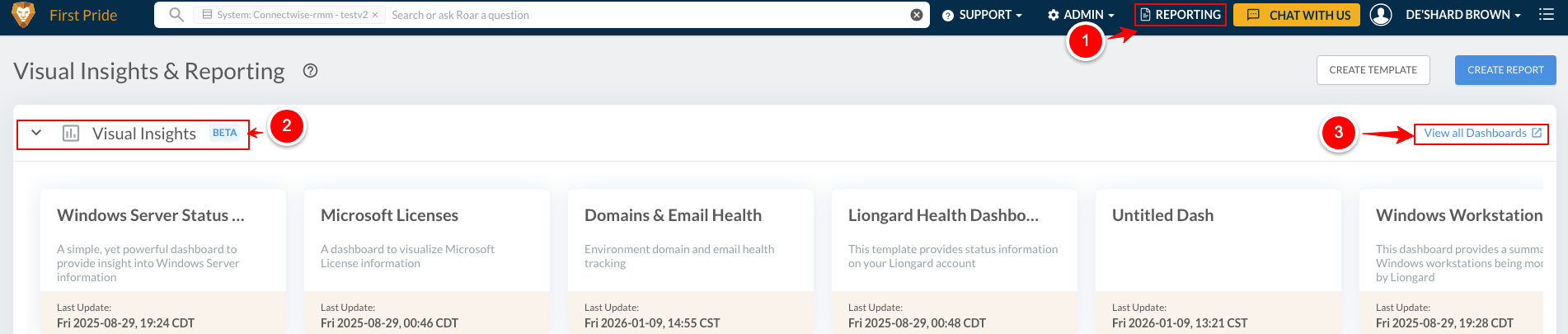
-
Open the Template Gallery
Click the Data Settings dropdown in the side menu, then select Template Gallery.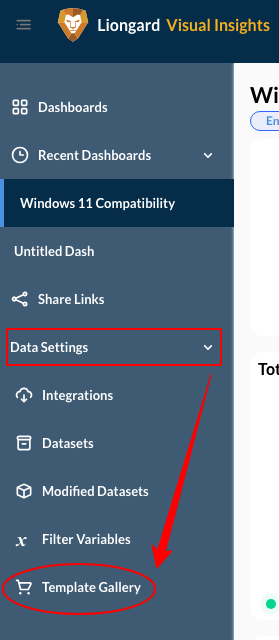
-
Browse or Search Templates
Review the list of available templates. You can scroll or search to find a template that matches your use case.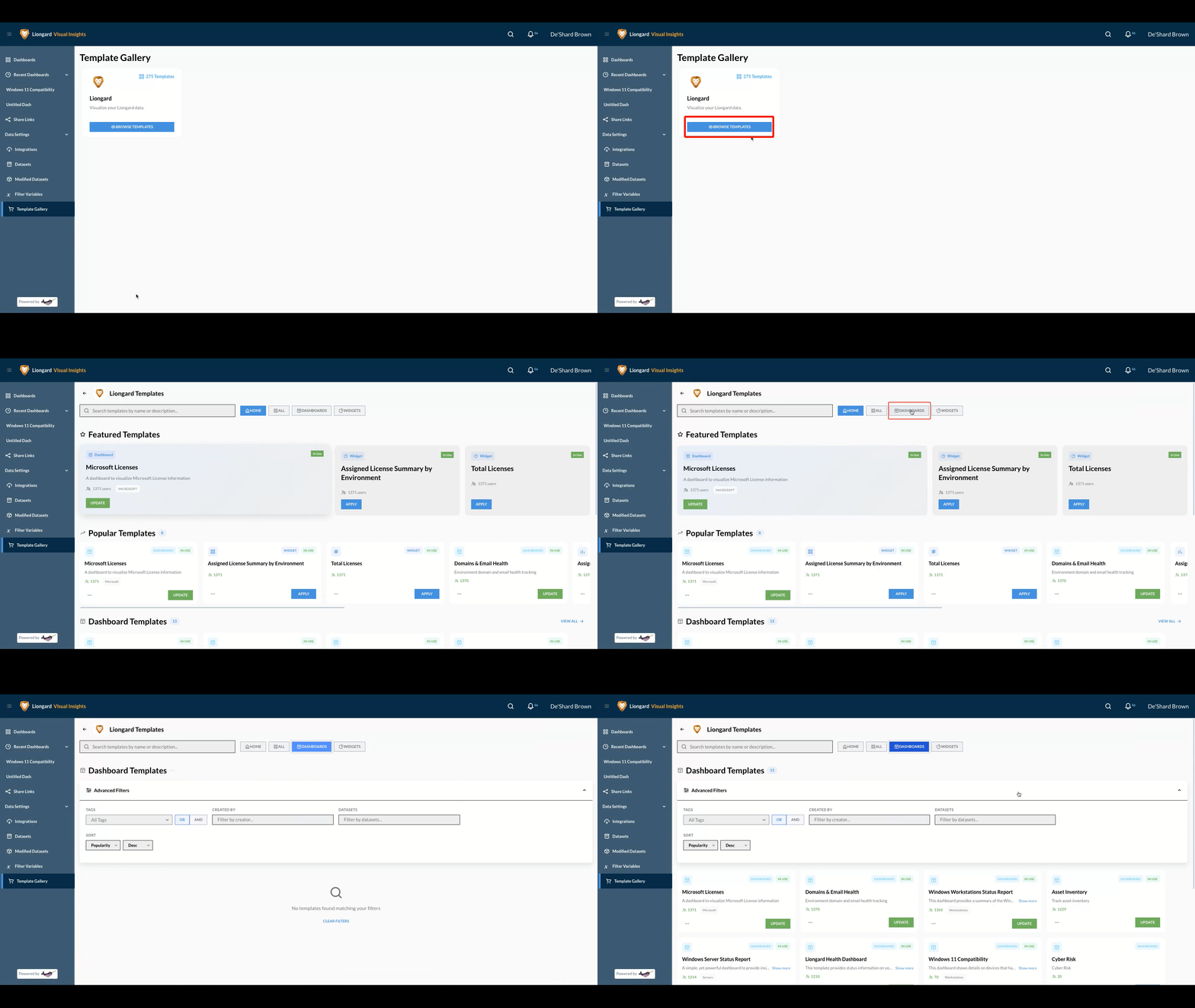
-
Add the Dashboard / Template
Choose and click Apply on the dashboard you want to add.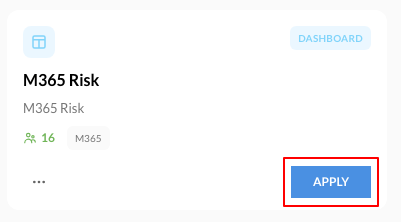
-
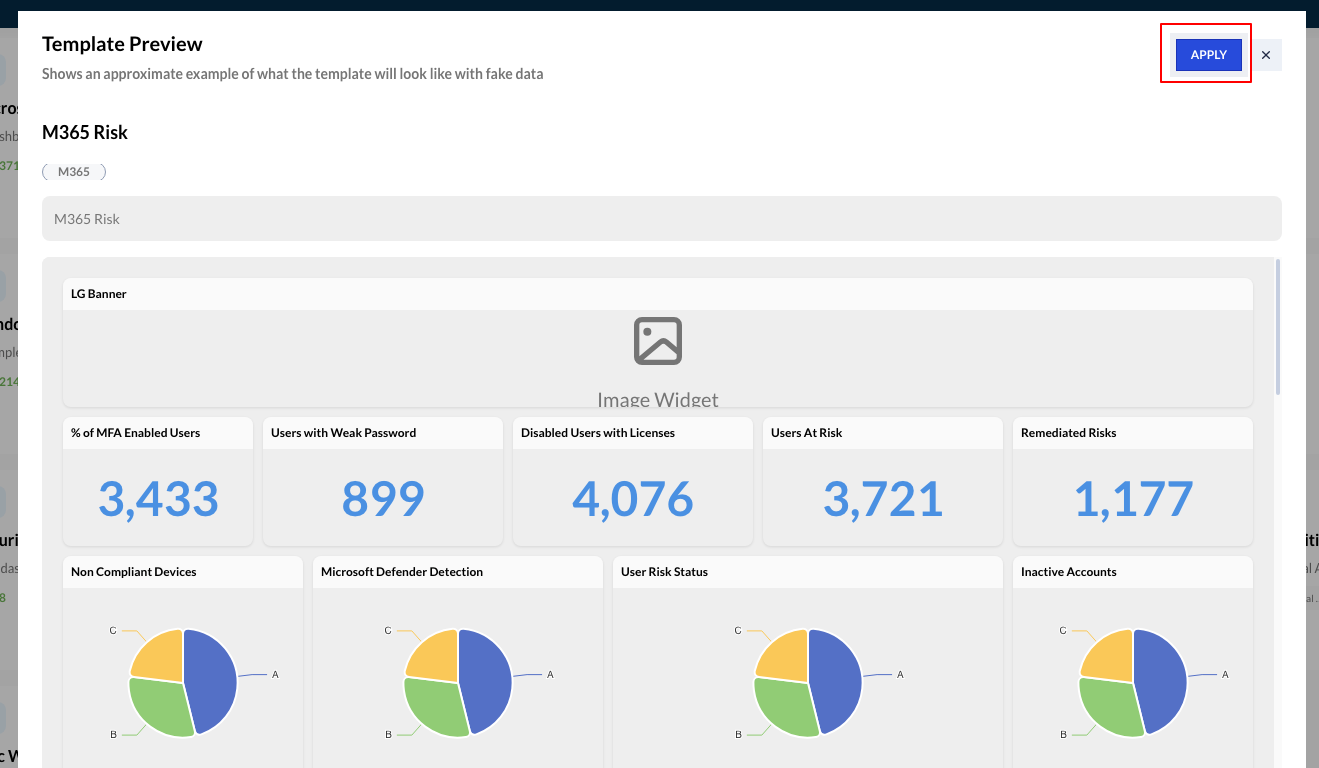
Click Apply on the Template Preview page.
-
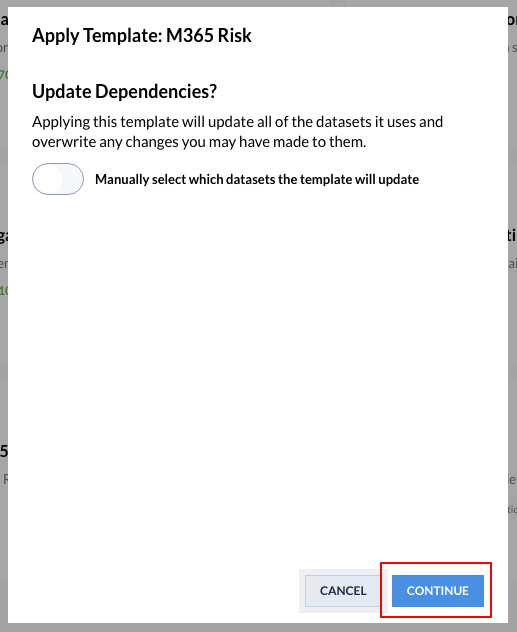
Click Continue on the Update Dependencies pop-up.
-
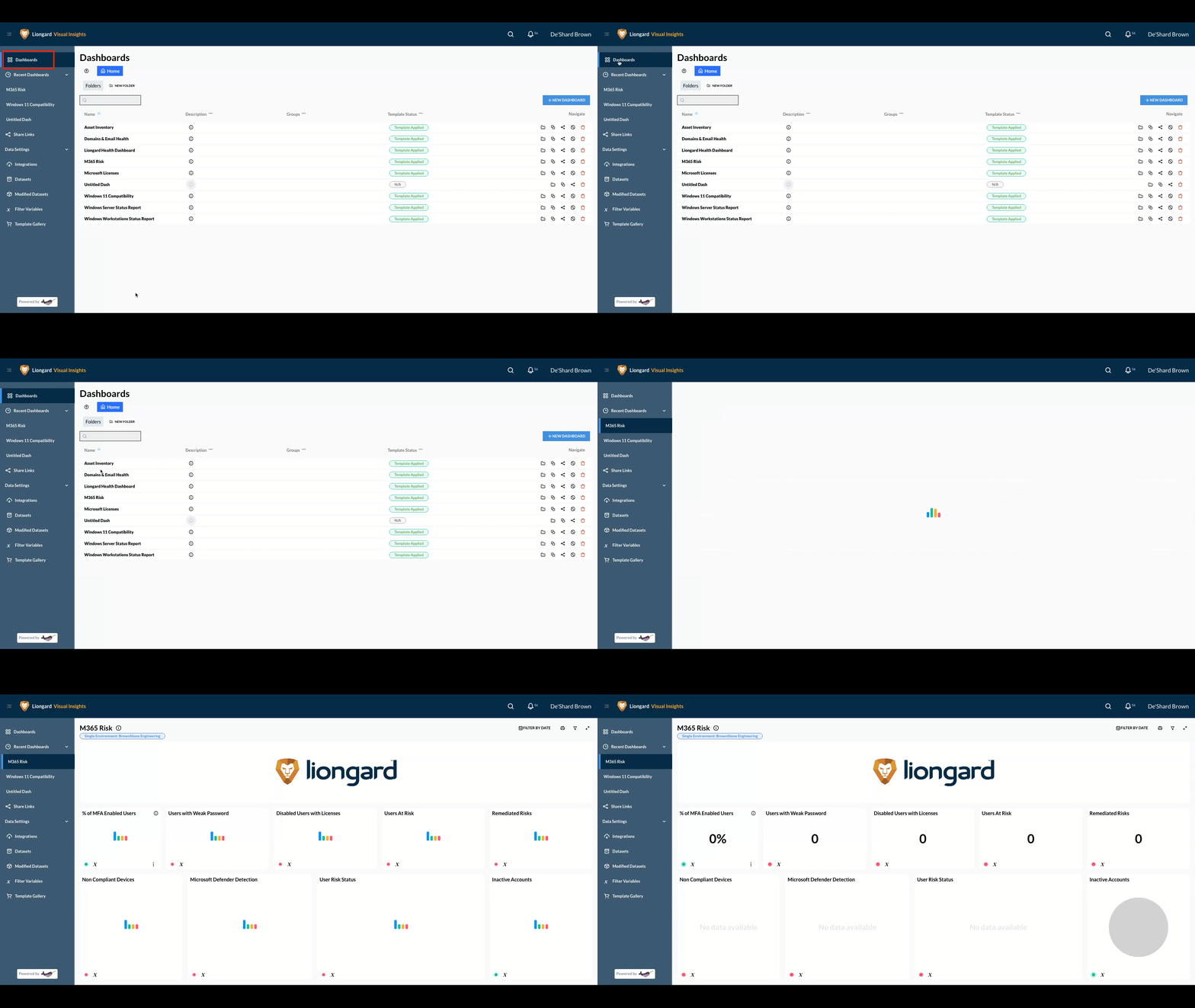
Click Dashboards on the side menu and select your newly added dashboard.
Need a Template That Isn’t Listed?If you don't see a pre-built template that you think would be useful, please contact your account manager.
If you'd like to create your own template or dashboard, please follow this guide.
Updated 9 months ago