

Liongard MCP Server Integration Guide
This guide explains how to generate MCP access tokens in your Admin panel and configure Liongard’s MCP Server integration. To get started, follow the steps below to securely authenticate and connect your MCP server with Liongard.
Overview
- MCP Access Tokens: Provides secure, tenant-wide API access to MCP data.
- Access is not scoped by user permissions: Exercise appropriate caution and management.
- Vendors Access Tokens: Only user access tokens are supported. Vendor tokens coming soon.
- Key Use Case: Integrate MCP data with Liongard for asset inventory, configuration monitoring, and security insights.
1. Generate an MCP Access Token
-
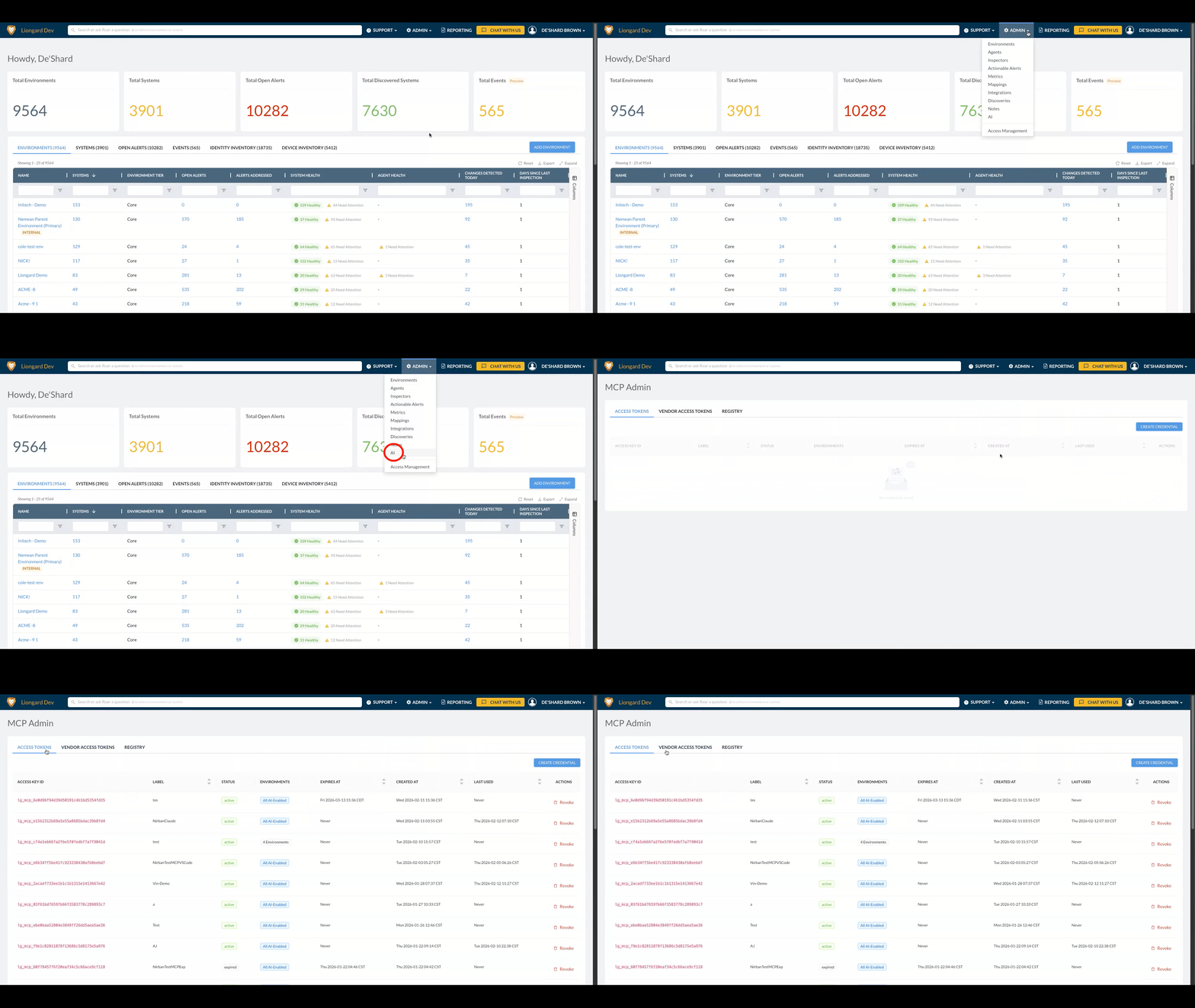
Navigate to Admin > AI Preferences.
-
You will find yourself on the Access Tokens tab.
-
Click Create Credential.
1.
-
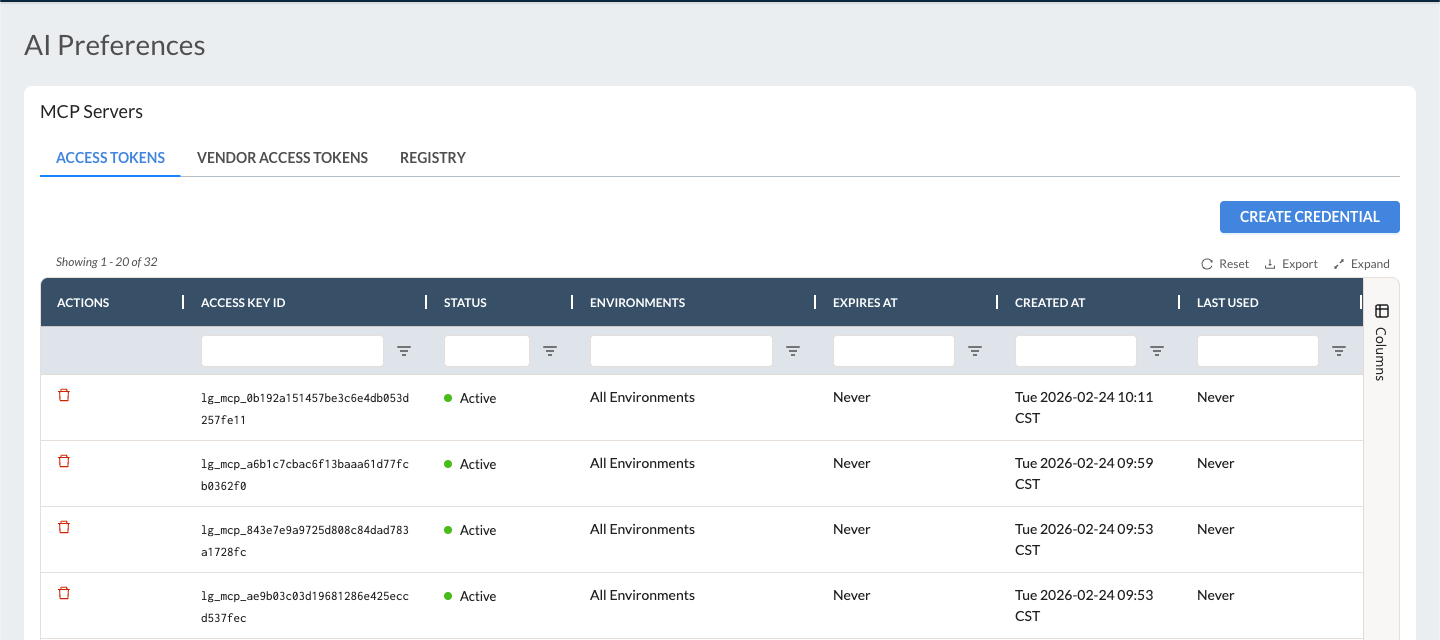
Fill Out Credential Details.
-
Label: Input a meaningful name (e.g., "Liongard Integration").
-
Expiration (Optional): Set an expiration date if desired for better key rotation and security.
-
Environments (Optional): Scope the token to specific environments as needed. Leave empty for full access. (Environment Group support is coming soon.)
-
-
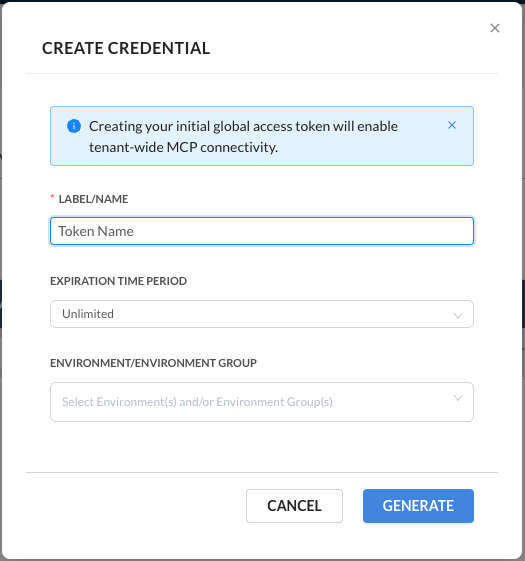
Copy Access Key ID and Secret. (Important: Copy and store these securely. You won’t be able to access the secret again.)
- Access Key ID should include the "lgmcp" prefix
-
Click DONE.
Configure the MCP Server Block for Liongard
You’ll add a block to your client configuration referencing the new key pair as follows:
"Liongard": {
    "url": "https://[server].app.liongard.com/api/mcp",
    "headers": {
        "Authorization": "Bearer [ACCESS_KEY_ID]:[ACCESS_KEY_SECRET]",
        "MCP-Protocol-Version": "2025-11-25"
    }
}
Sample (with URL and key redacted):
"Liongard": {
    "url": "https://xxxxx.app.liongard.com/api/mcp",
    "headers": {
        "Authorization": "Bearer lg_mcp_xxxxxxxxxx:xxxxxxxxxxxxxxxxxxx",
        "MCP-Protocol-Version": "2025-11-25"
    }
}
Integrating with OpenAI
-
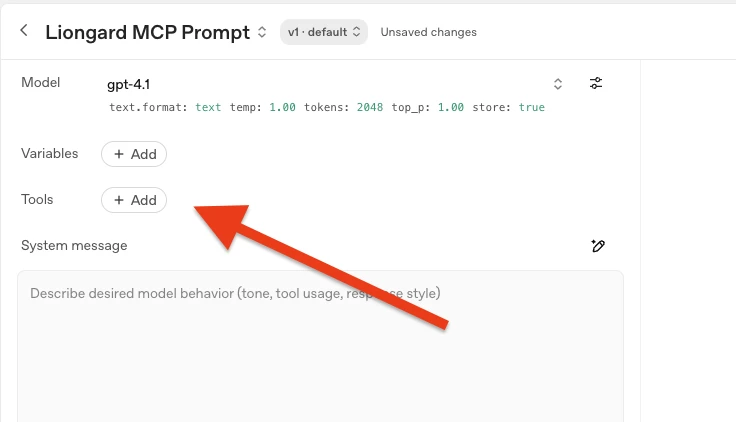
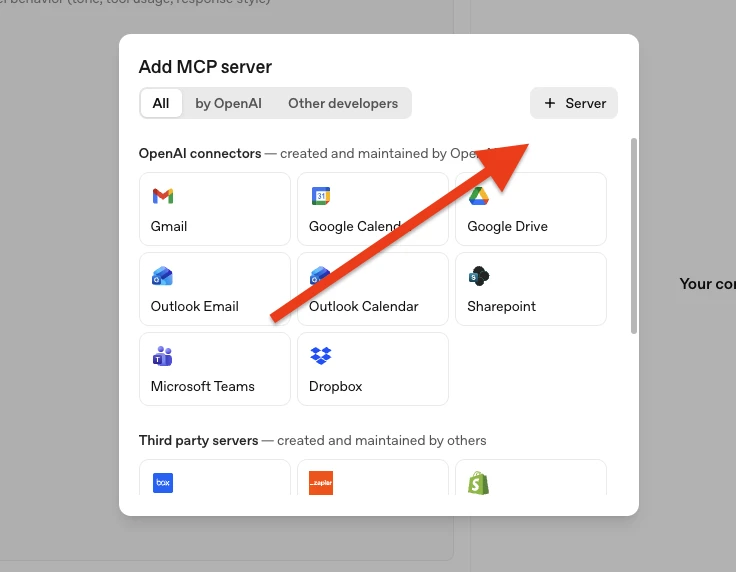
Add a new tool.
-
MCP Server Tool → + Server.
-
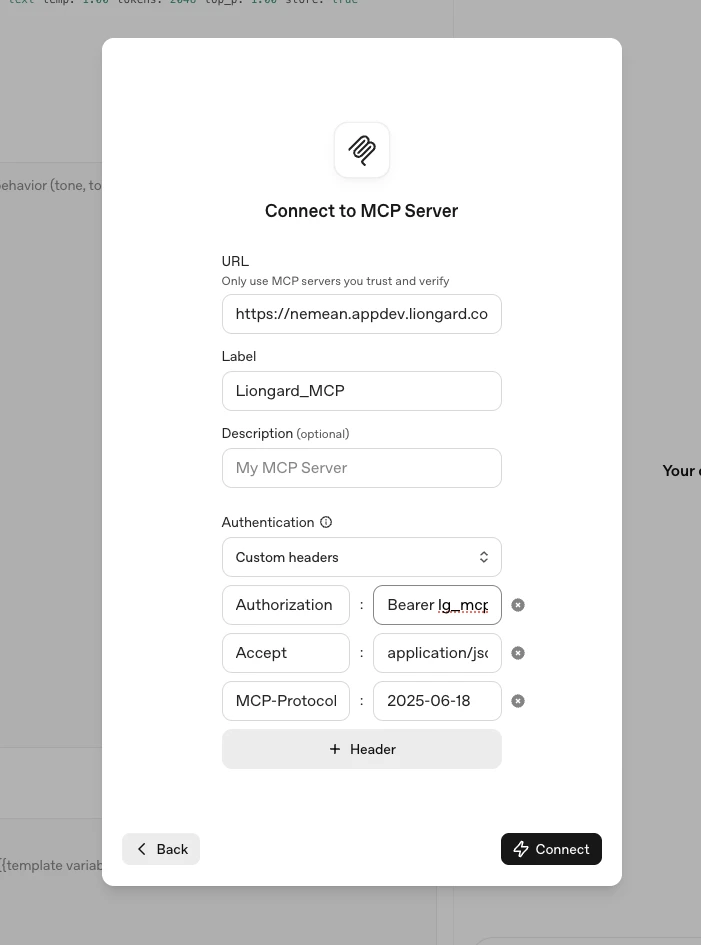
Populate with the following + your own instance endpoint URL and MCP token.
-
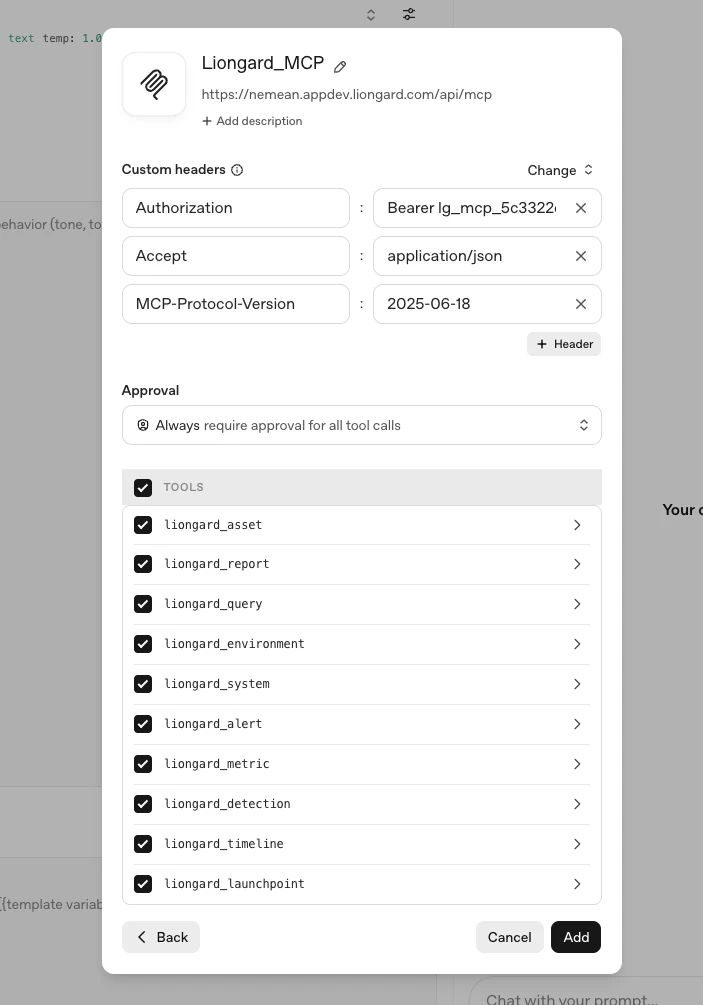
Click connect, then it should populate the tools
-
Add to the prompt and use the tool!
Integrating with Zed
-
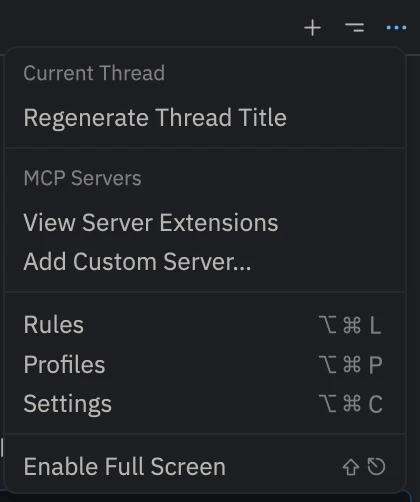
Select Configure Remote
-
Configure the Server with the appropriate URL and headers
-
Authorization key is the complete string, including Bearer prefix and token with secret separated by a
: -
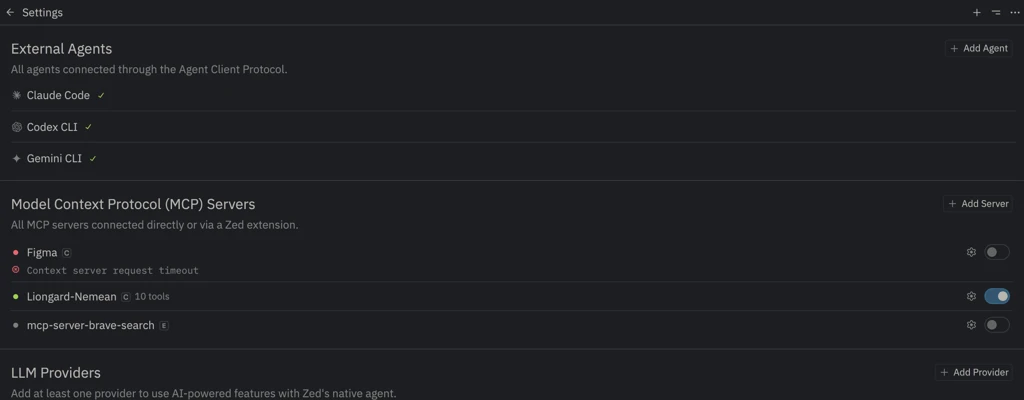
Once configured, return to Settings and toggle on the server
Integrating with Cursor
{
  "mcpServers": {
        "Liongard": {
            "url": "https://[server].app.liongard.com/api/mcp",
            "headers": {
                "Authorization": "Bearer [ACCESS_KEY_ID]:[ACCESS_KEY_SECRET]",
                "MCP-Protocol-Version": "2025-11-25"
            }
        }
    }
}-
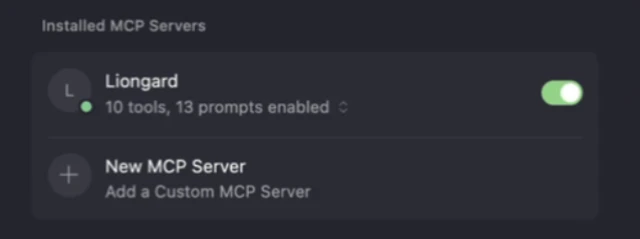
Add the JSON blob with the key and secret.
-
Once completed, you should see the Liongard MCP enabled.
Integrating with n8n
-
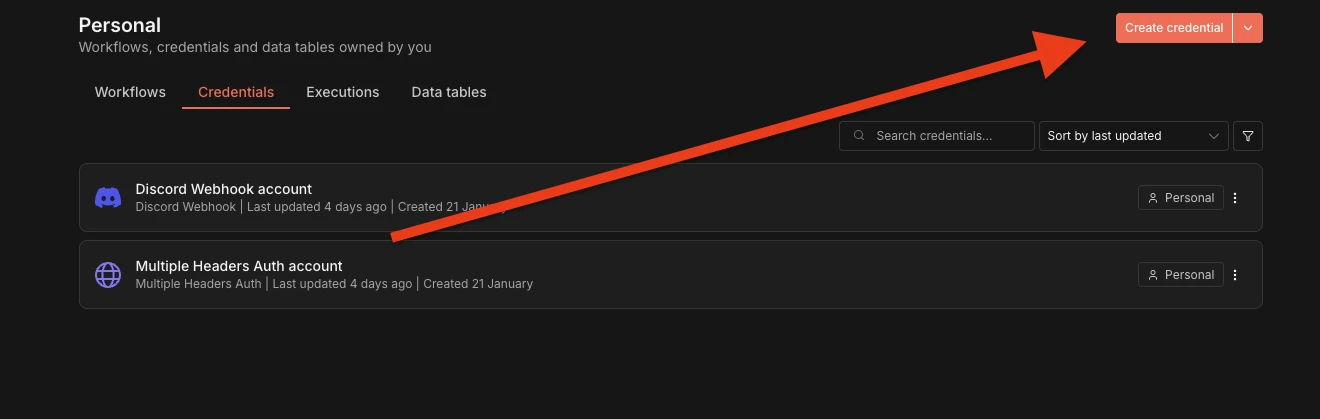
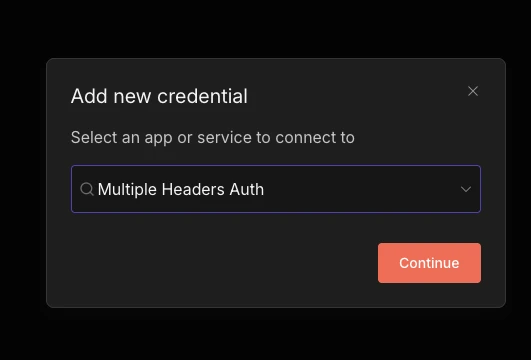
Select “Create New Credential“
-
Choose “Multiple Headers Auth”
-
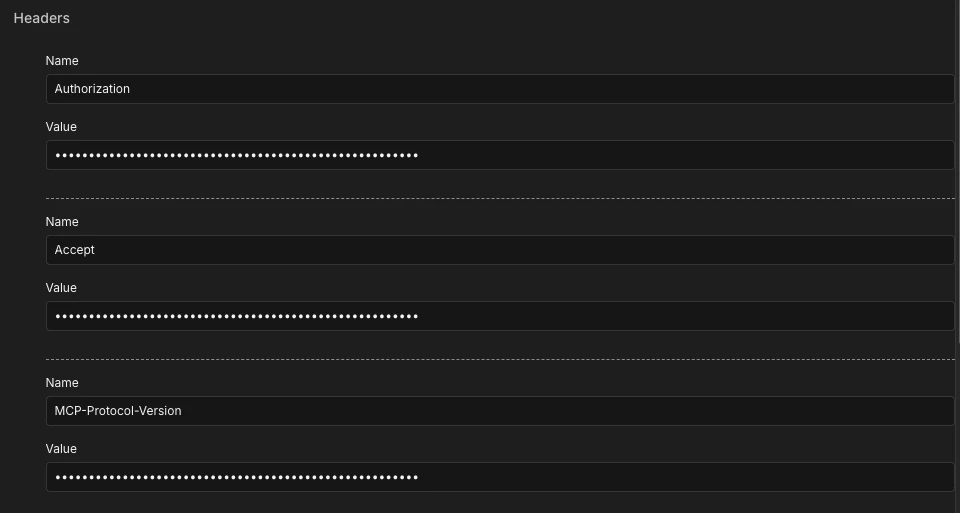
Use these three headers
-
Authorization: the MCP token from the dashboard (Authorization key is the complete string, including Bearer prefix and token with secret separated by a
:) -
Accept: application/json
-
MCP-Protocol-Version: 2025-06-18
-
-
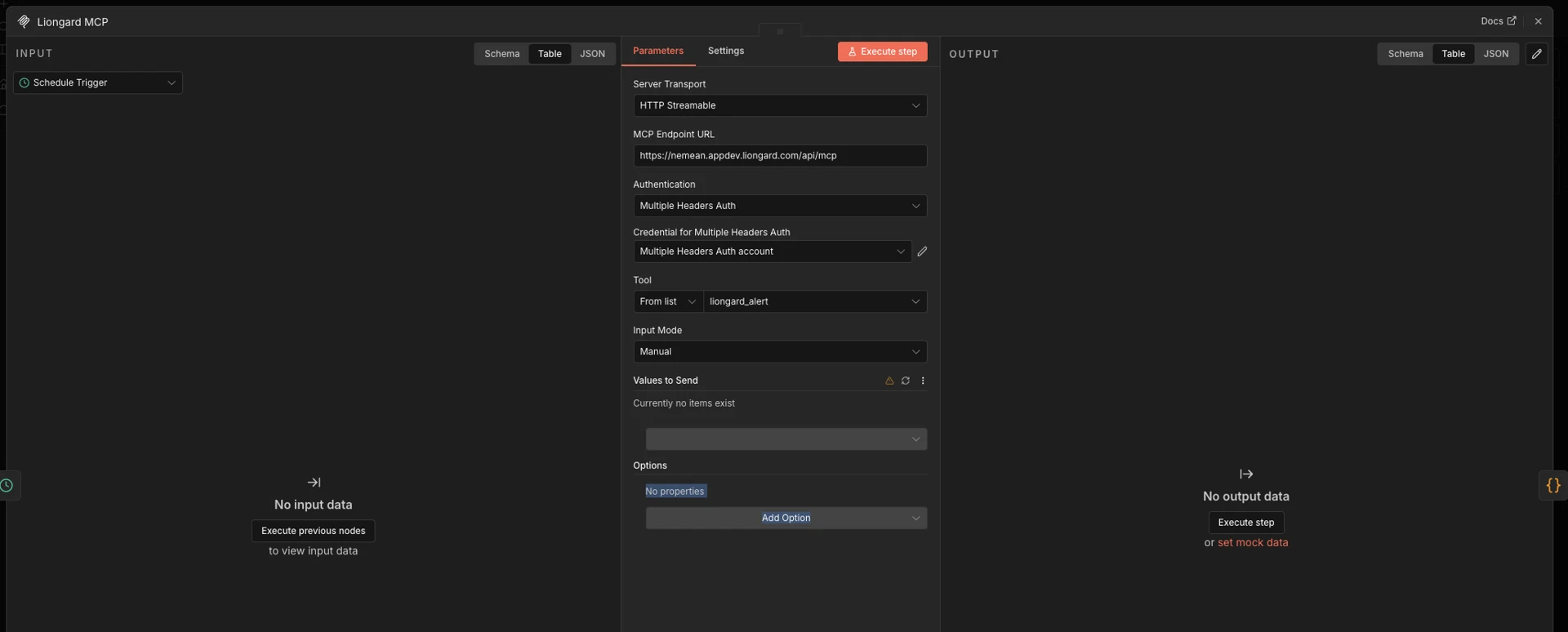
Create an MCP client node, using this credential as the auth and https://(instance).app.liongard.com/api/mcp as the MCP endpoint URL.
Integrating with Claude Code
Claude Cowork, Claude Code, and Claude Desktop all connect to the Liongard MCP using Bearer token authentication (not OAuth) — see the configuration block below.
-
Install Claude Code locally
-
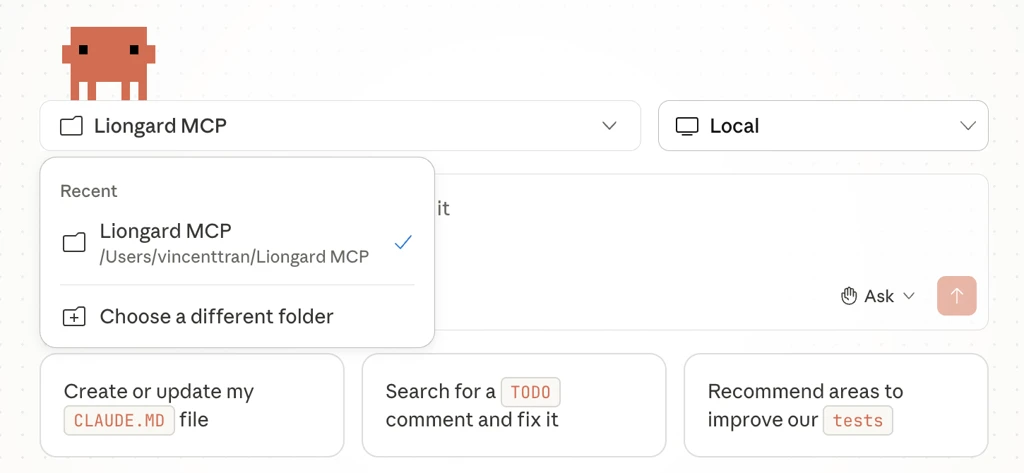
Create a new local project under your root user folder or wherever.
-
Under the Claude Code tab, select the folder.
-
Within the folder, place the following code config, but replace it with your own bearer token, server, and name
{
  "mcpServers": {
    "Liongard": {
      "type": "http",
      "url": "https://[server].app.liongard.com/api/mcp",
      "headers": {
        "Authorization": "Bearer [ACCESS_KEY_ID]:[ACCESS_KEY_SECRET]",
        "MCP-Protocol-Version": "2025-11-25"
      }
    }
  }
}
Microsoft Copilot Studio
- Follow the steps in this document.
OpenAI ChatKit
-
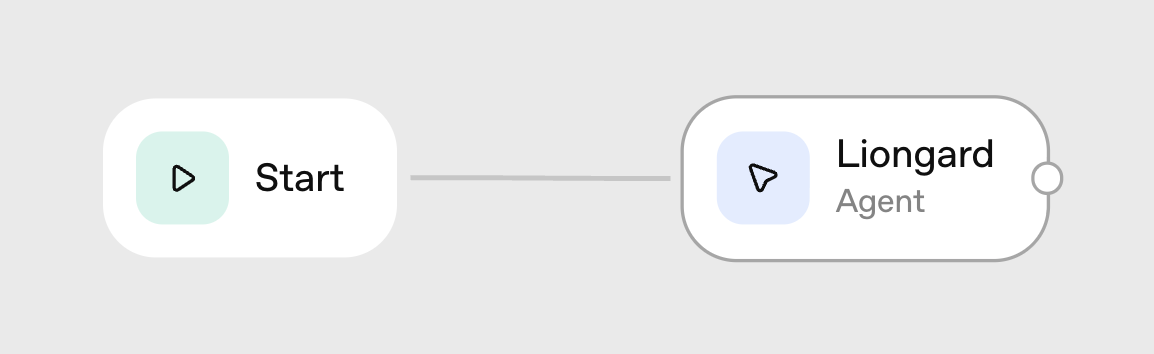
Within an Agent or MCP type node
1.
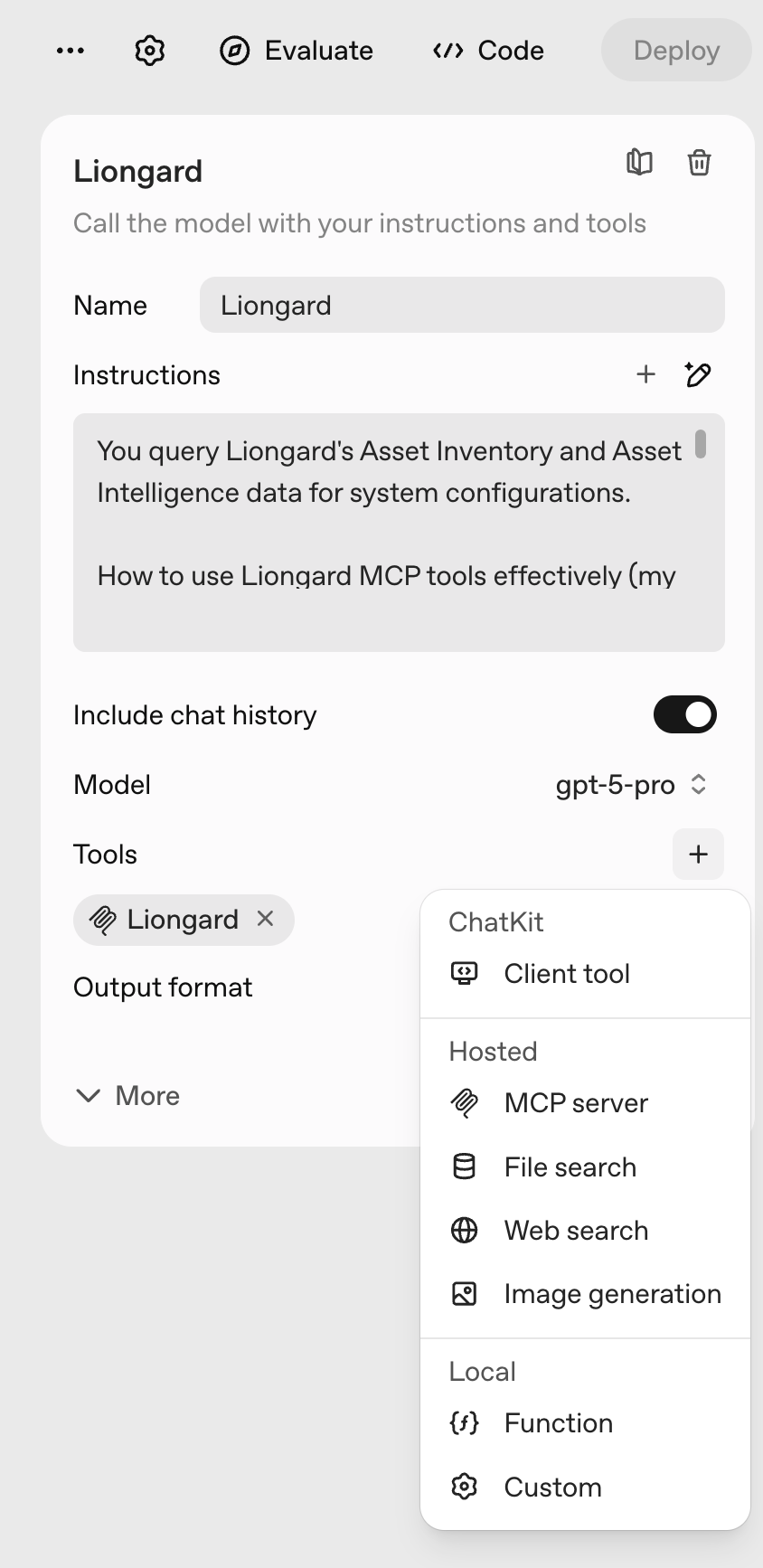
Configure a new MCP Server hosted tool
2.
Click the “+Server” button at the top right corner
-
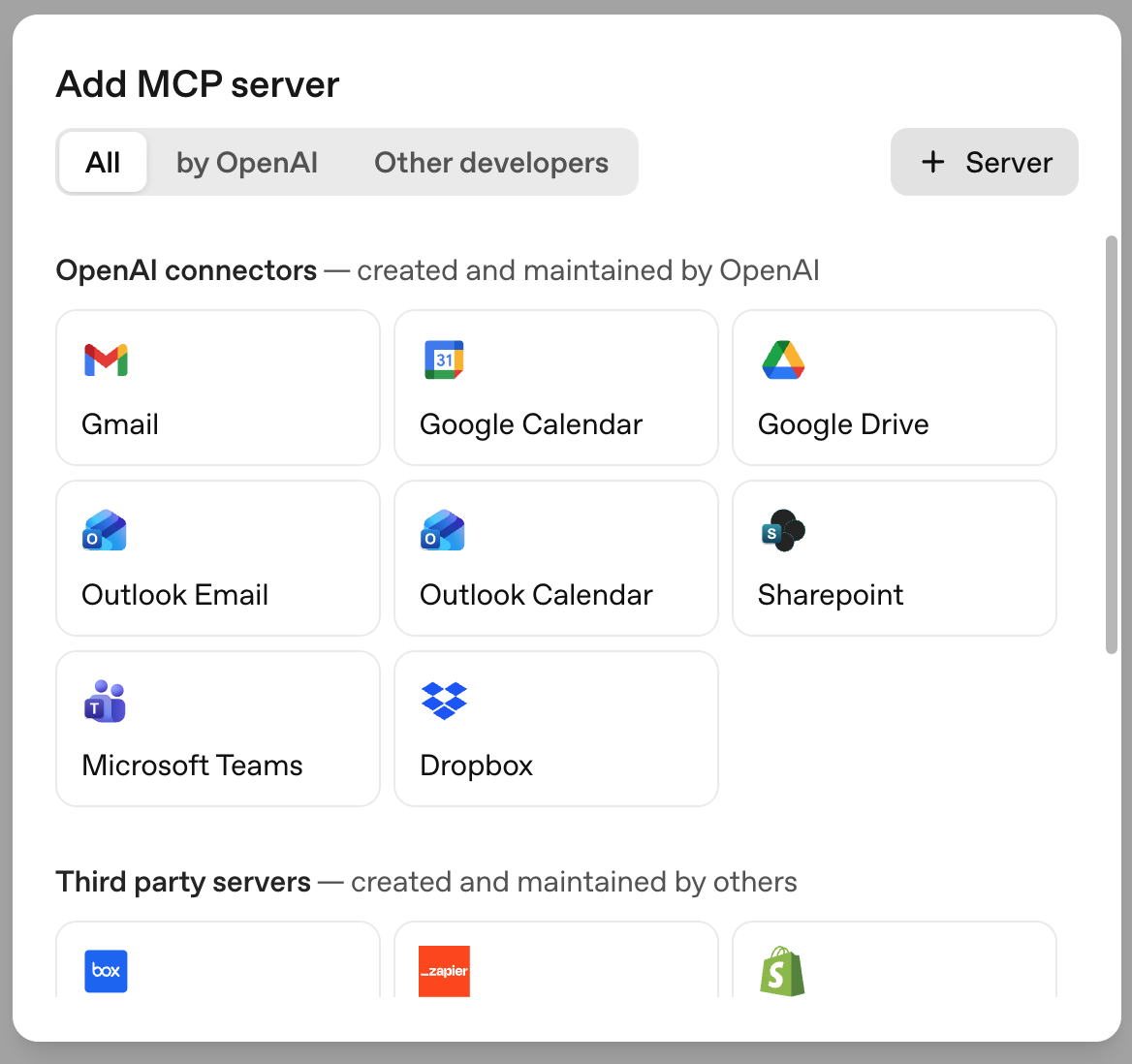
Configure the Connection with the following values
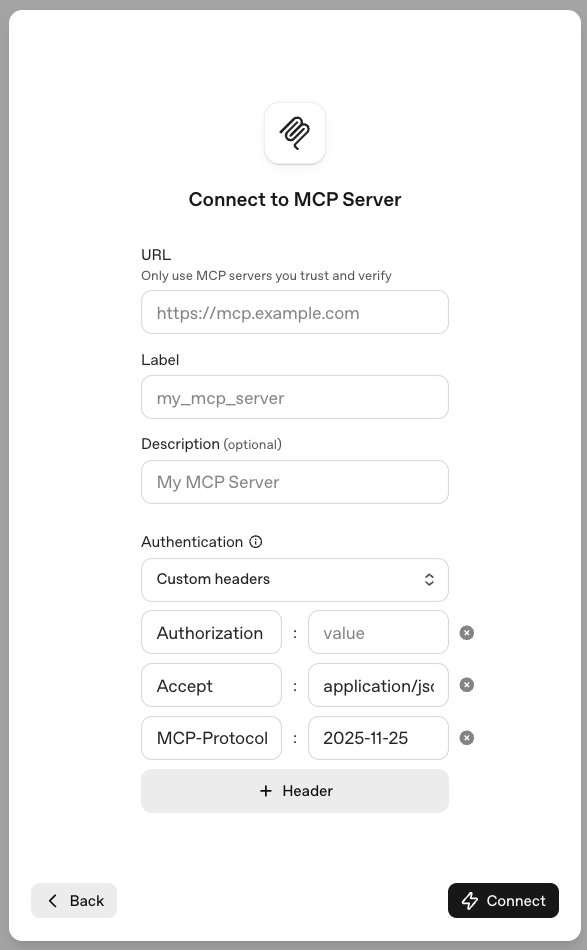
-
URL: https://[SERVER].app.liongard.com/api/mcp
Label: Liongard
Description (optional): Label as needed
Authentication: Select Custom Headers
Authorization: Bearer [ACCESS_KEY_ID]:[ACCESS_KEY_SECRET]
Accept: application/json
MCP-Protocol: 2025-11-25
-
-
Click Connect and a chip should appear in the configuration panel Tools section
-
The MCP configuration screen should also display any available tools upon successful connection
- Select the desired tool calling the Approval level
-
To test the chat functionality, toggle on the interface to Preview mode
3. Verify and Manage Credentials
- Status: Active/inactive state visible in the Access Tokens list.
- Manage: Revoke any credential immediately if compromised.
- Environment Scoping: Ensure your token is scoped correctly per best practices (e.g., only to required environments).
4. Security and Compliance Notes
- Credential Management: Store both Access Key ID and Secret securely (e.g., password manager).
- Tenant-wide Access: All MCP data accessed via these credentials is available tenant-wide and not restricted by user role.
- Best Practices:
- Rotate keys regularly.
- Set expirations.
- Scope tokens as narrowly as possible per environment.
5. Registry Tab
- Registry: For advanced configuration and observing registered resource types.
6. Troubleshooting
- Missing Data: Confirm that the right environments are selected for the token.
- Invalid Key: Double-check for extra spaces or missing characters in the Authorization header.
- Expiration: Ensure your token has not expired.
7. Tools
Environments
- What it does: Lists and looks up your customer accounts (environments) in Liongard. Think of environments as folders, one per client or organization you manage.
- Example question: "Show me all my client environments that have 'Production' in the name."
Systems & Launchpoints
- What it does: Shows the IT systems Liongard is monitoring for things like email servers, firewalls, cloud services, domains, and certificates, and also manages how and when their inspections run — schedules, credentials, and connection details. You can search, filter, and inspect any system, and diagnose why an inspection might be failing or not running on time.
- Example question: "What Exchange servers are being monitored across my clients, and are any of their inspections in an error state?"
Devices
- What it does: Searches your reconciled device inventory for computers, servers, and other hardware Liongard has discovered — hostname, IP address, serial number, operating system, EDR/antivirus, warranty, and more.
- Example question: "Find all devices manufactured by Dell in the Acme Corp environment."
Identities
- What it does: Searches your reconciled identity inventory for user and service accounts Liongard has discovered — MFA status, privileged accounts, account activity, department, and more.
- Example question: "Which users at Acme Corp don't have MFA enabled?"
Domains
- What it does: Searches your reconciled domain inventory — DMARC health, registrar, expiration dates, and email/website detection for every domain Liongard tracks.
- Example question: "Which of our client domains are expiring in the next 30 days?"
Agents
- What it does: Reports on the health and status of the Liongard Agents that run inspections on customer machines — platform, version, last heartbeat, and whether an agent is suspended or unassigned.
- Example question: "Are there any offline or suspended agents for Acme Corp?"
Events
- What it does: Retrieves the raw, real-time occurrences captured during inspection runs — useful for a chronological "what happened" view alongside Alerts and Detections.
- Example question: "What events were recorded for the Contoso environment in the last 24 hours?"
Metrics
- What it does: Evaluates and generates data checks against your systems. Metrics answer specific "what is the current state?" questions about configurations, like whether MFA is enabled or how many licenses are in use.
- Example question: "How many users have MFA disabled in our Microsoft 365 tenant?"
Alerts
- What it does: Retrieves actionable notifications triggered when something important changes or a rule is violated — like a certificate expiring or a security setting being turned off.
- Example question: "Show me all new, unresolved alerts for Acme Corp from the past week."
Detections (Change Detections)
- What it does: Tracks what changed between inspections. If a DNS record was updated, a configuration was modified, or a certificate expired, detections surface that change.
- Example question: "What configuration changes were detected in the Contoso environment recently?"
Timeline
- What it does: Shows the history of inspection runs, when they happened, whether they succeeded or failed, and what they found. Useful for understanding inspection health and history.
- Example question: "Did the last inspection for our firewall system complete successfully?"
Reports
- What it does: Retrieves generated reports and summaries, the kind you'd share in a client review or compliance audit. These pull together data from systems, metrics, and detections into a readable format.
- Example question: "Assess the domain expiration report for Acme Corp."
Cyber Risk Dashboard
- What it does: Returns a scored security posture and control-gap analysis for an environment — counts and drill-downs across categories like workstation/server security, domain and website security, and identity security.
- Example question: "What's the cyber risk score breakdown for Acme Corp?"
Navigate
- What it does: A tool-discovery helper that compatible MCP clients use to progressively list the available Liongard tools and their schemas, rather than loading every tool definition up front. You generally won't call this directly — your MCP client uses it behind the scenes.
- Example question: N/A — used internally by MCP clients for tool discovery.
Query (Natural Language)
- What it does: Lets you ask complex, cross-cutting questions in plain English. It reasons across environments, systems, metrics, and assets to give you a synthesized answer — no filters or technical syntax needed.
- Example question: "Which of my environments have the most alerts this month, and what are they about?"
Updated about 1 month ago