
How to Write a Metric Workshop
- Metrics Foundation
- Setting up Liongard's Metric Builder
- Querying into an Object
- Querying into an Array
- Tip and Trick #1
- Practice Problems: Simple Queries
- JMESPath Functions
- Tip and Trick #3
- Practice Problems: Functions
- Practice Problems: Functions & Filters
Part 1
On-Demand Webinar: How to Write a Metric Workshop: Part 1
Metrics Foundation
What are Metrics?
Metrics are queries into Liongard's raw data, know as a Data Print.
Liongard provides a library of Metrics on the Admin > Metrics screen. You can also create your own Metrics.
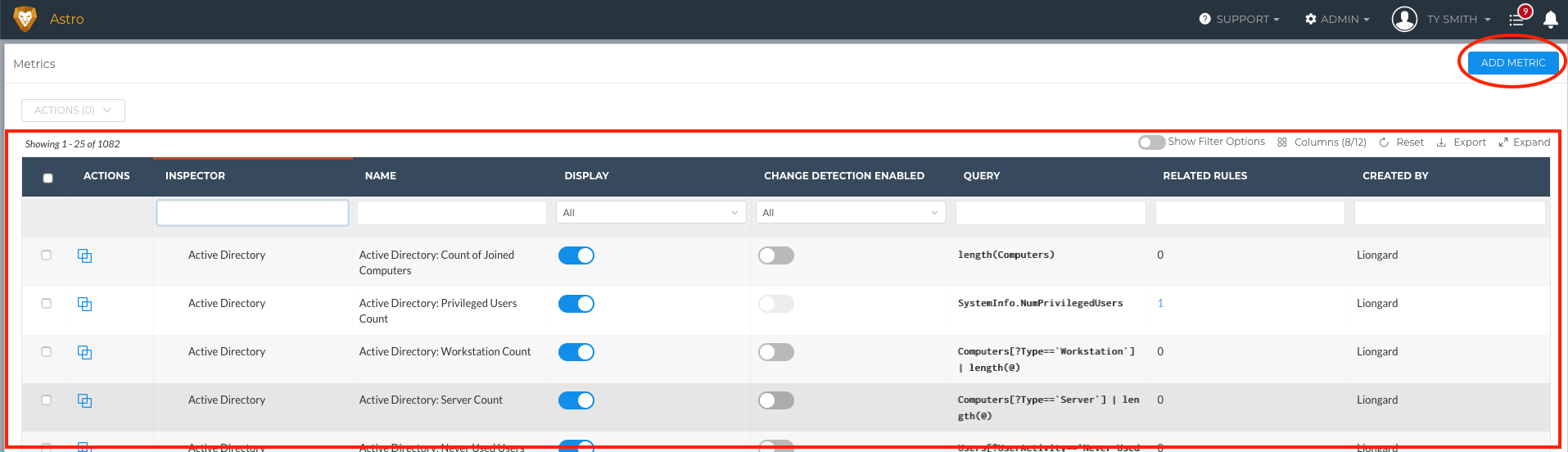
What's a Data Print?
A Data Print is Liongard's Inspectors' raw data. Data Prints can be found in the last tab of each Inspector's Data Views.
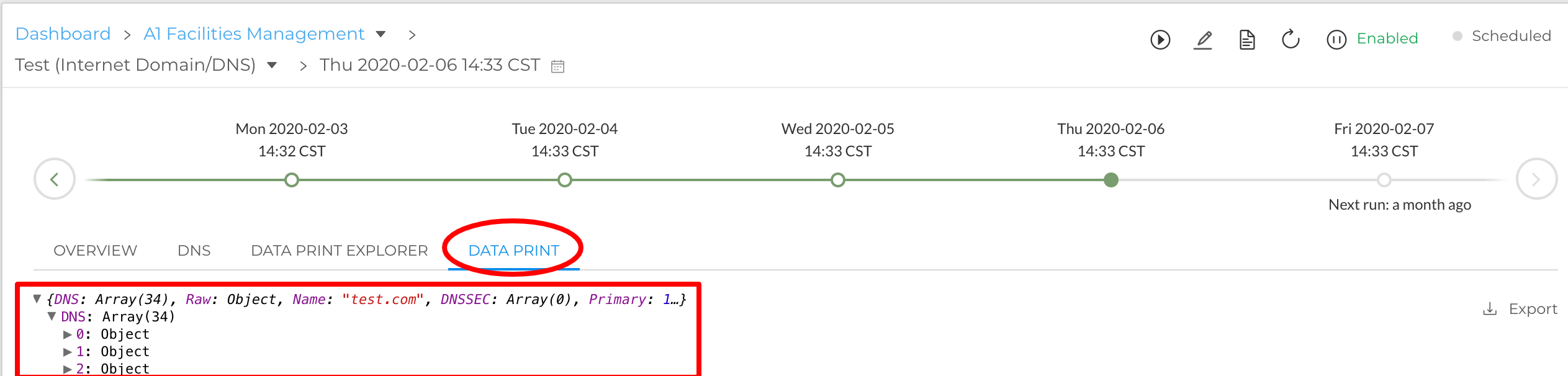
What's JSON?
JSON is a data file format. Liongard's Inspectors' raw data lands in JSON.
JSON Objects are organized in a tree format. Within this tree format, you can find Data Print values labeled as Objects and Arrays.
An Object is a value; sometimes including subordinate values and/or lists of values.
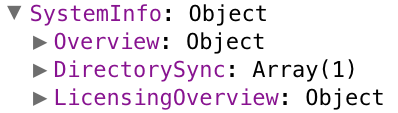
- In the SystemInfo Object, you'll find a list of additional Objects and an Array.
An Array is a list of identically formatted Objects.
- Note: Any Data Print Value followed by "Array (x)", is an Array (e.g. Sites: Array (6))
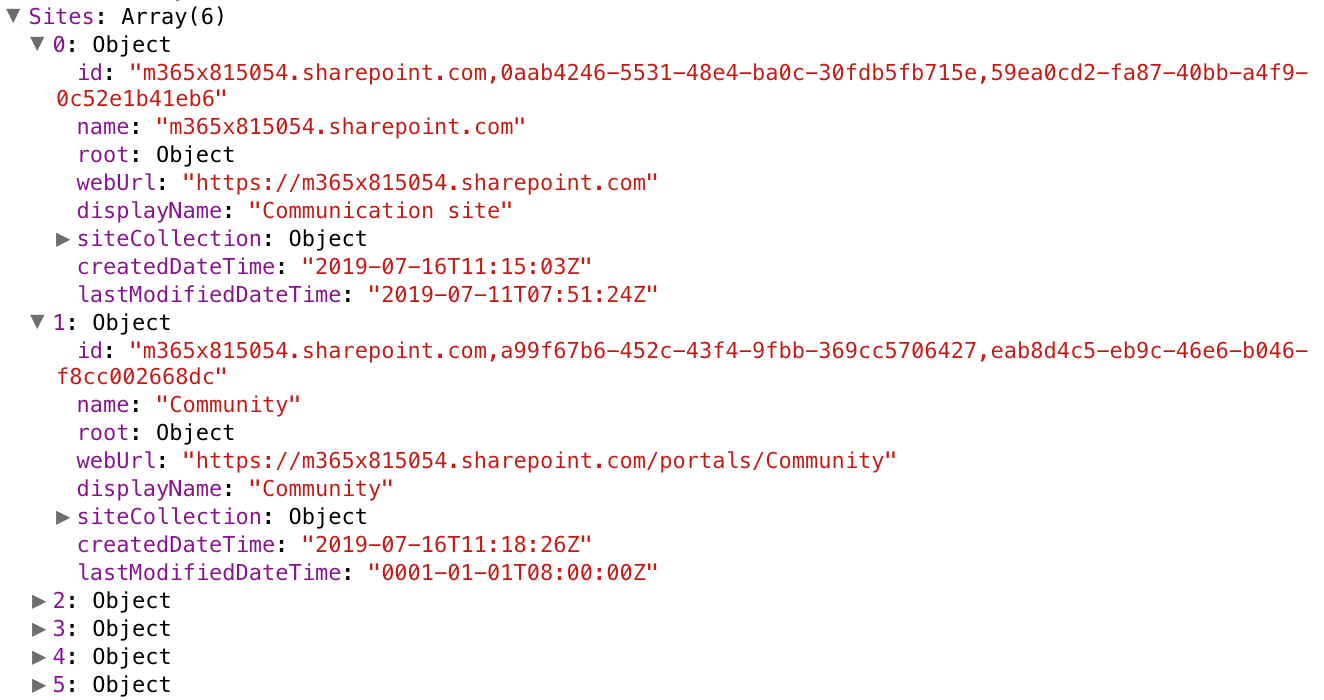
- Each Object within the Sites Array is formatted identically (i.e. each has a Data Print Value for "id," "name," "root," etc.) and outputs data for a different Microsoft 365 site.
What's JMESPath?
JMESPath is a query language of JSON. Liongard's Metric queries are written in JMESPATH.
Setting up Liongard's Metric Builder
The Metric Builder screen is where you can create your own Metrics in Liongard.
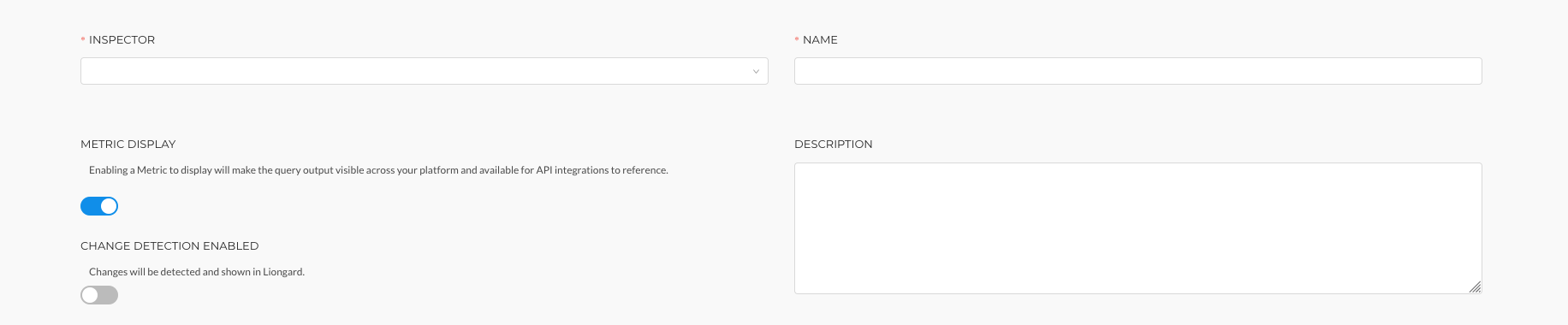
At the top of this screen you'll need to fill out the following fields:
- Inspector: Select the Inspector you are building the Metric for
- Name: Name the Metric
- Metric Display: Toggling the Metric to display will show this Metric in Liongard and will make the data available to third-party integrations, like BrightGauge.
- Change Detection Enabled: Turn this toggle on if you'd like the Metric quer to trigger a Change Detection.
- Description: (Optional) Enter a description for the Metric query
Once filled out, the bottom half of the Add Metric screen will light up.
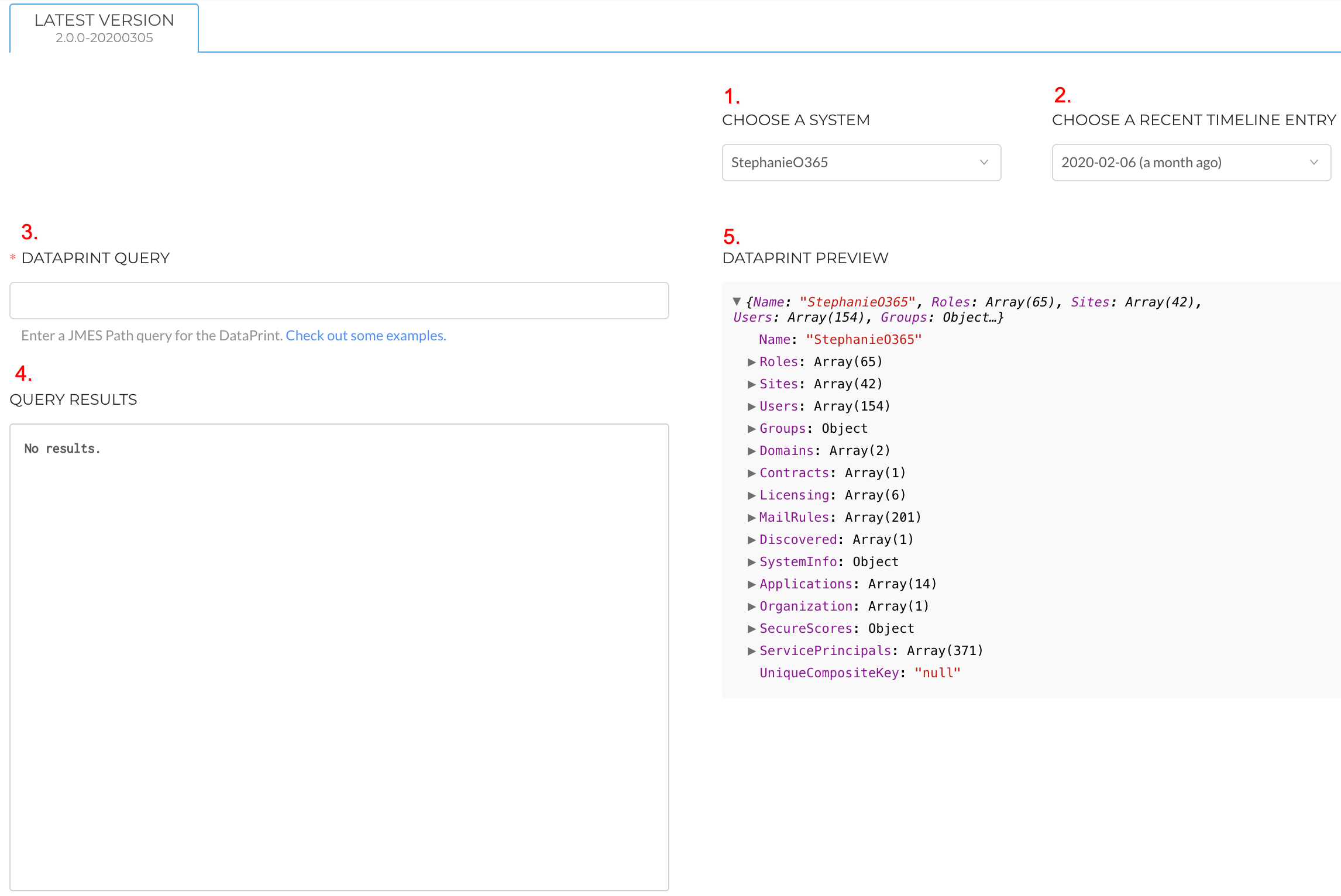
You'll need to fill out the following fields:
- Choose a System: The Friendly Name of an Inspector whose Data Print you'd like to explore in the Data Print Explorer
- Choose a Recent Timeline Entry: Select a specific timeline entry from the selected Inspector, selected in the Choose a System field, in which you'd like to view in the Data Print Explorer
- Data Print Query: JMESPath Query of the Metric
These fields will support you in creating your Metric query:
4. Query Results: The dynamic results of the Metric query entered in the Data Print Query field when applied to the Data Print in the Data Print Preview field
5. Data Print Preview: The Data Print of the Inspector and timeline entry chosen in the Choose a System and Choose a Recent Timeline Entry fields
Querying into an Object
JMESPath is written in a sequence of paths separated by periods. The path moves down through the tree format of a JSON Object.
Example:
path.path.pathReal Example:
SecureScores.vendorInformation.vendorThis Metric query is querying for the vendor associated with this MIcrosoft 365 secure score.
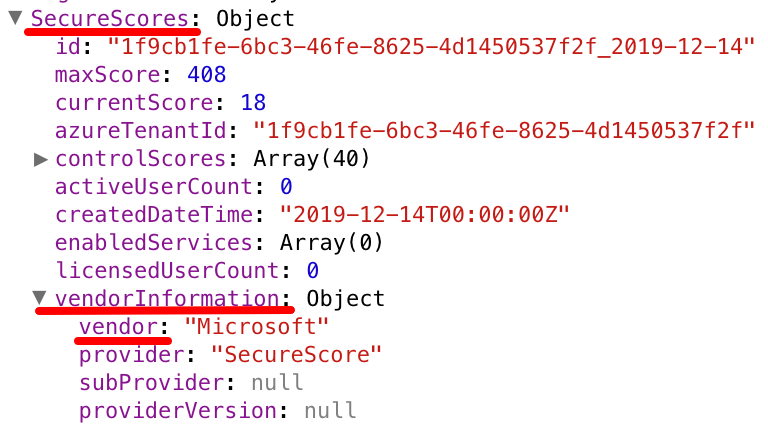
You'll see that each path and period combo signifies moving to the next level/branch of the JSON Object. Starting in the Secure Scores Object, then to the Vendor Information Object, and lastly the Vendor Data Print Value.
Querying into an Array
Querying into an Array is still written as a sequence of paths separated by periods; however, when referencing an Array, follow the Array path with "[]"
Example:
path[].pathReal Example:
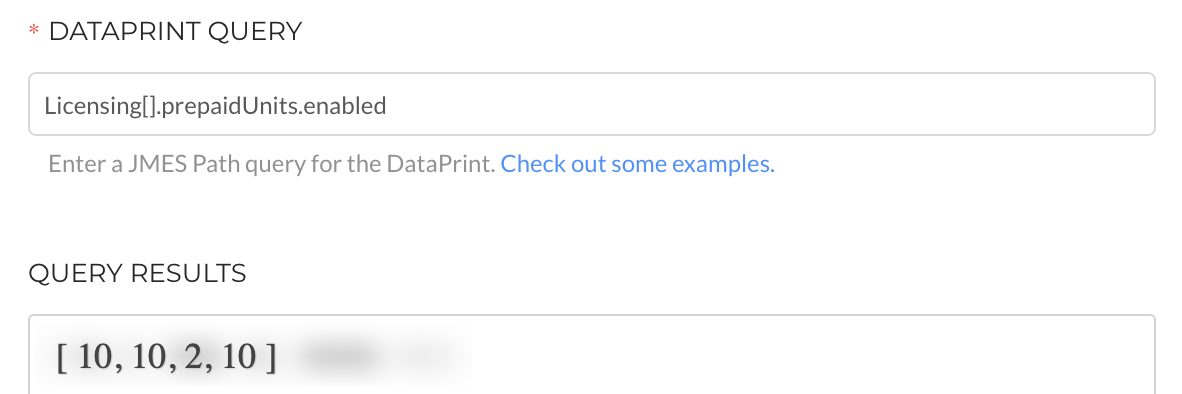
Licensing[].prepaidUnits.enabledThis query is querying for the number of enabled prepaid units of each Microsoft 365 license.
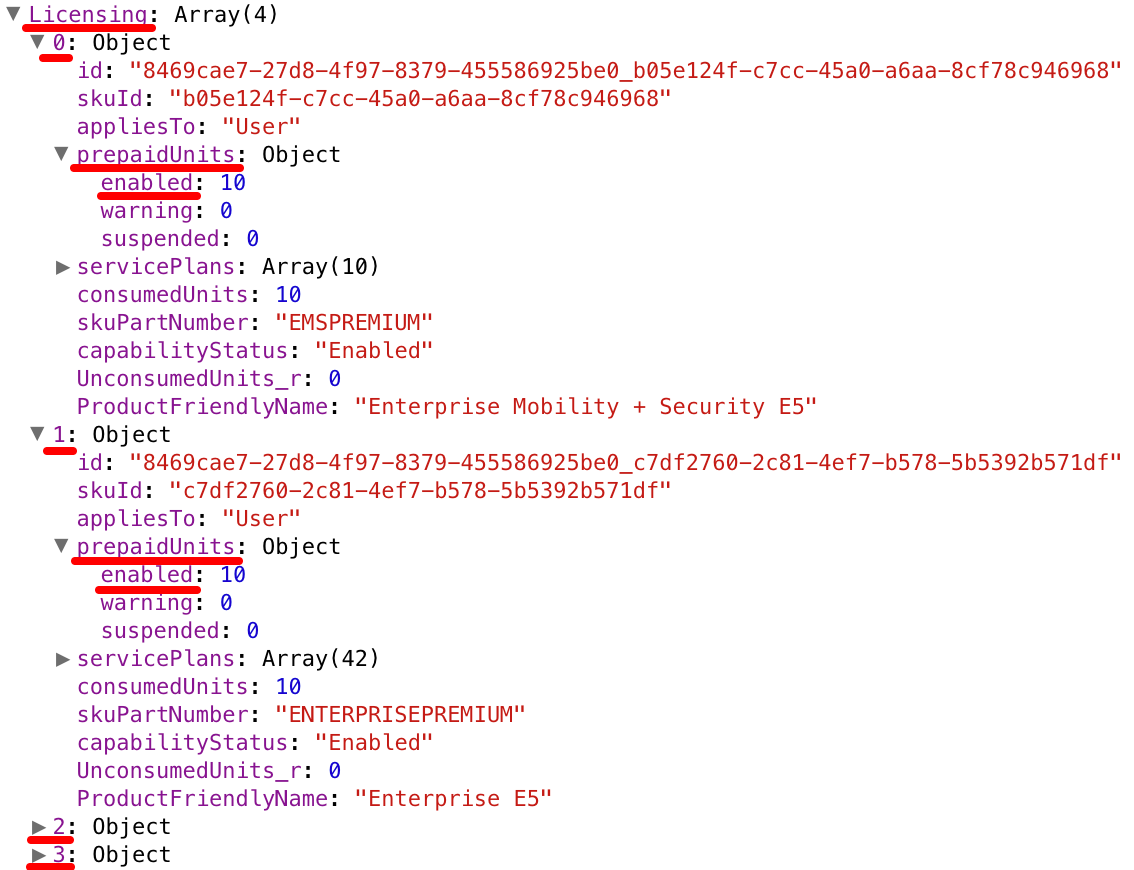
This query queries each subordinate Object within the Licensing Array for its enabled prepaid units. The Metric query starts in the Licensing Array, then moves to the Prepaid Units Object, and then to the Enabled Data Print Value, for each Object.
Therefore, there is a list of four numbers in the Query Results section. This is because there are four licenses in the Licensing Array - each one has an enabled prepaid unit count that is output by this query.
Tip and Trick #1
Locating Data in Liongard's Data Print
- When trying to find data applicable to a desired Metric query in a Data Print, start by skimming the top-level Objects and Arrays in the Data Print within the Data Print Explorer. Then, click into those that sound most related to what you may be looking for.
- Example: If you'd like to write a query to return information about your Microsoft 365 users, select to drop down the Users Array, because it seems like it would contain information about your users, and/or select to drop down the Organization and System Info Objects as they could hold some high-level information about your users.
- After skimming the top level Objects and Arrays, if you decide that you'd like to query into an Array, select to drop down the Array branch, and then, open the first Object below.
- Note: Remember, each subordinate Object within an Array is structured identically, and when you query into an Array, the Metric query will query each Object within the Array. So, you just need to find your Metric query path through one Object.
Practice Problems: Simple Queries
Part 2
On-Demand Webinar: How to Write a Metric Workshop: Part 2
JMESPath Filters
JMESPath filters allow you to scope down which Objects are queried when querying into an Array.
For example:
Users[].displayNameThe above query will return a display name for each user. However, you may only want the display names of those users that are privileged, or those users who are within a certain group, or a certain combination of groups, etc. Filters allow you to achieve this result.
To write a filter in JMESPath, start by typing a question mark within the open and closed bracket following an Array.
Array[?...]This question mark signifies the statement, "Where". So, this query is stating, "In the Array, where..."
The next step is to enter the Data Print Value on which you'd like to base the Metric query's filter.
Array[?Data Print Value...]This query is now stating, "In the Array, where Data Print Value..."
The next step is to set a criteria for this filter. Here are some of the criteria you can set JMESPath filters to:
- Equals: ==
- Does not equal: !=
- Less than: <
- Greater than: >
- Less than or equal to: <=
- Greater than or equal to: >=
Array[?Data Print Value == ...]This query is stating "In the Array, where Data Print Value equals..."
The last step is to follow the criteria with what you'd like this filter, in this example, to equal. This could be a string like, "true" or "some output" that exactly matches a potential output of the Data Print Value specified earlier in the query, or this could be another Data Print Value.
Array[?Data Print Value == `x`]
  or
Array[?Data Print Value == Another Data Print Value]
Notes:
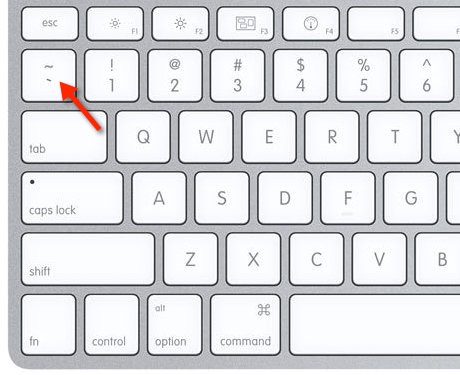
- The string "x" is within two backticks. On both Macs and PCs, the backtick key can be found above the tab key in the top left corner of the keyboard
- Whatever is within the backticks, is case sensitive. Whatever is entered in the backticks needs to exactly match an output in the Data Print that you would like to filter by
- If filtering by another Data Print Value, the second Data Print Value will not be surrounded in backticks
- If filtering by another Data Print Value, both Data Print Values need to be top-level Data Print Values within the Array through which the query is filtering.
Real Example:
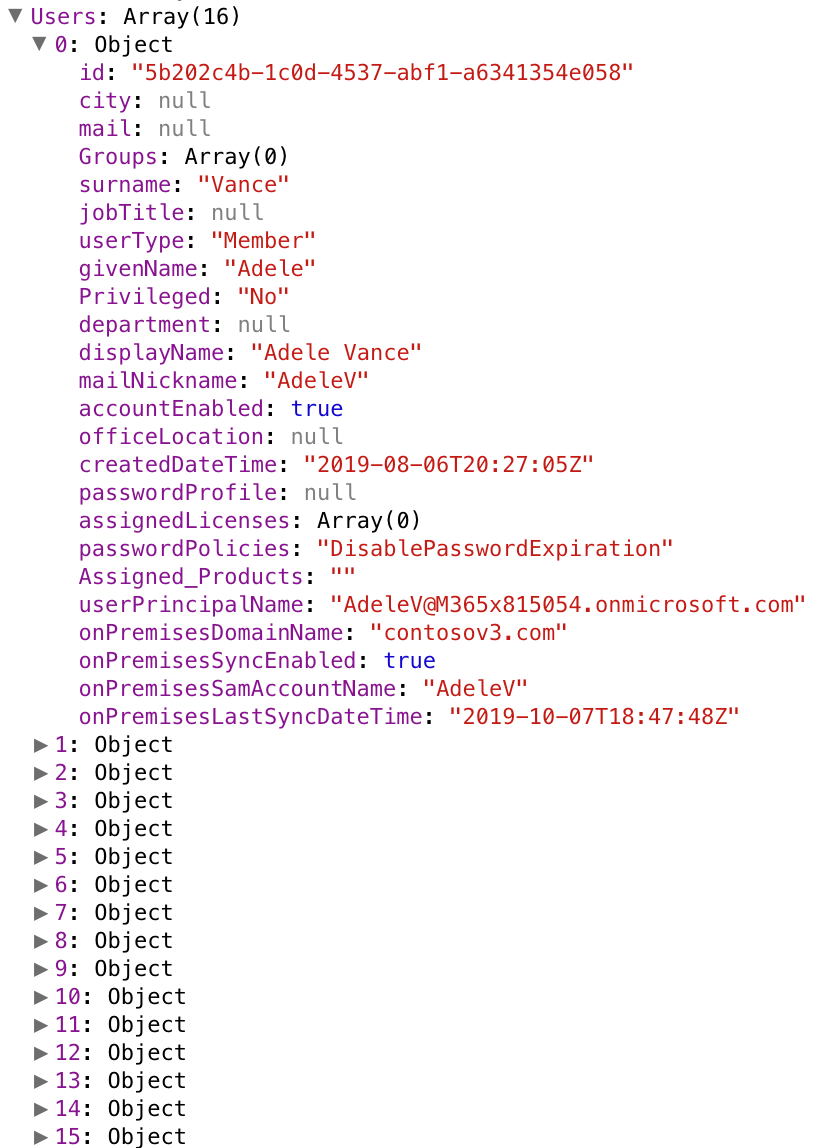
The goal is to write a Metric query that returns a list of Microsoft 365 users that are enabled.
Starting with this query:
Users[]To start the filter, the first step is to add a question mark.
Users[?...]This query is stating, "In the Users Array, where...".
The next step is to enter the Data Print Value for which you'd like to base the Metric query's filter.
The goal is to get a list of enabled users. So, the filter can be based off of the Data Print Value "accountEnabled".
Users[?accountEnabled...]This query is stating, "In the Users Array, where the account enabled...".
The next step is to set the criteria for this filter. The goal is to get a list of enabled users. So, the filter criteria can be account enabled equalling true, or not equalling false.
Users[?accountEnabled == ...]
  or
Users[?accountEnabled != ...]
This query is stating, "In the Users Array, where the account enabled equals...", or "In the Users Array, where the account enabled does not equal..."
The last step is to follow the criteria with what you'd like this filter to equal or not equal. The goal is to get a list of enabled users. So, the filter can be account enabled equalling true or not equalling false.
Users[?accountEnabled == `true`]
  or
Users[?accountEnabled != `false`]
The Metric query outputs the Objects of those Microsoft 365 users whose account is enabled.
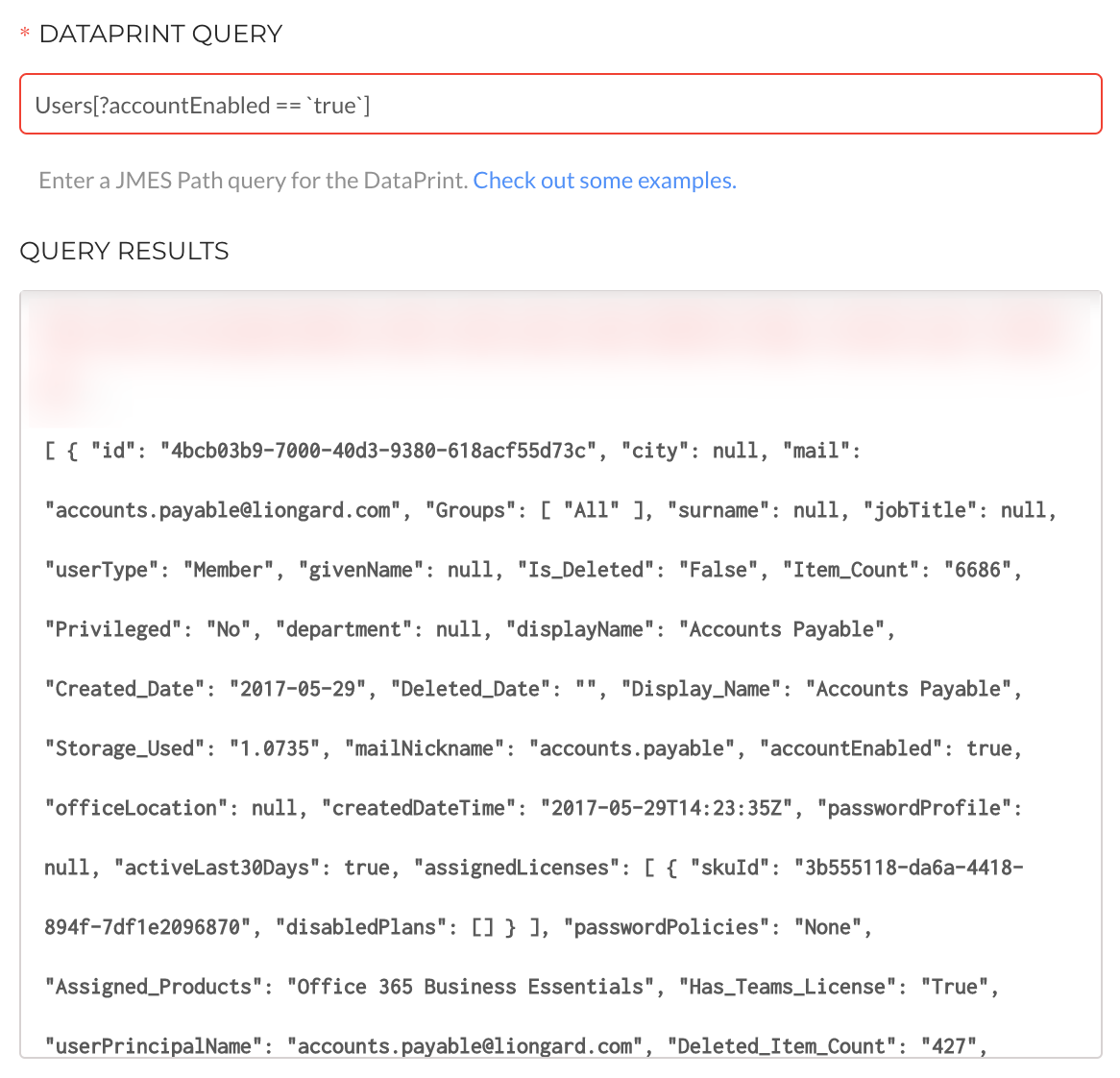
The filter is complete, however, the output of this Metric query isn't very helpful. It is outputting every Data Print Value from each user Object whose account is enabled.
Now, you need to specify what Data Print Value or list of Data Print Values would be helpful to know about these enabled users.
Example:
Users[?accountEnabled == `true`].displayNameThis Metric query is returning the display names of each of the enabled users.
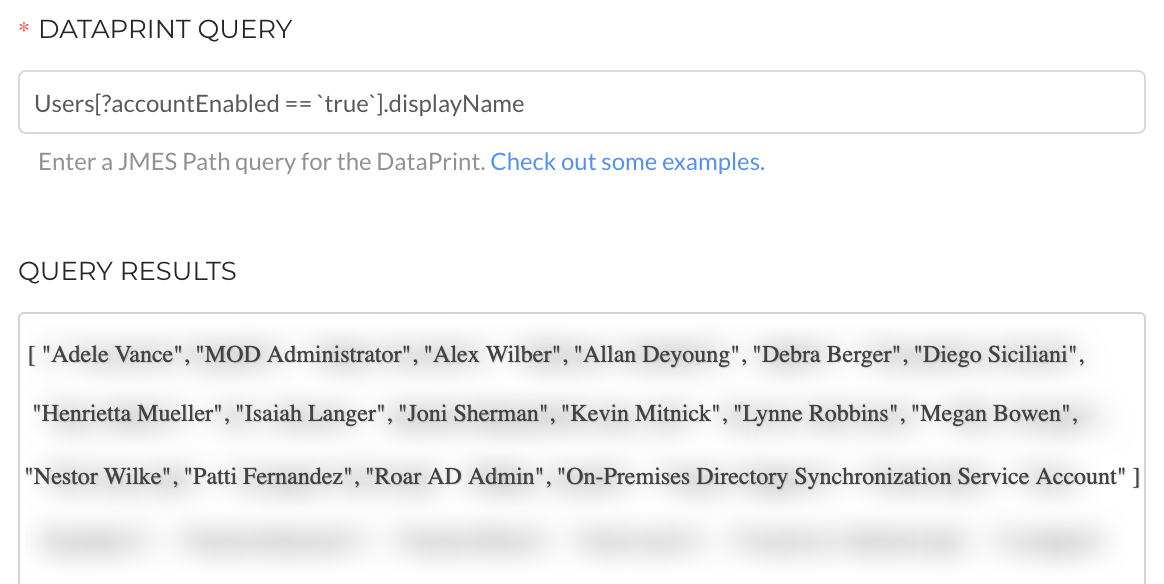
The Data Print Value entered as the last path in this Metric query can be any top-level Data Print Value within the Users Array, in this example, or you can choose multiple Data Print Values.
Th Metric query below is returning the display names AND user types for each of the enabled users.
Users[?accountEnabled == `true`].[displayName, userType]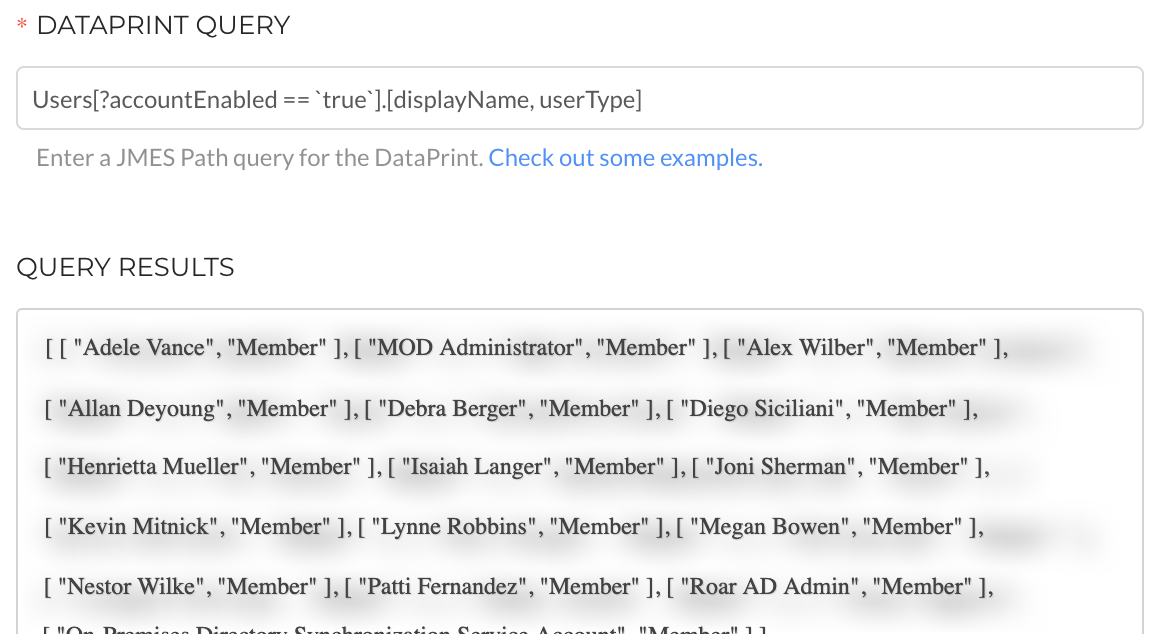
It is possible for Metric queries to return multiple Data Print Values in their output. You can do this by, in the last path of your Metric query, creating a list of Data Print Values entered in a comma-separated list within an open and close bracket.
Each Data Print Value entered into this list must be top-level Data Print Values from within the Users Array, in this example.
Applying Multiple Filters to your Metric Query
In JMESPath, a double ampersand is used to express "and."
Example:
Licensing[?consumedUnits >= `1` && appliesTo == `User`].ProductFriendlyNameThis Metric query is returning the product friendly name of those licenses that have at least one license consumed AND apply to a user.
To filter by one thing "and" another in JMESPath, start by writing one filter, and then, follow it with a double ampersand.
Array[?Data Print Value >= `x` && ...]The next step is to enter a Data Print Value on which you'd like to base the Metric query's second filter.
Array[?Data Print Value >= `x` && Data Print Value...]The next step is to set the criteria for this second filter.
Array[?Data Print Value >= `x` && Data Print Value == ...]The last step is to follow the criteria with what you'd like this filter. In this example, we would like to equal.
Array[?Data Print Value >= `x` && Data Print Value == `x`]In JMESPath, a double pipe is used to express "or."
Example:
Users[?accountEnabled == `true` || onPremisesSyncEnabled == `true`].displayNameThis Metric query is returning the display name of those users whose account is enabled OR on-premise sync is enabled.
To filter by one thing "or" another in JMESPath, start by writing one filter, and then, follow it with a double pipe.
Array[?Data Print Value >= `x` || ...]The next step is to enter a Data Print Value for which you'd like to base the Metric query's second filter.
Array[?Data Print Value >= `x` || Data Print Value...]The next step is to set criteria for the second filter.
Array[?Data Print Value >= `x` || Data Print Value == ...]The last step is to follow the criteria with what you'd like this filter. In this example, we want to equal.
Array[?Data Print Value >= `x` || Data Print Value == `x`]Tip and Trick #2
Deciding which Data Print Value(s) for your Metric Query to Return
To decide which Data Print Values you would like to return, start perusing the subordinate Data Print Values within the Object or Array that you are querying into.
After perusing these values, identify one Data Print Value, or multiple Data Print Values, that sound most closely related to what details about the Object or Objects within an Array that you would like to know (i.e. Name, Type, Status, etc.)
If you select one Data Print Value that you'd like returned, then add that Data Print Value as the last path of your Metric query.
Query.Data Print ValueIf you selected multiple Data Print Values that you'd like returned about the queried Object or Objects within an Array, you can have your Metric query output them by, in the last path of your Metric query, typing an open and closed bracket.
Query.[...]Then, within the brackets, list the identified Data Print Values in a comma separated list.
Query.[Data Print Value, Data Print Value, Data Print Value]- Note: Each Data Print Value identified must come from the same level of the JSON Object
Practice Problems: Filters
Part 3
On-Demand Webinar: How to Write a Metric Workshop: Part 3
JMESPath Functions
There are a couple of common functions in JMESPath, such as:
- Length Function: length()
- Meaning: Show me how many...
- Example: "Get the total users count."
- Contains Function: contains()
- Meaning: Show me specifically the outputs that have 'x value' in them
- Example: "Get all the users where "admin" is in the displayname"
- Join Function: join()
- Meaning: Show me 'x value' in an 'x-separated list'
- Example: "Get a list of users' display names in a comma-separated list"
There are two ways to write functions in JMESPath.
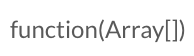
Method #1
Write the desired function followed by an open parenthesis, including the query in which you'd like to apply the function, and a close parenthesis
Method #2:
Write the query for which you'd like to apply the function. Then, add a space, pipe, and another space. Then, write the desired function followed by an open parenthesis, an at (@) sign, and a close parenthesis
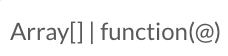
- In JMESPath, the pipe and the at (@) sign work together to support you in writing functions. The pipe ends the initial query and the at (@) sign is assigned the value of the query before the pipe. This allows you to pull the main query out of the middle of a function
- Note: It's up to your personal preference to decide which way you prefer to write functions in your Metric queries.
Length Function
The length function can give you the count of objects within an array.
Examples of the Length Function in Action:
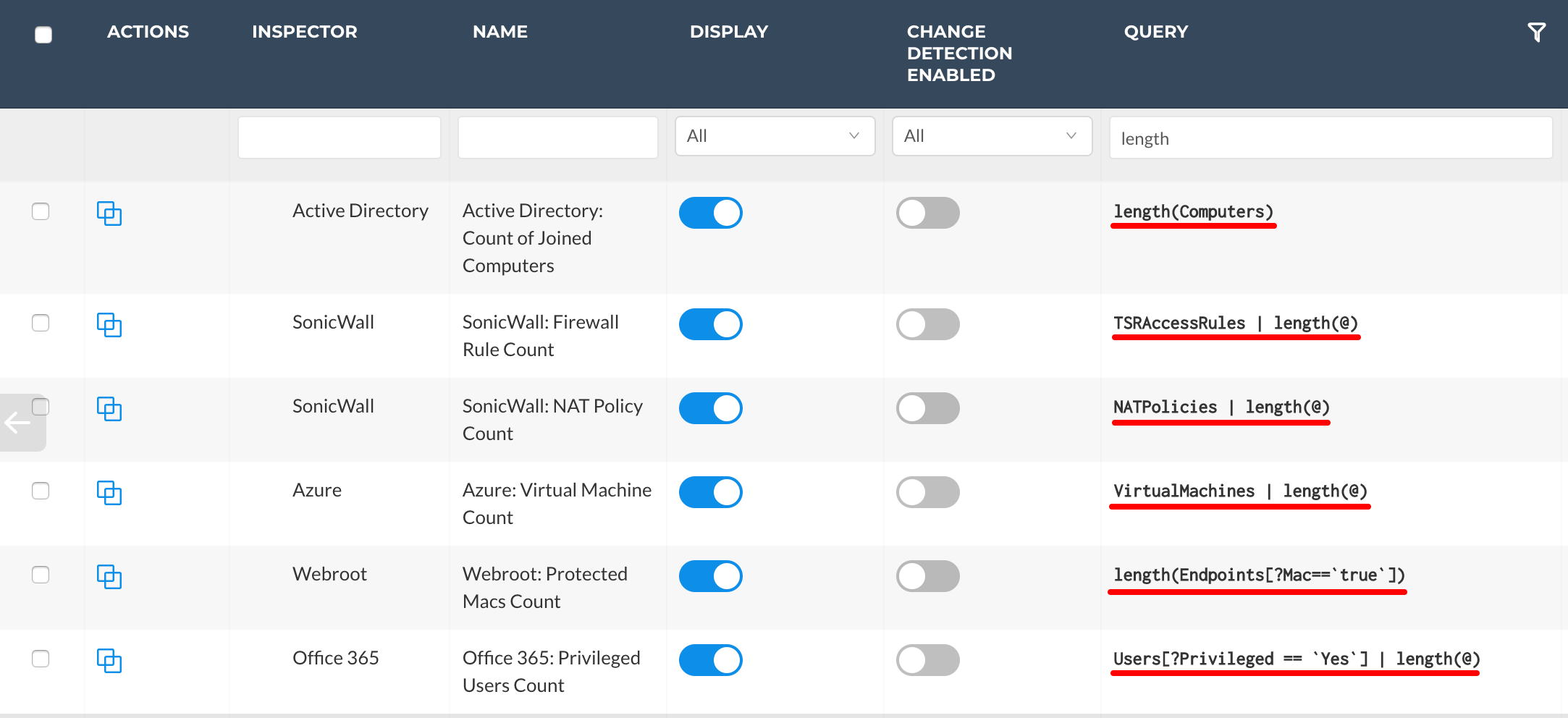
Remember, there are two ways to write functions in JMESPath:
Method #1:
Type "length" and an open and closed parenthesis.
length(...)Within the parenthesis, enter the query to which you'd like to apply the function.
length(Array[])Method #2:
State the query to which you'd like to apply the function.
Array[]...Then, follow the query with a pipe.
Array[] | ...- Note: The pipe stops the previous query
Then, type "length" and an open and closed parenthesis.
Array[] | length(...)Lastly, type an at (@) sign within the length function's parenthesis.
Array[] | length(@)- Note: The at (@) sign is assigned the value of the query before the pipe
Real Example:
The goal is to write a Metric query that returns the count of Microsoft 365 active groups.
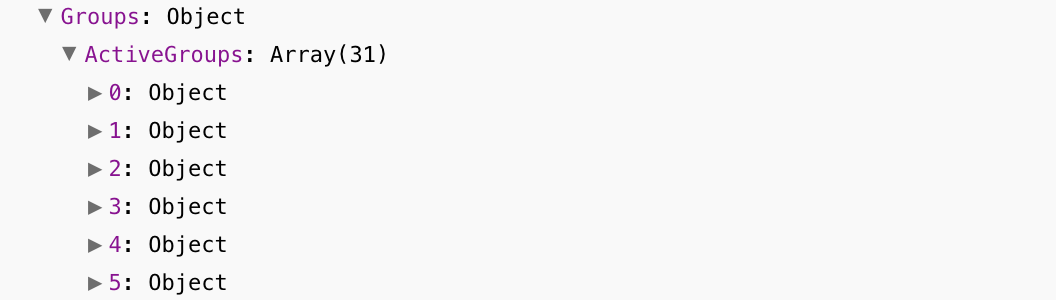
Method #1:
Type "length", and an open and closed parenthesis.
length(...)Then, within the parenthesis, enter the query to which you'd like to apply the function.
length(Groups.ActiveGroups[])
Method #2:
State the query for which you'd like to apply the function.
Groups.ActiveGroups[]...Then, follow the query with a pipe.
Groups.ActiveGroups[] | ...- Note: The pipe stops the previous query.
Then, type "length", and an open and closed parenthesis.
Groups.ActiveGroups[] | length(...)Lastly, type an at (@) sign within the length function's parenthesis.
Groups.ActiveGroups[] | length(@)- Note: The at (@) sign is assigned the value of the query before the pipe

These Metric queries return the count of Microsoft 365 Active Groups.
Contains Function
The Contains Function allows you to complete more advanced filtering. With the contains function, rather than filtering by a Data Print Value that equals, doesn't equal, etc. some output, you can filter by a Data Print Value whose output includes "x-value".
Examples of the Contains Function in Action:
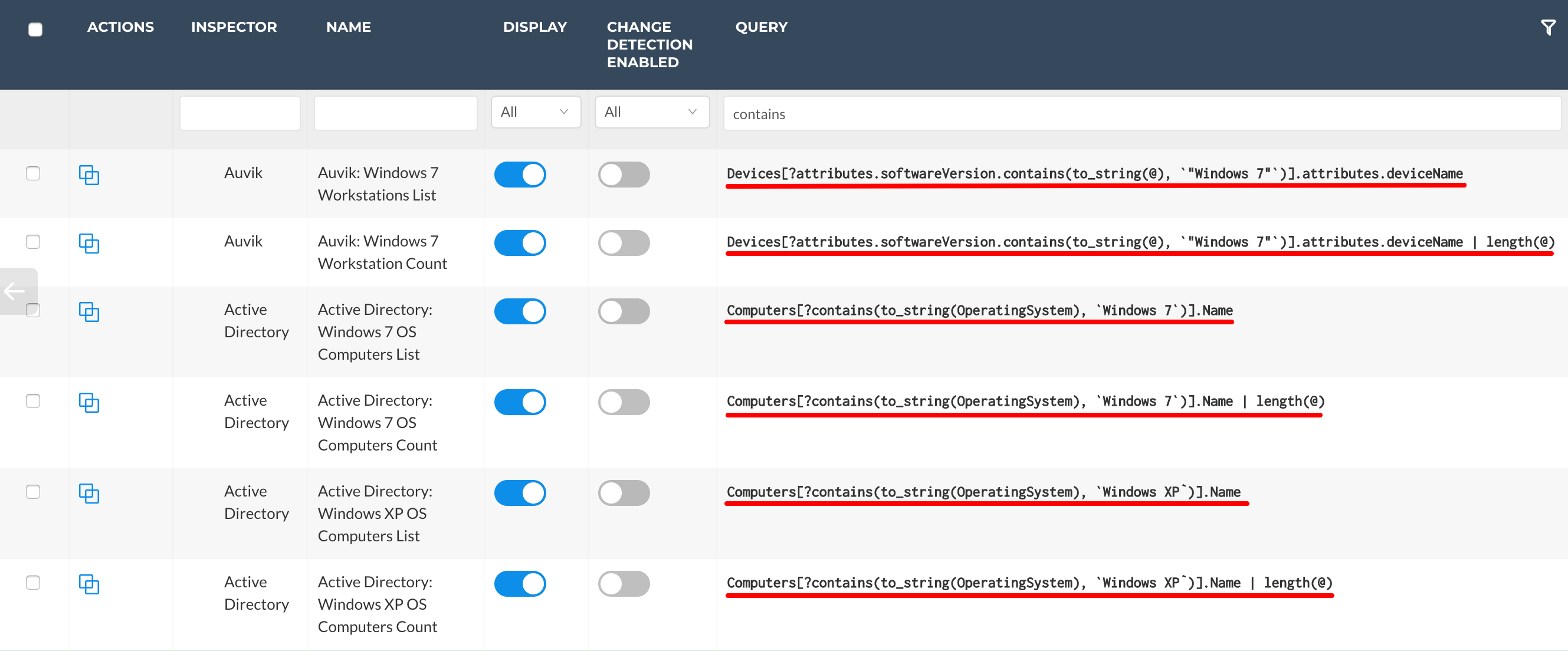
Remember, there are two ways to write functions in JMESPath:
Method #1:
Start a filter on an Array. Type a question mark within the open and closed bracket following an Array.
Array[?...]Then, where you normally state the Data Print Value for which you'd like to base the Metric query's filter, type "contains" followed by an open and closed parenthesis.
Array[?contains(...)]Then, within the parenthesis, enter the Data Print Value for which you'd like to base the Metric query's filter.
Array[?contains(Data Print Value...)]Then, follow the Data Print Value with a comma
Array[?contains(Data Print Value, ...)]Then, within backticks, type what you'd like to the Data Print Value output to contain
Array[?contains(Data Print Value, `x`)]Method #2:
Start a filter on an Array. Type a question mark within the open and closed bracket following an Array.
Array[?...]Then, type the Data Print Value for which you'd like to base the Metric query's filter.
Array[?Data Print Value...]Then, follow the Data Print Value with a pipe.
Array[?Data Print Value | ...]Then, type "contains" followed by an open and closed parenthesis.
Array[?Data Print Value | contains(...)]Then, type an at (@) sign within the contains function's parenthesis.
Array[?Data Print Value | contains(@ ...)]Then, follow the at (@) sign with a comma.
Array[?Data Print Value | contains(@, ...)]Lastly, within backticks, type what you'd like the Data Print Value to contain.
Array[?Data Print Value | contains(@, `x`)]Real Example:
The goal is to get a list of Microsoft 365 users whose name contains "Admin."
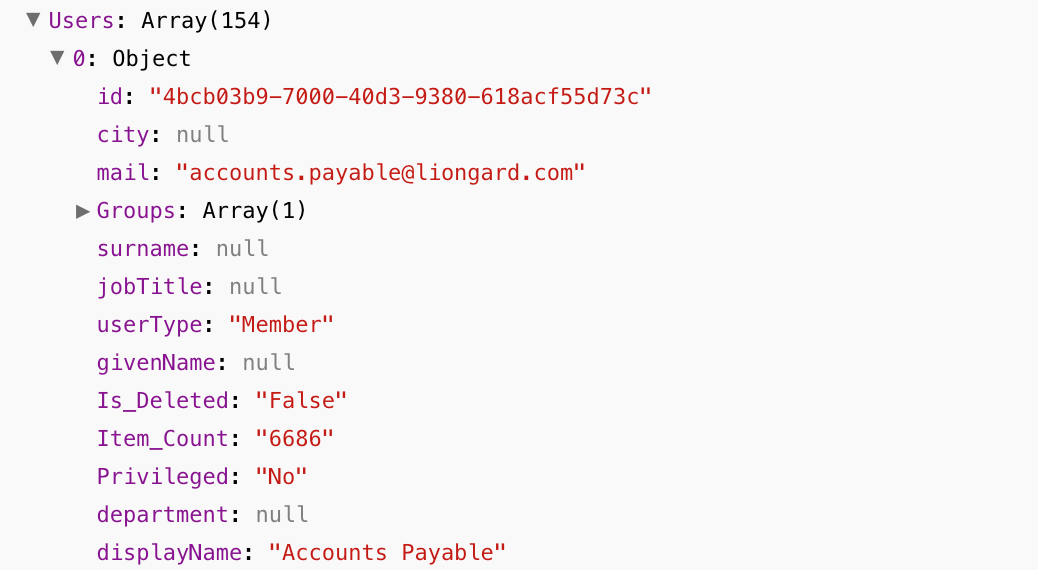
Method #1:
First, start a filter on the Users Array.
Users[?...]Then, type "contains" followed by an open and closed parenthesis.
Users[?contains(...)]Then, within the parenthesis, enter the Data Print Value for which you'd like to base the Metric query's filter.
Users[?contains(displayName...)]Then, follow the Data Print Value with a comma
Users[?contains(displayName, ...)]Then, within backticks, type what you'd like the display name to contain.
Users[?contains(displayName, `Admin`)]Lastly, specify which Data Print Value, or list of Data Print Values, would be helpful to know about these users who have "Admin" in their display names.
Users[?contains(displayName, `Admin`)].displayName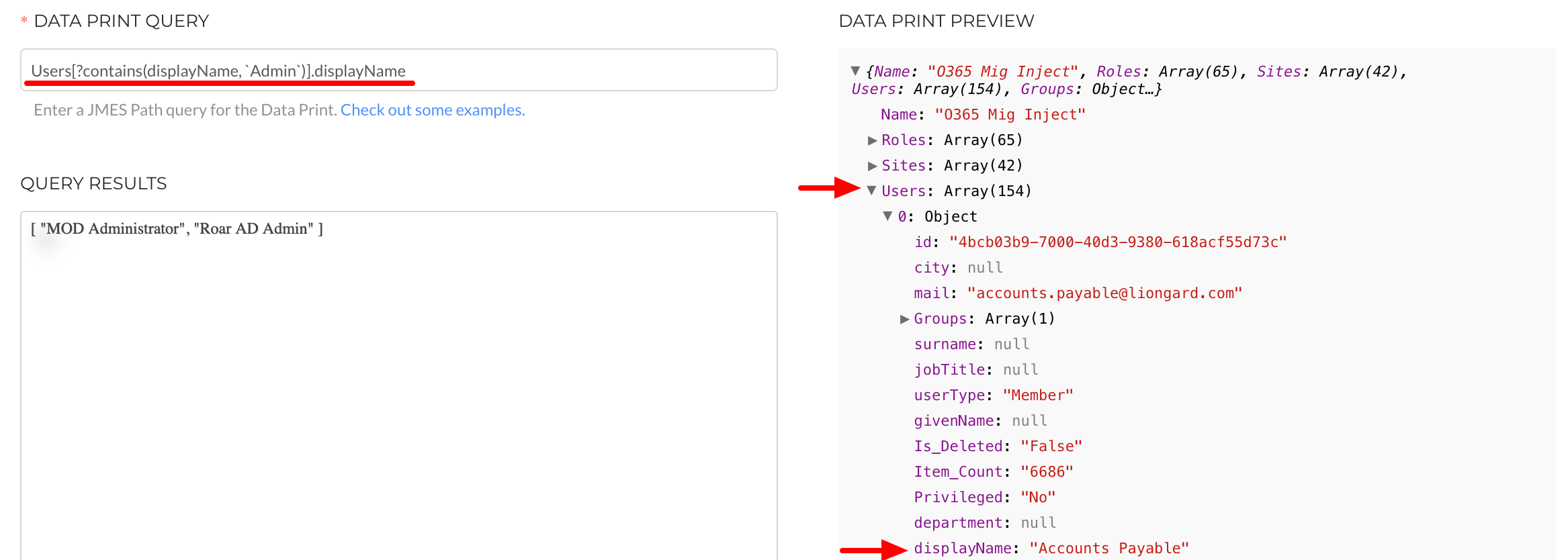
Method #2:
First, start a filter on the Users Array.
Users[? ...]Then, type the Data Print Value for which you'd like to base the Metric query's filter.
Users[?displayName...]Then, follow the Data Print Value with a pipe.
Users[?displayName | ...]Then, type "contains" followed by an open and closed parenthesis.
Users[?displayName | contains(...)]Then, type an at (@) sign within the contains function's parenthesis.
Users[?displayName | contains(@ ...)]Then, follow the at sign with a comma.
Users[?displayName | contains(@, ...)]Then, within backticks, type what you'd like the display name to contain.
Users[?displayName | contains(@, `Admin`)]Lastly, specify which Data Print Value, or list of Data Print Values, would be helpful to know about these users who have "Admin" in their display names.
Users[?displayName | contains(@, `Admin`)].displayName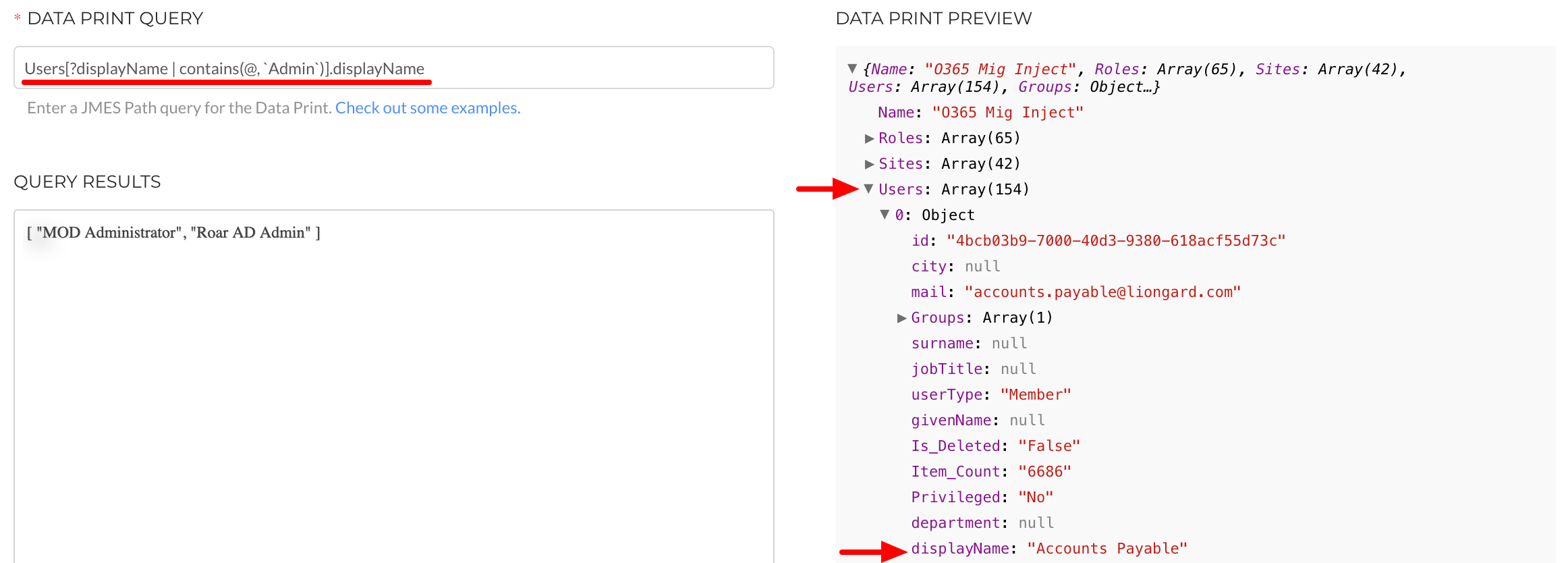
These Metric queries return the display names users who have "Admin" included in their display name.
Join Function
The Join Function allows you to get an Array of Objects into one Object, or get an Array of Objects into one string. Upon using this function, you can specify how you'd like the Array of Objects separated, for example, by a comma, pipe, etc.
Why does this matter? In Liongard, an Array of Objects is displayed as a line separated list:

In Liongard, a list of values within an Object is displayed in one line:

If your Metric query returns a list of Objects, you can decide if you'd like it to be displayed as a line separated list, or a comma, pipe, etc. separated list.
The Join Function allows you to make your Metric query's output to display as a comma, pipe, etc. separated list.
Examples of the Join Function in Action:
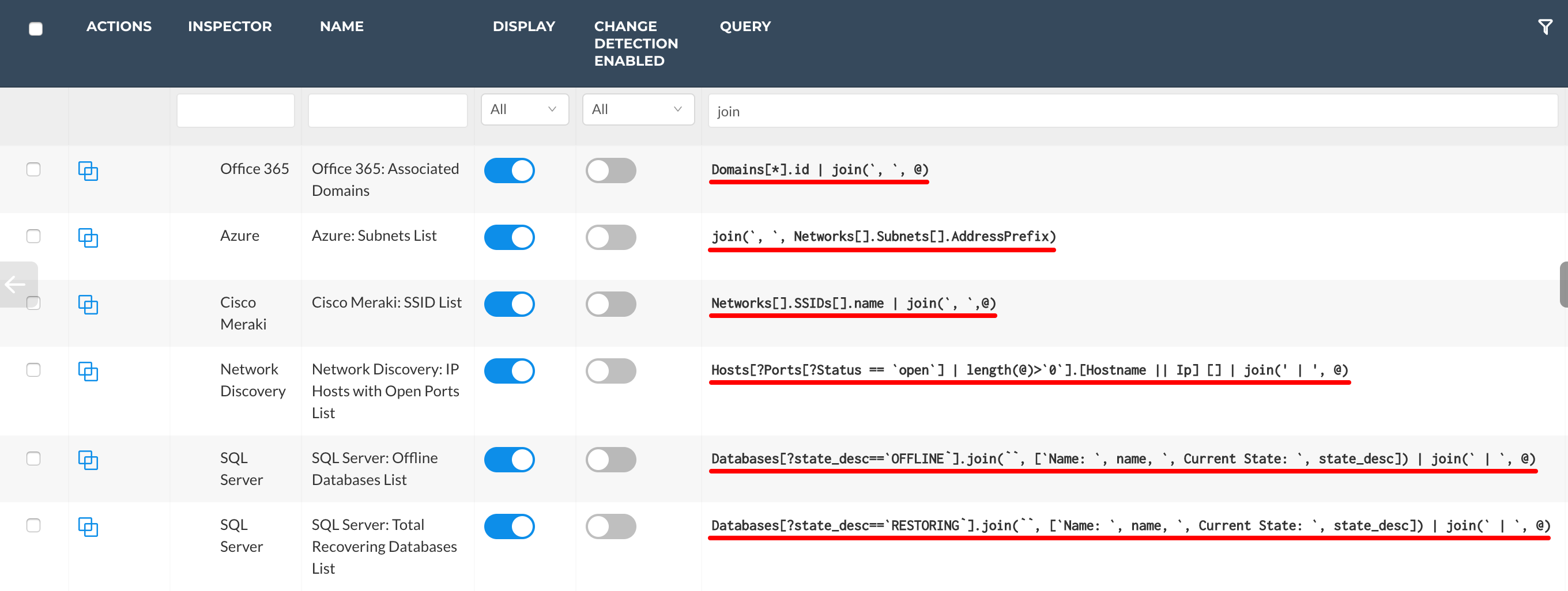
Remember, there are two ways to write functions in JMESPath:
Method #1:
Type "join", and an open and closed parenthesis.
join(...)Within the parenthesis, within backticks, type the characters with which you'd like to separate the returned Objects.
join(`, `...)- Note: Some examples of characters to use for separating your Objects are: a comma and a space, a pipe and a space, etc.
Then, follow the characters with which you'd like to separate the returned Objects with a comma.
join(`, `, ...)Lastly, enter the query for which you'd like to apply the function.
join(`, `, Array[].Data Print Value)Method #2:
First, state the query to which you'd like to apply the function.
Array[].Data Print Value...Then, follow the query with a pipe.
Array[].Data Print Value | ...- Note: The pipe stops the previous query
Then, type "join" and an open and closed parenthesis.
Array[].Data Print Value | join(...)Then, within backticks, type the characters with which you'd like to separate the returned Objects.
Array[].Data Print Value | join(`, `...)- Note: Some examples of characters to use for separating your Objects are: a comma and a space, a pipe and a space, etc.
Then, follow the characters with which you'd like to separate the returned Objects with a comma.
Array[].Data Print Value | join(`, `, ...)Lastly, follow the comma with an at (@) sign.
Array[].Data Print Value | join(`, `, @)- Note: The at (@) sign is assigned the value of the query before the pipe
Real Example:
The goal is to get a pipe separated list of the display names of Microsoft 365 users.
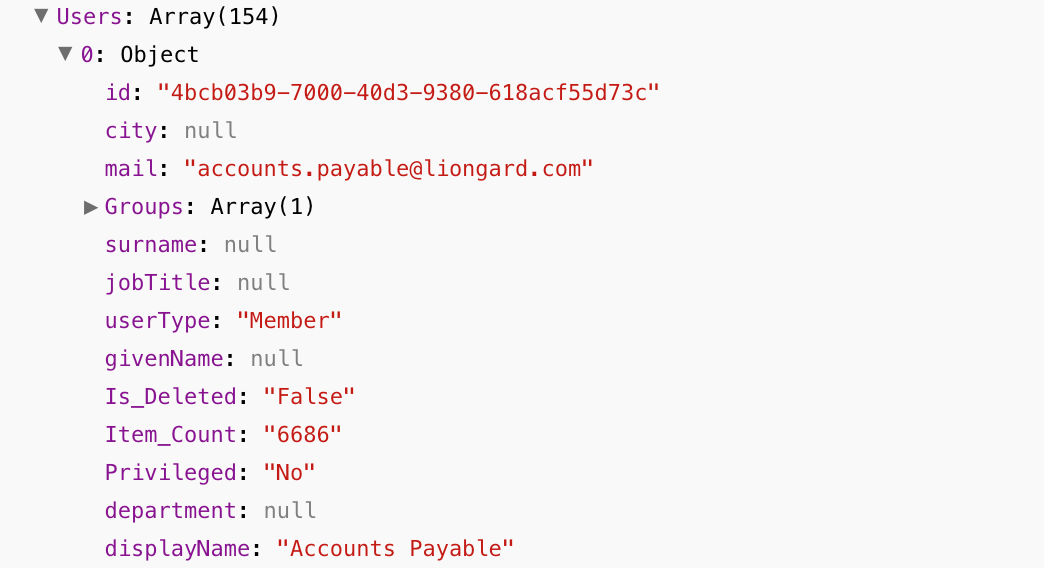
Method #1:
Type "join" and an open and closed parenthesis.
join(...)Within the parenthesis, within backticks, type a pipe and a space.
join(`| `...)Then, follow the characters with which you separated the returned Objects with a comma.
join(`| `, ...)Lastly, enter the query for which you'd like to apply the function.
join(`| `, Users[].displayName)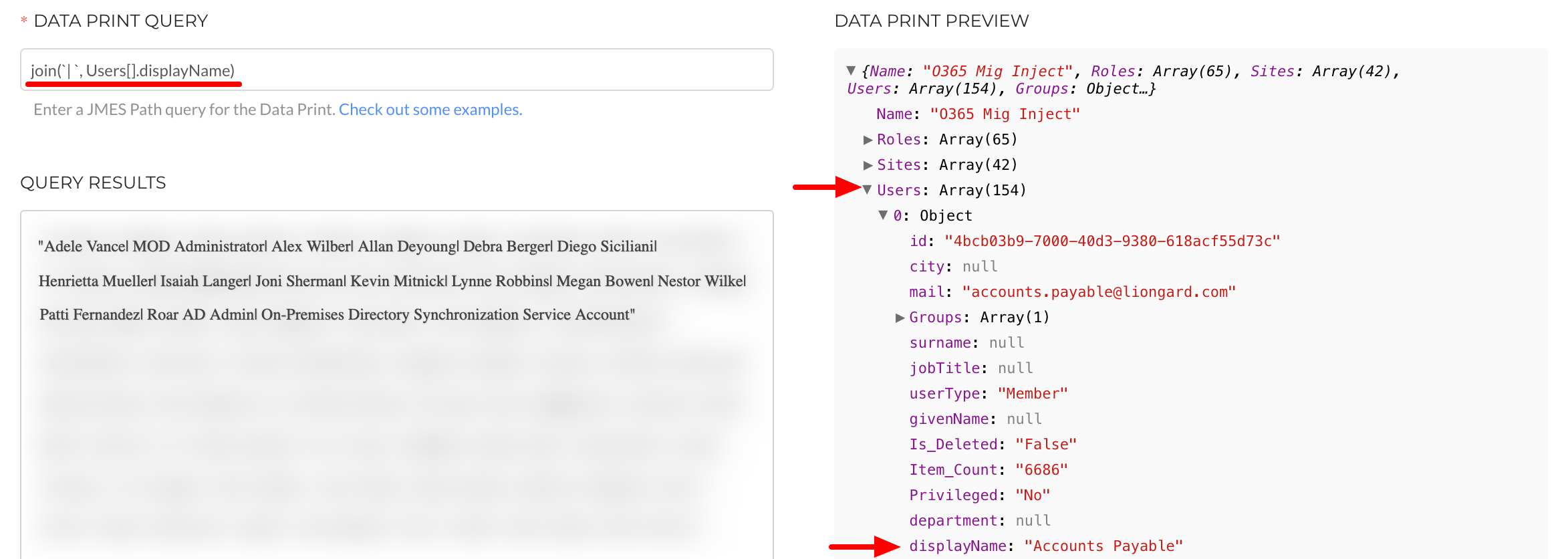
Method #2:
First, state the query to which you'd like to apply the function.
Users[].displayName...Then, follow the query with a pipe.
Users[].displayName | ...- Note: The pipe stops the previous query
Then, type "join" and an open and closed parenthesis.
Users[].displayName | join(...)Then, within backticks, type a pipe and a space.
Users[].displayName | join(`| `...)Then, follow the characters with which you'd like to separate the returned Objects with a comma.
Users[].displayName | join(`| `, ...)Lastly, follow the comma with an at (@) sign.
Users[].displayName | join(`| `, @)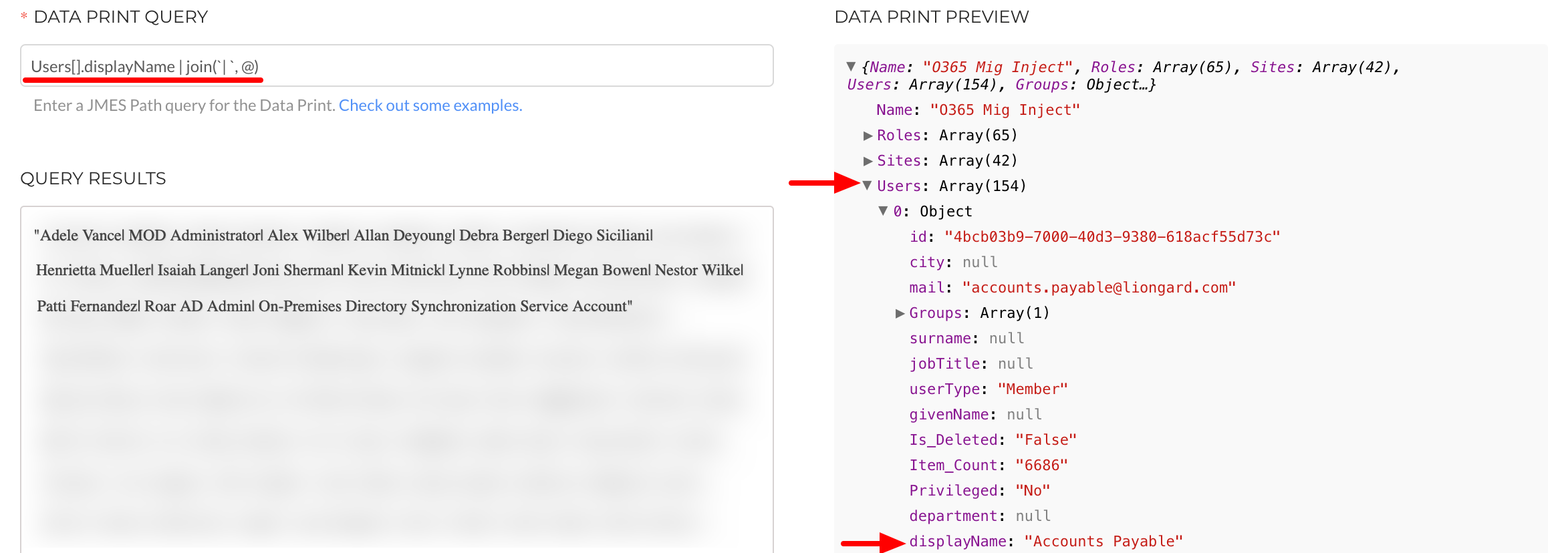
These Metric queries return a pipe separated list of the display names of Microsoft 365 users.
Tip and Trick #3
There are certain special characters that JMESPath cannot process, such as " * ", " ® ", etc.
If these special characters are within the output of a Data Print Value that is referenced in a Metric query, then the Metric query has the potential to fail.
To avoid failure in this case, use the to_string function.
Examples of the to_string Function in Action:
To use the to_string function, simply type "to_string" and envelope the Data Print Value in question in parenthesis.
to_string(Data Print Value)Real Example:
Users[].to_string(displayName)Practice Problems: Functions
Practice Problems: Functions and Filters
JMESPath Documentation
For more information about JMESPath, please check out the documentation linked below: